> ## Documentation Index
> Fetch the complete documentation index at: https://docs.incredibuild.com/llms.txt
> Use this file to discover all available pages before exploring further.
# Creating an Azure Budget for Incredibuild Cloud
You can create a budget in Azure portal to control and manage the costs involved in running Incredibuild Cloud solution. This budget is set at the subscription level, and it includes alerts that are triggered when a certain percentage of the budget amount has been reached. When an alert is triggered, you receive an email notification about the current state of your budget. You can also set the alerts to preforms different actions on the solution, once a certain budget threshold is met or exceeded.
Notes
* It is recommended to set the budget for Incredibuild Cloud before activating the solution.
* For more information on Azure budgets, see:[https://docs.microsoft.com/en-us/azure/cost-management/tutorial-acm-create-budgets](https://docs.microsoft.com/en-us/azure/cost-management/tutorial-acm-create-budgets)
## To create an Azure budget for Incredibuild Cloud:
1. Sign in to Azure portal with the same account you will use for Incredibuild Cloud:[https://azure.microsoft.com/en-us/features/azure-portal/](https://azure.microsoft.com/en-us/features/azure-portal/)
2. Open the **Subscriptions** page and select the subscription you are using for Incredibuild Cloud
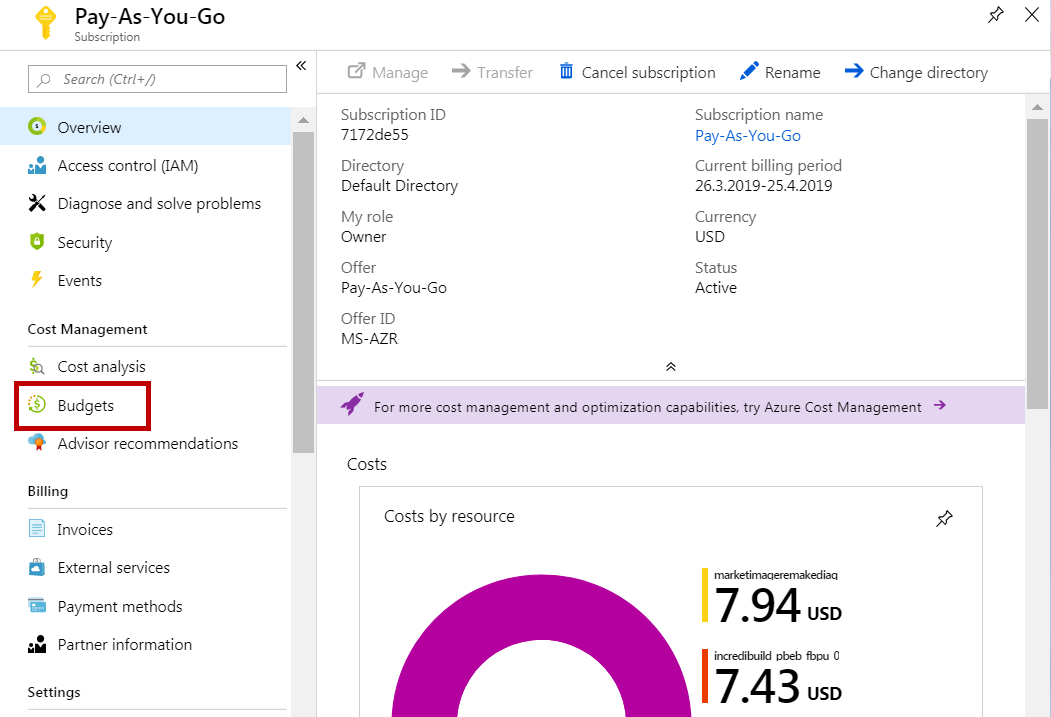
 3. On the selected subscription page, select **Budgets**:
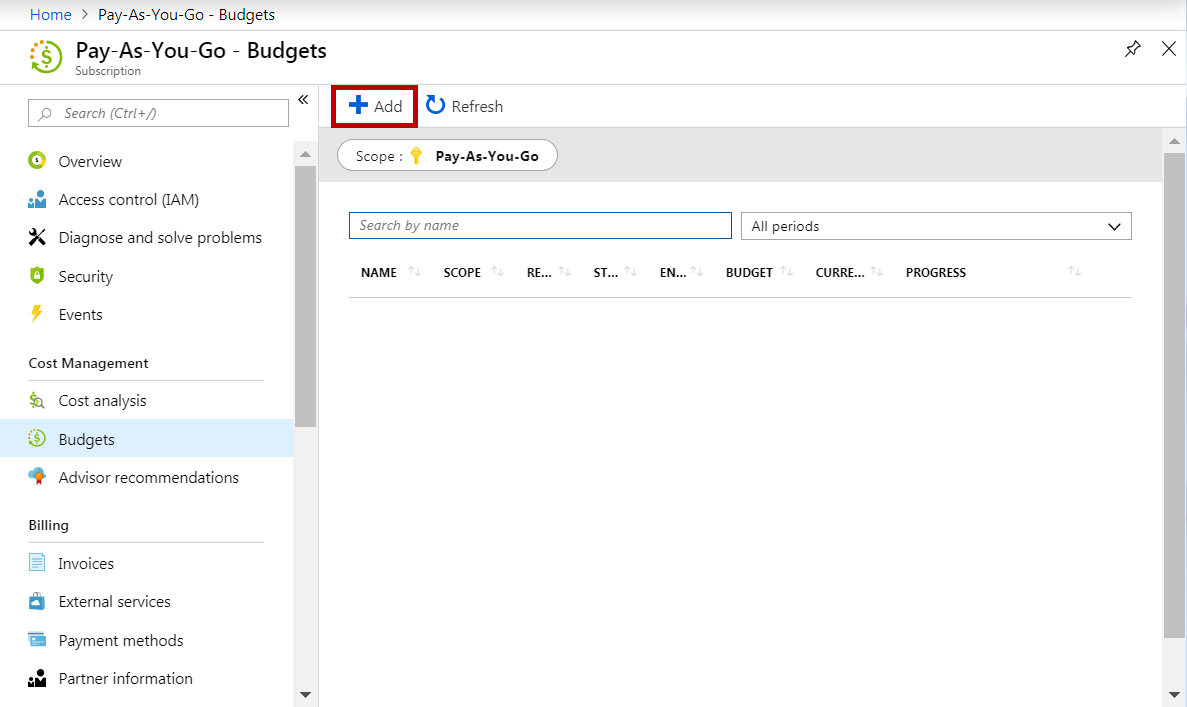
 4. On the **Budgets** page, click **Add**.
 5. On the **Create budget** pane, set the new budget as follows:
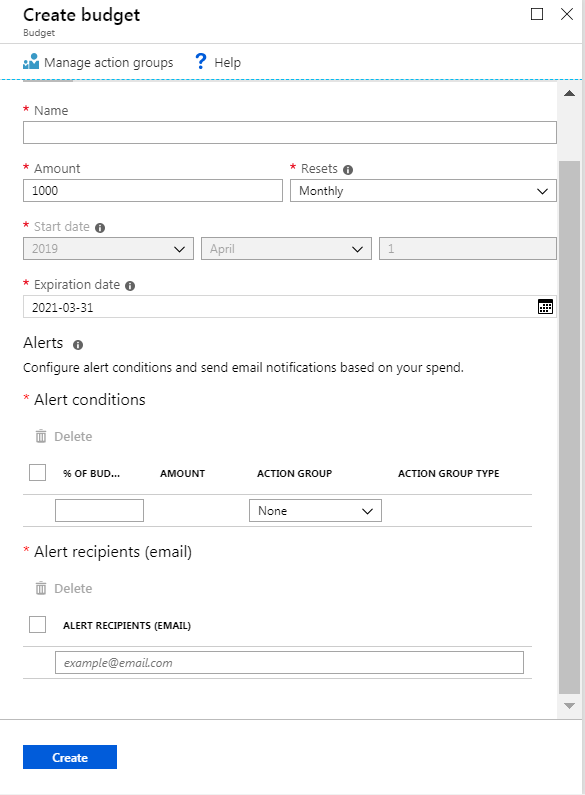 * **Name** – enter a name for the new budget.
* **Amount** – enter an amount for the new budget.
* **Resets** – select the duration period of the budget.
* **Start Date and Expiration Date** – enter dates for the budget duration period.
* **Alert conditions** – set one or more thresholds for triggering budget alerts, by entering a number in the **% OF BUDGET** A threshold is a certain percentage of the budget amount. When a threshold is met, an alert is triggered, and an email is sent to your recipients. For example, if your budget amount is 1000, and you enter 90 in the **% OF BUDGET** field, when the budget amount will reach 900, an email notification will be sent.
* In addition to sending emails when budget alerts are triggered, you can define additional actions that will be automatically performed when an alert threshold is exceeded. To create actions for the alerts, click the **Manage action group** button below the **Create Budget** caption. The action groups that are defined in the subscription, will appear in the **Alert conditions** – **ACTION** **GROUP** drop-down list:
* **Name** – enter a name for the new budget.
* **Amount** – enter an amount for the new budget.
* **Resets** – select the duration period of the budget.
* **Start Date and Expiration Date** – enter dates for the budget duration period.
* **Alert conditions** – set one or more thresholds for triggering budget alerts, by entering a number in the **% OF BUDGET** A threshold is a certain percentage of the budget amount. When a threshold is met, an alert is triggered, and an email is sent to your recipients. For example, if your budget amount is 1000, and you enter 90 in the **% OF BUDGET** field, when the budget amount will reach 900, an email notification will be sent.
* In addition to sending emails when budget alerts are triggered, you can define additional actions that will be automatically performed when an alert threshold is exceeded. To create actions for the alerts, click the **Manage action group** button below the **Create Budget** caption. The action groups that are defined in the subscription, will appear in the **Alert conditions** – **ACTION** **GROUP** drop-down list:
 For more information on creating alert actions, see Azure's documentation on [billing and cost management](https://docs.microsoft.com/en-us/azure/cost-management-billing/manage/cost-management-budget-scenario) and [common alert schema](https://docs.microsoft.com/he-il/azure/azure-monitor/alerts/alerts-common-schema).
* **Alert recipients (email)** – enter one or more emails of the recipients of the alert notifications. It is recommended to include the email of the user that activates Incredibuild Cloud solution.
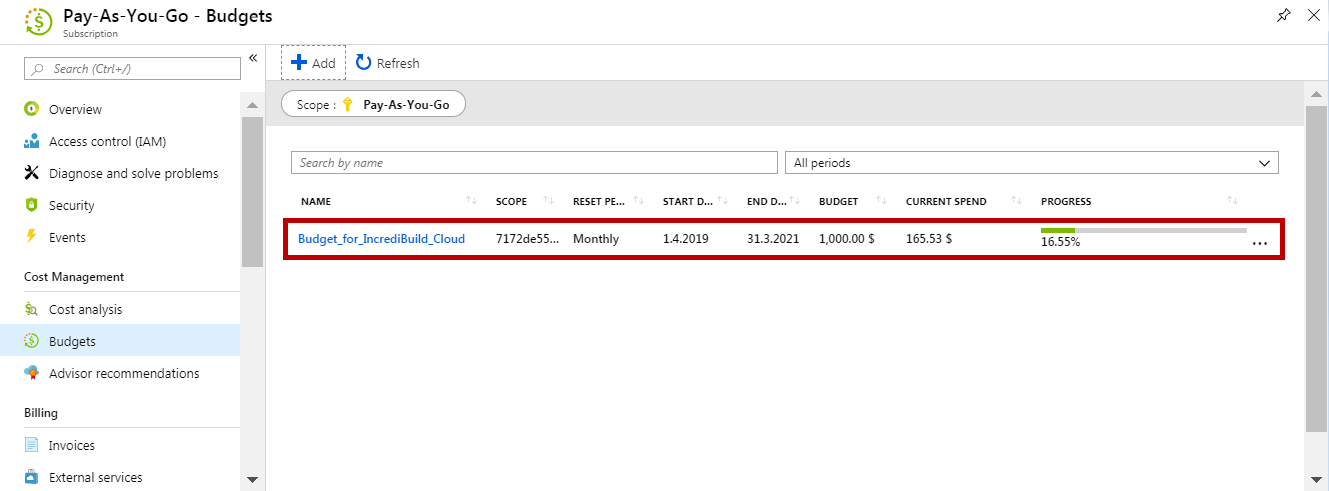
6. Once you filled in all the required fields, click **Create**. Your new budget for Incredibuild Cloud is created, and it appears on the **Budgets** page of the subscription:
For more information on creating alert actions, see Azure's documentation on [billing and cost management](https://docs.microsoft.com/en-us/azure/cost-management-billing/manage/cost-management-budget-scenario) and [common alert schema](https://docs.microsoft.com/he-il/azure/azure-monitor/alerts/alerts-common-schema).
* **Alert recipients (email)** – enter one or more emails of the recipients of the alert notifications. It is recommended to include the email of the user that activates Incredibuild Cloud solution.
6. Once you filled in all the required fields, click **Create**. Your new budget for Incredibuild Cloud is created, and it appears on the **Budgets** page of the subscription: