> ## Documentation Index
> Fetch the complete documentation index at: https://docs.incredibuild.com/llms.txt
> Use this file to discover all available pages before exploring further.
# Editing Cloud Settings
When onboarding Incredibuild Cloud, you specify many settings such as the ports used to manage various types of communications, type of VMs to use on your cloud provider, and the email to use when sending you notifications. Most of these settings can be changed after onboarding by returning the settings tab and making any changes you want. However, some of these settings may be grayed out and display a message that additional steps are required. These settings require the creation of new virtual machines. For example, in order to change the type of VM from 64 cores to 32 cores, we need to remove the current VMs and create new ones.
During this process, there will be a few minutes of downtime for your cloud helpers. If an initiator is currently in the middle of running a build, no data will be lost. However, this might slow down their build. Therefore, if something critical is currently running we recommend waiting for it to finish before starting this process.
## How to Change Settings that Require New VMs
This procedure differs depending on your version of Incredibuild
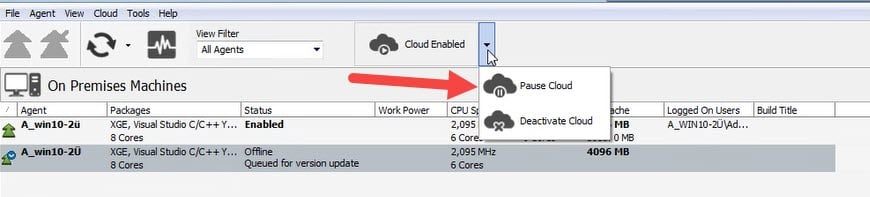
1. In your Coordinator Monitor, go to the **Cloud Enabled** menu and click **Pause Cloud**.
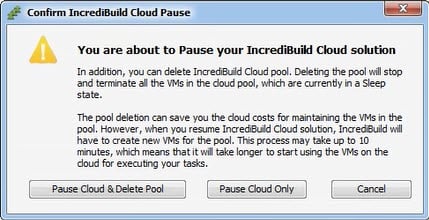
 2. Click **Pause Cloud and Delete Pool**.
 3. Go to **Cloud** > **Edit Incredibuild Cloud Settings**.
 4. Change the required settings and save your changes. Incredibuild will create new VMs in your cloud provider with the new settings. This may take a few minutes. When it is complete continue with the next step.
5. In the **Cloud Paused** menu, click **Resume Cloud**.
4. Change the required settings and save your changes. Incredibuild will create new VMs in your cloud provider with the new settings. This may take a few minutes. When it is complete continue with the next step.
5. In the **Cloud Paused** menu, click **Resume Cloud**.
 1. In your Coordinator, go to **Settings** > **Cloud**.
2. In the menu options, click **Pause Cloud**.
1. In your Coordinator, go to **Settings** > **Cloud**.
2. In the menu options, click **Pause Cloud**.
 3. Click the checkbox to delete your VMs, and click **Pause**.
 4. Open the Cloud **Settings**.
 5. Change the required settings and save your changes. Incredibuild will create new VMs in your cloud provider with the new settings. This may take a few minutes. When it is complete continue with the next step.
6. Go back to the Coordinator and click **Resume Cloud**.
5. Change the required settings and save your changes. Incredibuild will create new VMs in your cloud provider with the new settings. This may take a few minutes. When it is complete continue with the next step.
6. Go back to the Coordinator and click **Resume Cloud**.
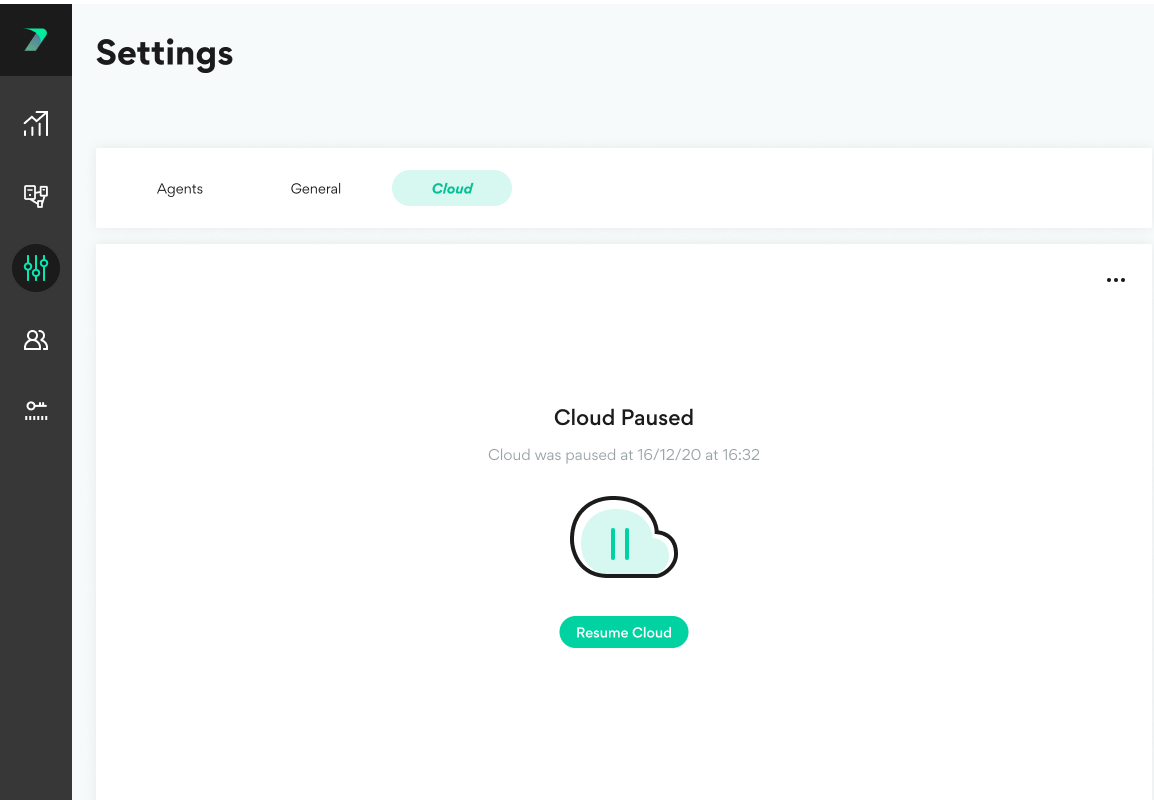 1. In your Coordinator, expand the **Cloud Enabled** options and click **Pause**.
 2. Click **Pause and Delete**.
 3. After the status changes to **Cloud Paused**, click **Edit Cloud Settings**.
 4. Change the required settings and save your changes. Incredibuild will create new VMs in your cloud provider with the new settings. This may take a few minutes. When it is complete continue with the next step.
5. In the Coordinator, go to the **Cloud Paused** options and click **Resume**.
4. Change the required settings and save your changes. Incredibuild will create new VMs in your cloud provider with the new settings. This may take a few minutes. When it is complete continue with the next step.
5. In the Coordinator, go to the **Cloud Paused** options and click **Resume**.
