> ## Documentation Index
> Fetch the complete documentation index at: https://docs.incredibuild.com/llms.txt
> Use this file to discover all available pages before exploring further.
# Obtaining GCP Login Details
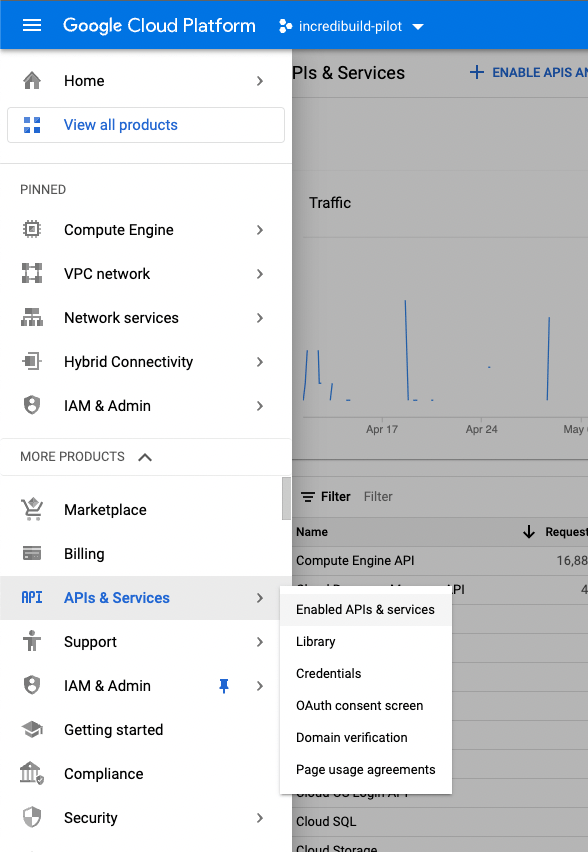 To enable Incredibuild Cloud to work with GCP, you need to provide the following login details during the activation of Incredibuild Cloud:
* **Project ID**
* **Service Account ID**
You also need to enable some APIs in the target GCP project.
**Note:** GCP's user interface may have changed since this was last updated on July 15th, 2024.
1. In GCP, go to the target project.
2. Go to **IAM & Admin** > **Service Accounts** > **Create Service Account**. Enter the requested details and save the service account ID, you will need it later. Click **Done**.
To enable Incredibuild Cloud to work with GCP, you need to provide the following login details during the activation of Incredibuild Cloud:
* **Project ID**
* **Service Account ID**
You also need to enable some APIs in the target GCP project.
**Note:** GCP's user interface may have changed since this was last updated on July 15th, 2024.
1. In GCP, go to the target project.
2. Go to **IAM & Admin** > **Service Accounts** > **Create Service Account**. Enter the requested details and save the service account ID, you will need it later. Click **Done**.
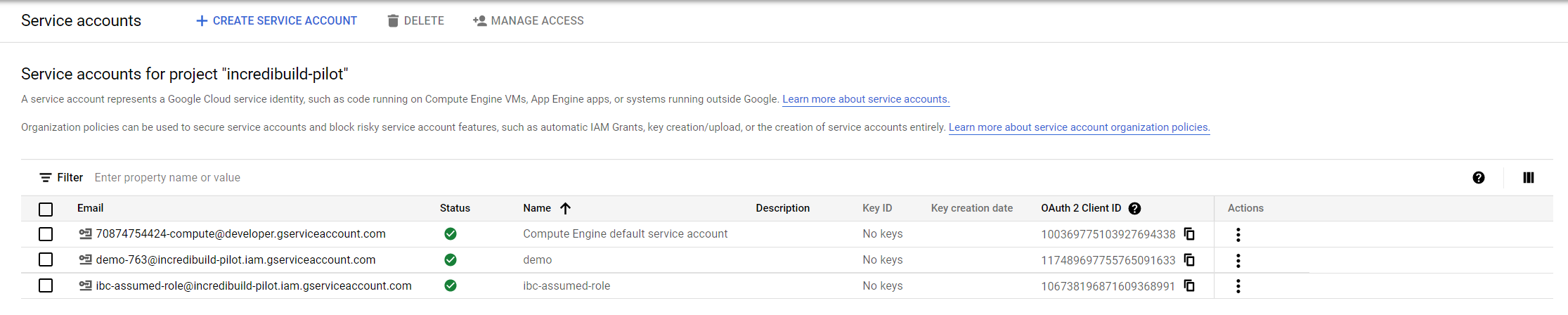 3. In the list of Service Accounts, click the **Service Account** you just created and go to **Permissions**.
4. Grant access to the “**New Principal**” **[incredicloud@ib-cloud.iam.gserviceaccount.com](mailto:incredicloud@ib-cloud.iam.gserviceaccount.com)** with the role “**Service Account Token Creator**”.
5. Create a role with the permissions required by Incredibuild:
3. In the list of Service Accounts, click the **Service Account** you just created and go to **Permissions**.
4. Grant access to the “**New Principal**” **[incredicloud@ib-cloud.iam.gserviceaccount.com](mailto:incredicloud@ib-cloud.iam.gserviceaccount.com)** with the role “**Service Account Token Creator**”.
5. Create a role with the permissions required by Incredibuild:
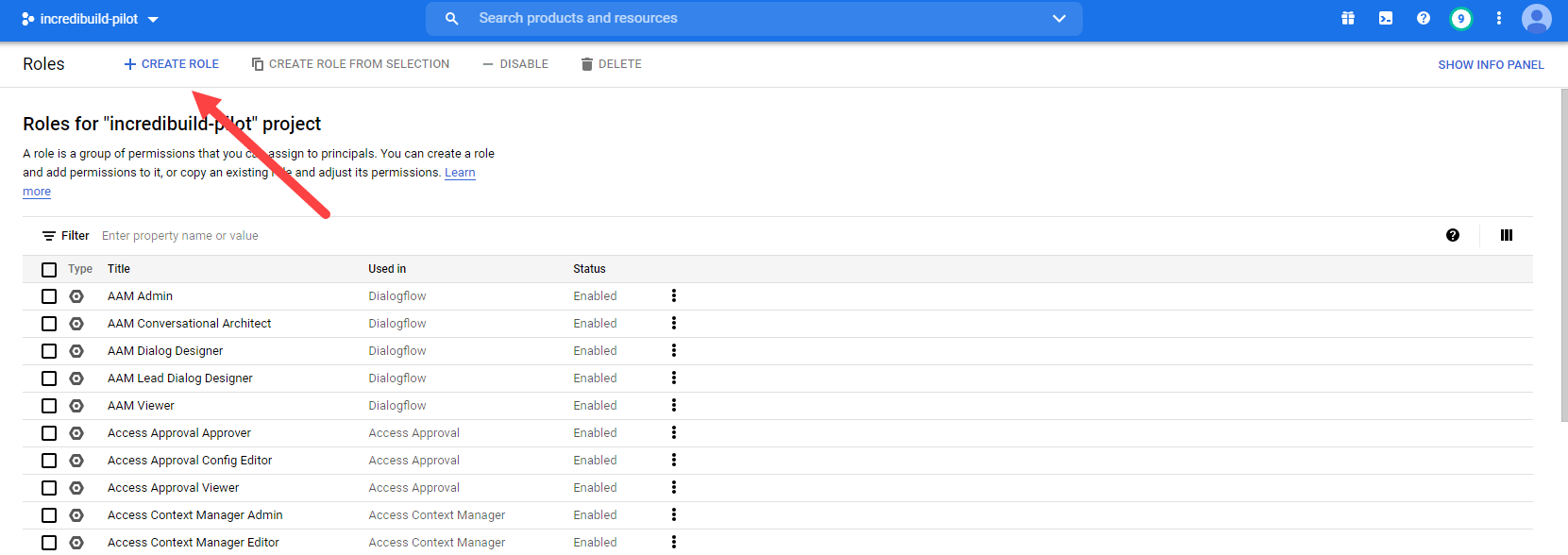 1. Go to the Roles area and create a new role.
2. Enter a **Title** and an **ID** (you will need these later)
1. Go to the Roles area and create a new role.
2. Enter a **Title** and an **ID** (you will need these later)
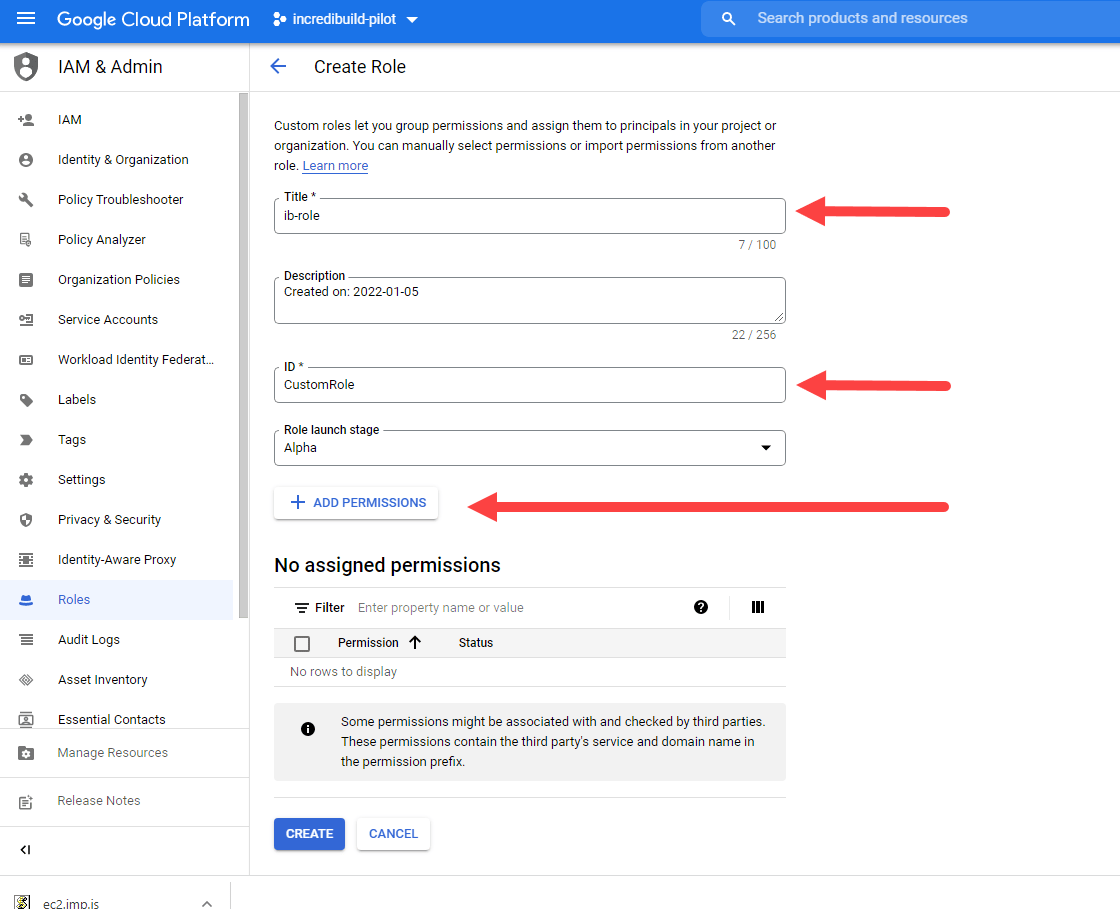 3. Add the following permissions:
* compute.disks.create
* compute.disks.delete
* compute.disks.get
* compute.disks.list
* compute.firewalls.create
* compute.firewalls.delete
* compute.firewalls.get
* compute.firewalls.list
* compute.firewalls.update
* compute.globalOperations.get
* compute.globalOperations.list
* compute.instanceGroupManagers.create
* compute.instanceGroupManagers.delete
* compute.instanceGroupManagers.get
* compute.instanceGroupManagers.list
* compute.instanceGroupManagers.update
* compute.instanceGroupManagers.use
* compute.instanceGroups.delete
* compute.instanceTemplates.create
* compute.instanceTemplates.delete
* compute.instanceTemplates.get
* compute.instanceTemplates.list
* compute.instanceTemplates.useReadOnly
* compute.instances.attachDisk
* compute.instances.create
* compute.instances.delete
* compute.instances.get
* compute.instances.list
* compute.instances.reset
* compute.instances.resume
* compute.instances.setLabels
* compute.instances.setMetadata
* compute.instances.setServiceAccount
* compute.instances.setTags
* compute.instances.start
* compute.instances.stop
* compute.instances.suspend
* compute.instances.update
* compute.networks.create
* compute.networks.delete
* compute.networks.get
* compute.networks.list
* compute.networks.updatePolicy
* compute.projects.get
* compute.regionOperations.get
* compute.regionOperations.list
* compute.regions.get
* compute.regions.list
* compute.subnetworks.create
* compute.subnetworks.delete
* compute.subnetworks.get
* compute.subnetworks.list
* compute.subnetworks.use
* compute.subnetworks.useExternalIp
* compute.zoneOperations.get
* compute.zoneOperations.list
* resourcemanager.projects.get
4. Click **Create** to create the role.
5. Go to **IAM** > **Grant Access** to add a new Principal.
6. In **New principals**, enter the new service account ID that you created earlier. Assign it the role you just created.
3. Add the following permissions:
* compute.disks.create
* compute.disks.delete
* compute.disks.get
* compute.disks.list
* compute.firewalls.create
* compute.firewalls.delete
* compute.firewalls.get
* compute.firewalls.list
* compute.firewalls.update
* compute.globalOperations.get
* compute.globalOperations.list
* compute.instanceGroupManagers.create
* compute.instanceGroupManagers.delete
* compute.instanceGroupManagers.get
* compute.instanceGroupManagers.list
* compute.instanceGroupManagers.update
* compute.instanceGroupManagers.use
* compute.instanceGroups.delete
* compute.instanceTemplates.create
* compute.instanceTemplates.delete
* compute.instanceTemplates.get
* compute.instanceTemplates.list
* compute.instanceTemplates.useReadOnly
* compute.instances.attachDisk
* compute.instances.create
* compute.instances.delete
* compute.instances.get
* compute.instances.list
* compute.instances.reset
* compute.instances.resume
* compute.instances.setLabels
* compute.instances.setMetadata
* compute.instances.setServiceAccount
* compute.instances.setTags
* compute.instances.start
* compute.instances.stop
* compute.instances.suspend
* compute.instances.update
* compute.networks.create
* compute.networks.delete
* compute.networks.get
* compute.networks.list
* compute.networks.updatePolicy
* compute.projects.get
* compute.regionOperations.get
* compute.regionOperations.list
* compute.regions.get
* compute.regions.list
* compute.subnetworks.create
* compute.subnetworks.delete
* compute.subnetworks.get
* compute.subnetworks.list
* compute.subnetworks.use
* compute.subnetworks.useExternalIp
* compute.zoneOperations.get
* compute.zoneOperations.list
* resourcemanager.projects.get
4. Click **Create** to create the role.
5. Go to **IAM** > **Grant Access** to add a new Principal.
6. In **New principals**, enter the new service account ID that you created earlier. Assign it the role you just created.
 8. Enable the required APIs as follows:
1. Go to **APIs & Services** > **Enable APIs & Services**.
2. Search for the **Cloud Resource Manager API** and click **Enable**.
3. Search for the **Computer Engine API** and click **Enable**.
## Working with Shared VPCs
If you are using a shared VPC in your GCP account, you need to ensure that the project you created above is able to access your VPC.
1. In the project managing the shared VPC, go to **VPC Networks** > **Shared VPC** area and click **Add Principal**.
8. Enable the required APIs as follows:
1. Go to **APIs & Services** > **Enable APIs & Services**.
2. Search for the **Cloud Resource Manager API** and click **Enable**.
3. Search for the **Computer Engine API** and click **Enable**.
## Working with Shared VPCs
If you are using a shared VPC in your GCP account, you need to ensure that the project you created above is able to access your VPC.
1. In the project managing the shared VPC, go to **VPC Networks** > **Shared VPC** area and click **Add Principal**.
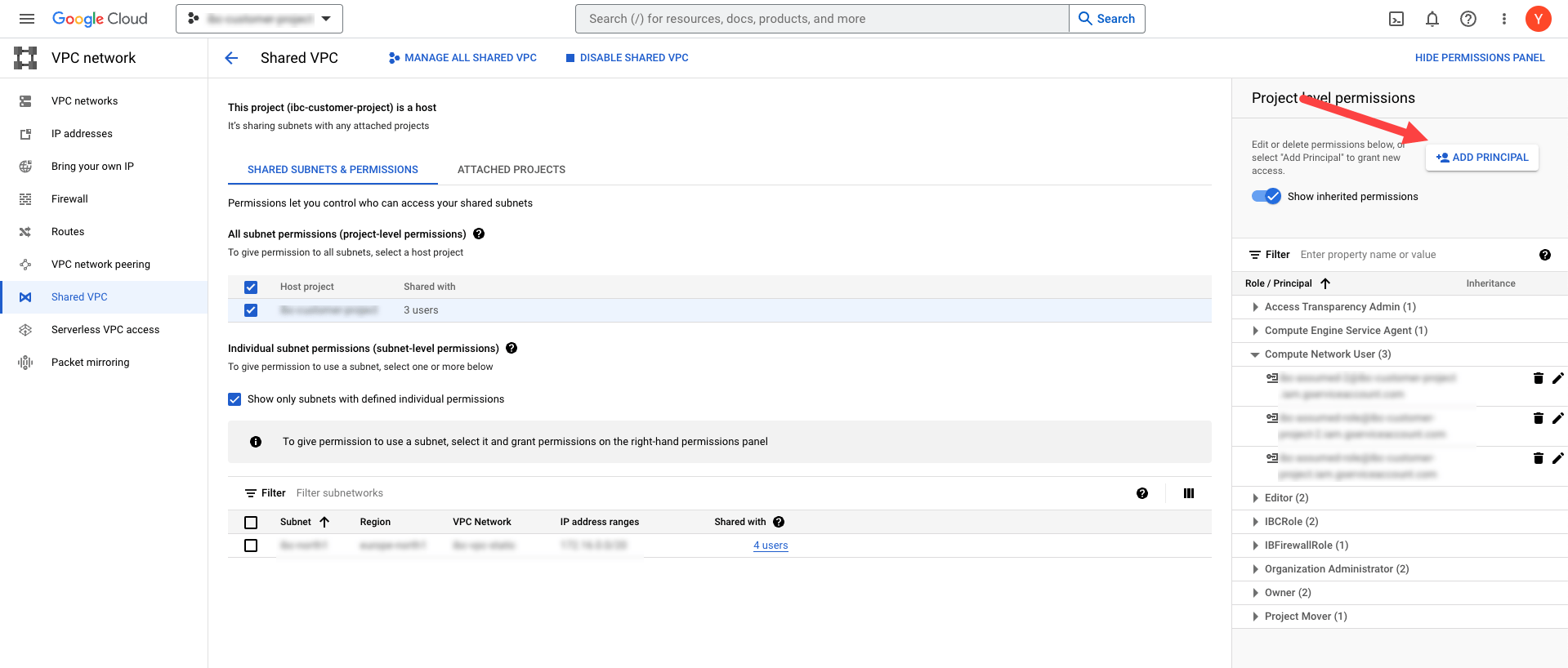 2. As the new principal, enter the service account from the project that is used for Incredibuild Cloud VMs that you created above, and give it the role **Compute Network User**.\\
 3. If you want Incredibuild to manage your firewall rules, create a custom role with the following permissions on the project managing your VPC. This is optional and will not cause Incredibuild to fail, but will require firewall rules to be configured manually if not done.
* compute.firewalls.create
* compute.firewalls.delete
* compute.firewalls.get
* compute.firewalls.list
* compute.firewalls.update
* compute.networks.updatePolicy
## Troubleshooting
In some cases, the custom role does not function as expected due to a GCP issue. In this case, add a standard GCP role called viewer to your service account. After onboarding has been verified, this role can be deleted. If this does not resolve the issue, contact [support@incredibuild.com](mailto:support@incredibuild.com).
3. If you want Incredibuild to manage your firewall rules, create a custom role with the following permissions on the project managing your VPC. This is optional and will not cause Incredibuild to fail, but will require firewall rules to be configured manually if not done.
* compute.firewalls.create
* compute.firewalls.delete
* compute.firewalls.get
* compute.firewalls.list
* compute.firewalls.update
* compute.networks.updatePolicy
## Troubleshooting
In some cases, the custom role does not function as expected due to a GCP issue. In this case, add a standard GCP role called viewer to your service account. After onboarding has been verified, this role can be deleted. If this does not resolve the issue, contact [support@incredibuild.com](mailto:support@incredibuild.com).