> ## Documentation Index
> Fetch the complete documentation index at: https://docs.incredibuild.com/llms.txt
> Use this file to discover all available pages before exploring further.
# Pausing and Resuming Incredibuild Cloud
Pausing Incredibuild Cloud means that the Coordinator will no longer use any Cloud Helper VMs unless you resume.
During the pause period, the VMs are kept in a state of hybernation (or "stopped" in azure). To save on costs, you can also delete the Incredibuild Cloud pool of VMs, but we only recommend this if you plan to pause for a significant amount of time.
If you delete the pool during the pause period, when you will resume Incredibuild Cloud, the pool will be re-created based on your settings.
This procedure differs slightly depending on which version of Incredibuild you are using.
### Pausing Incredibuild Cloud
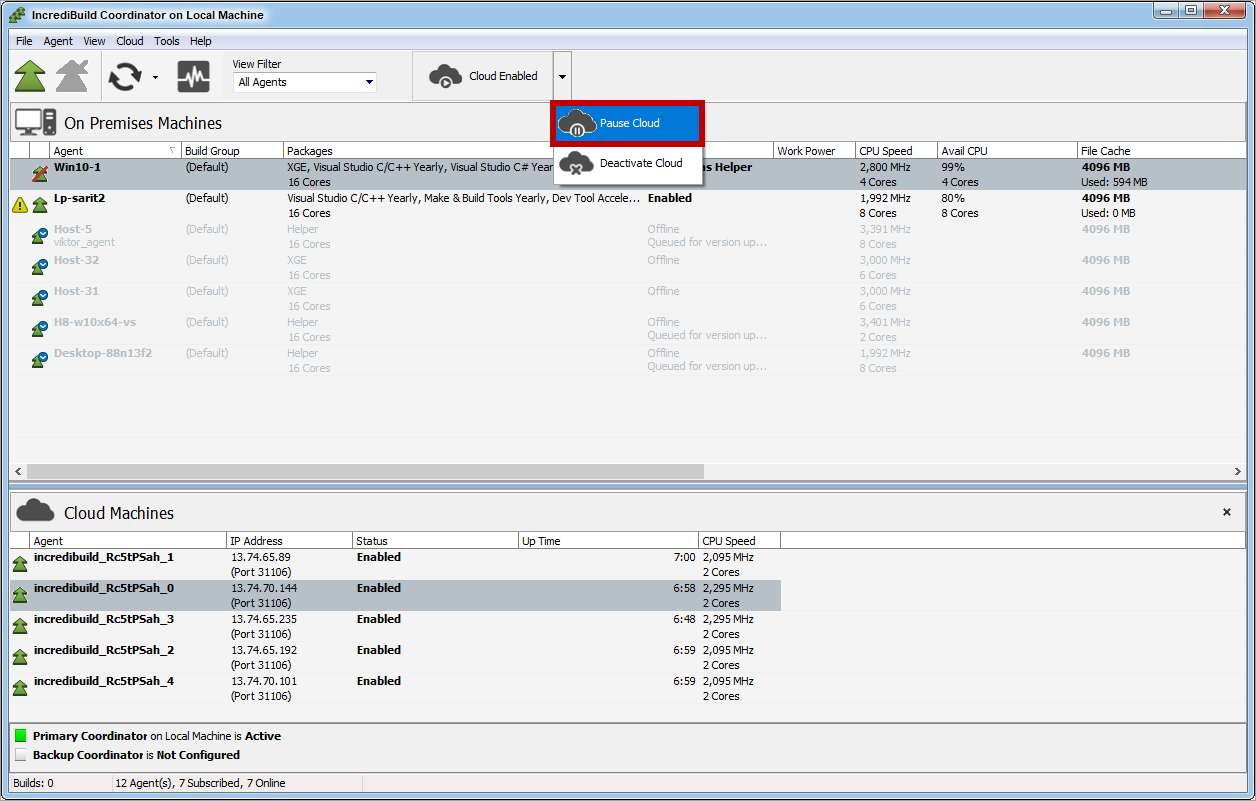
 1. On the upper bar of the Coordinator Monitor, open the Cloud drop-down list, and select the **Pause Cloud** option:
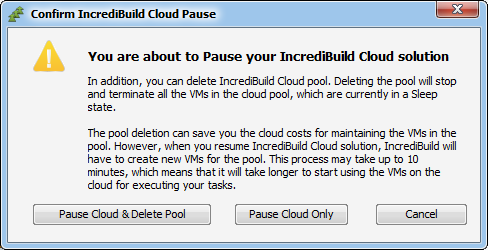
 2. On the **Pause** confirmation message, select one of the following:
 ### Resuming Incredibuild Cloud
 After you pause Incredibuild Cloud, you can resume its operation. If you deleted Incredibuild Cloud pool as part of the pause action, the pool will be re-created automatically. This process may take up to 10 minutes.
On the upper bar of the Coordinator Monitor, open the Cloud drop-down list, and select the **Resume Cloud** option:
After you pause Incredibuild Cloud, you can resume its operation. If you deleted Incredibuild Cloud pool as part of the pause action, the pool will be re-created automatically. This process may take up to 10 minutes.
On the upper bar of the Coordinator Monitor, open the Cloud drop-down list, and select the **Resume Cloud** option:
 ### Pausing Incredibuild Cloud
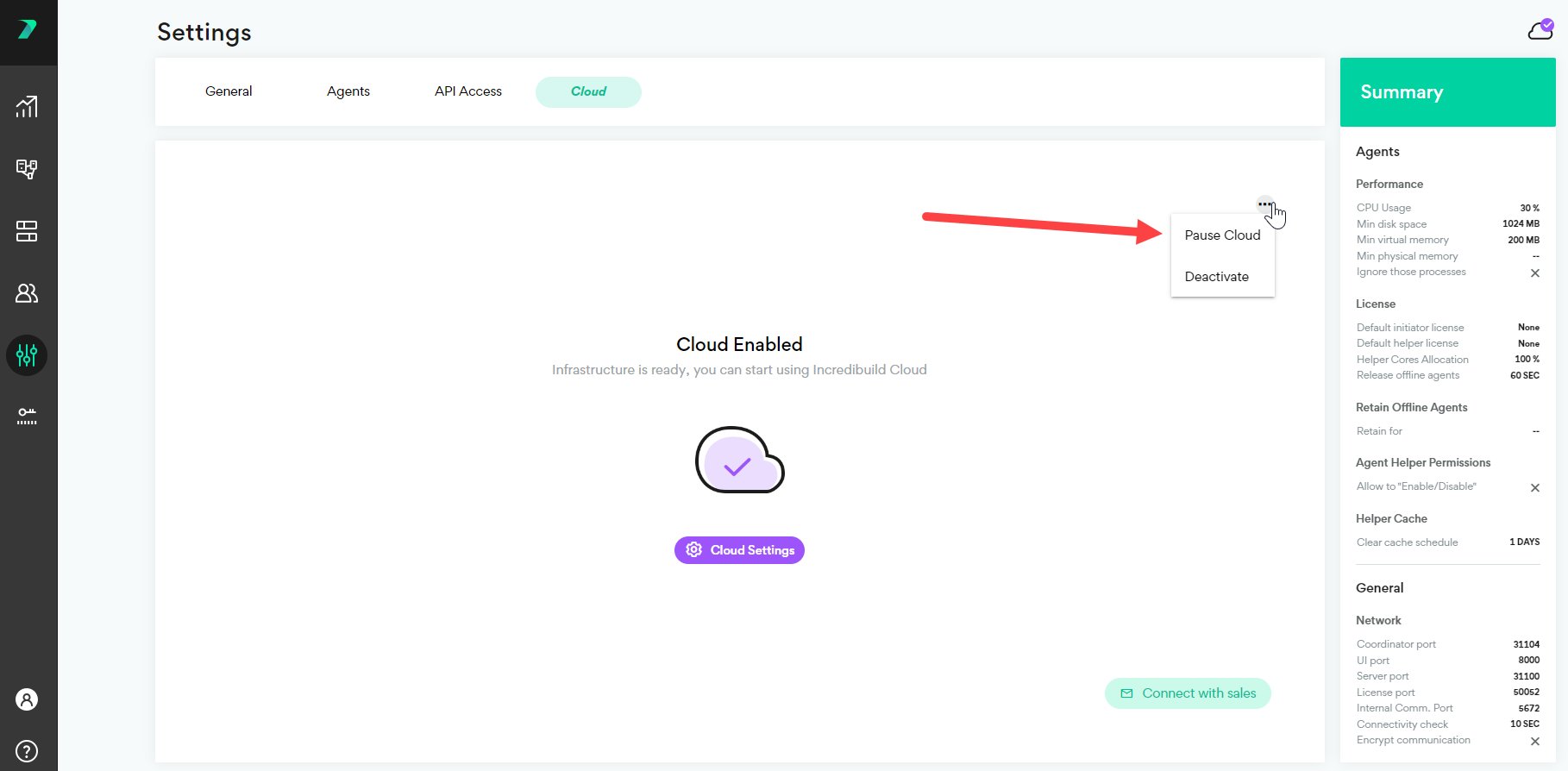
1. On the upper bar of the Coordinator Monitor, open the Cloud drop-down list, and select the **Pause Cloud** option:
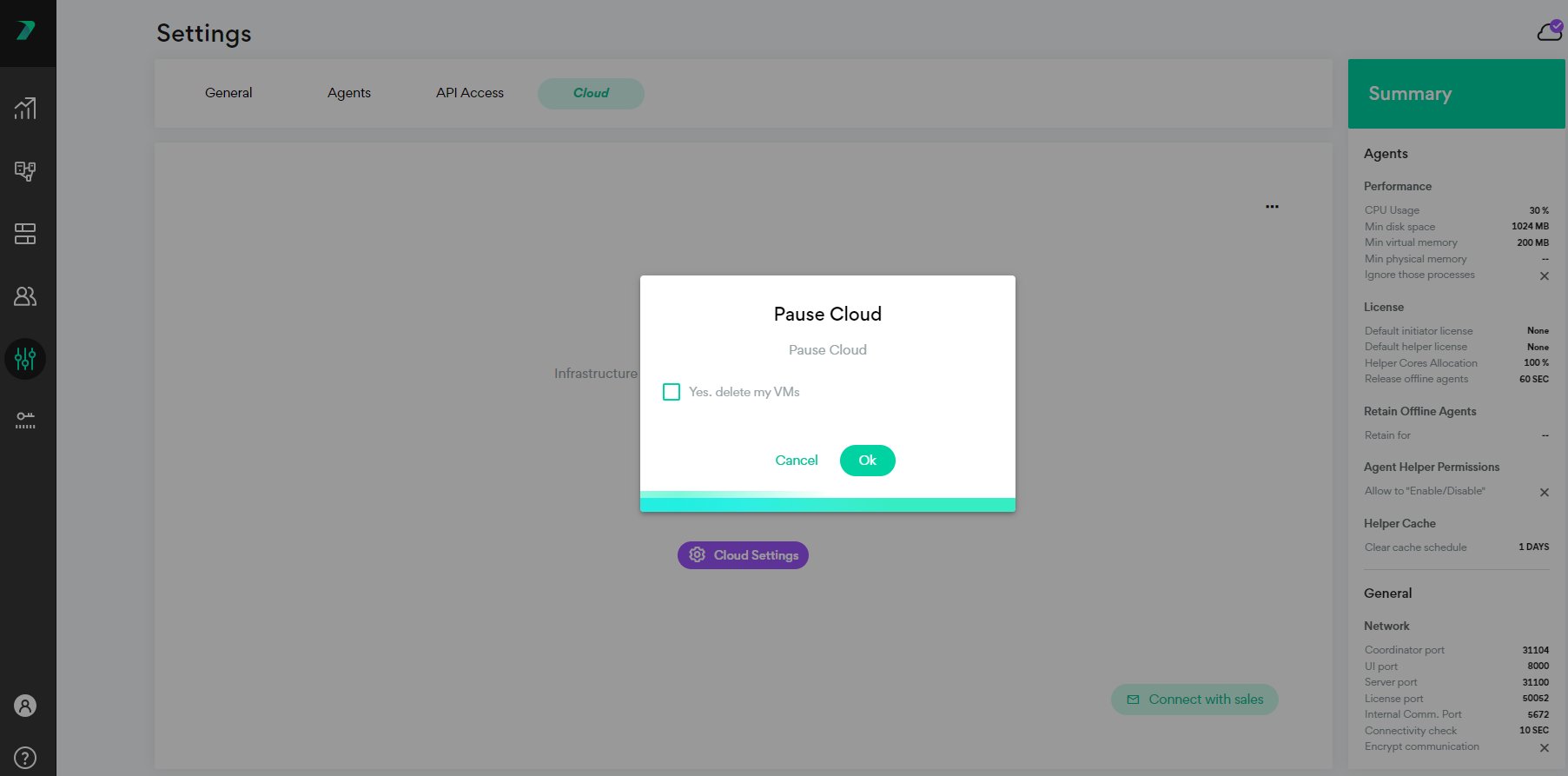
2. On the **Pause** confirmation message, if you do not check the box and click **Ok**, your cloud environment will be paused. If you also check the box, your environment will be paused and your VMs will be deleted.
### Resuming Incredibuild Cloud
After you pause Incredibuild Cloud, you can resume its operation. If you deleted Incredibuild Cloud pool as part of the pause action, the pool will be re-created automatically. This process may take up to 10 minutes.
In the **Coordinator Manager** > **Cloud** tab, click **Resume Cloud.**
### Pausing Incredibuild Cloud
1. On the upper bar of the Coordinator Monitor, open the Cloud drop-down list, and select the **Pause Cloud** option:
2. On the **Pause** confirmation message, if you do not check the box and click **Ok**, your cloud environment will be paused. If you also check the box, your environment will be paused and your VMs will be deleted.
### Resuming Incredibuild Cloud
After you pause Incredibuild Cloud, you can resume its operation. If you deleted Incredibuild Cloud pool as part of the pause action, the pool will be re-created automatically. This process may take up to 10 minutes.
In the **Coordinator Manager** > **Cloud** tab, click **Resume Cloud.**