> ## Documentation Index
> Fetch the complete documentation index at: https://docs.incredibuild.com/llms.txt
> Use this file to discover all available pages before exploring further.
# Azure Core Quota
During the solution activation procedure, you need to specify the Azure region on which the pool and additional Helper VMs will be created. By default, each Azure region has a quota limit to the number of cores that can be used by the VMs that run on it. If this quota limit is lower than the number of cores you want to use for executing tasks on the cloud, you need to increase in advance this quota. The quota increase is done at the subscription level, by sending a request to Azure support via Azure portal.
The VMs that are created by Incredibuild Cloud for your task execution belong to one of the following families:
* **Standard Av2 Family**
* **Standard DSv3 Family**
* **Standard ESv3 Family**
* **Standard FSv2 Family**
You select your desired VM family and type during the activation procedure in the [Incredibuild Cloud Settings](/cloud/settings) page.
It is recommended to increase the quota of your selected VM family to at least the number of cores you want to allocate for executing your tasks on the cloud.
**Note:** The following instructions describe how to increase the quota limit in Azure Portal, and are based on Azure documentation:[https://docs.microsoft.com/en-us/azure/azure-supportability/resource-manager-core-quotas-request](https://docs.microsoft.com/en-us/azure/azure-supportability/resource-manager-core-quotas-request). If changes have occurred in Azure Portal that do not match these instructions, follow Azure guidelines.
## Finding and increasing the core quota of a region:
1. Sign into Azure portal with the same account you will use for Incredibuild Cloud:[https://portal.azure.com/#home](https://portal.azure.com/#home)
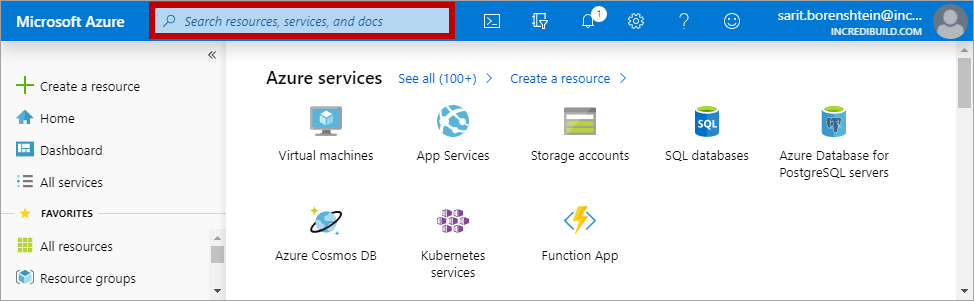
2. Open the **Subscriptions** page. You can use the Search box on the upper bar to find the requested page:
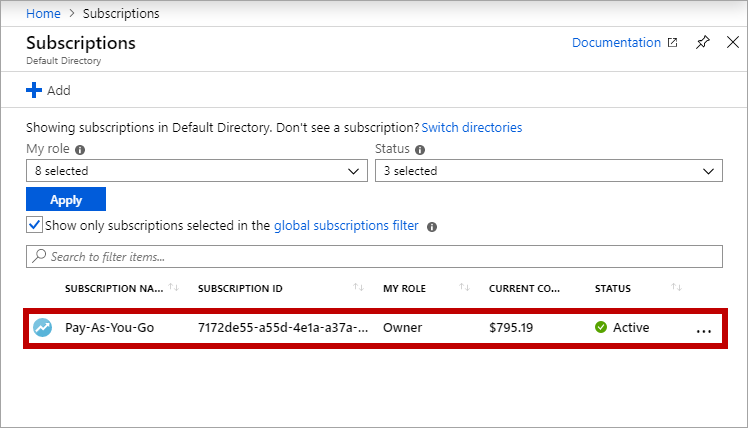
 3. On the **Subscriptions** page, select the subscription whose quota you want to find:
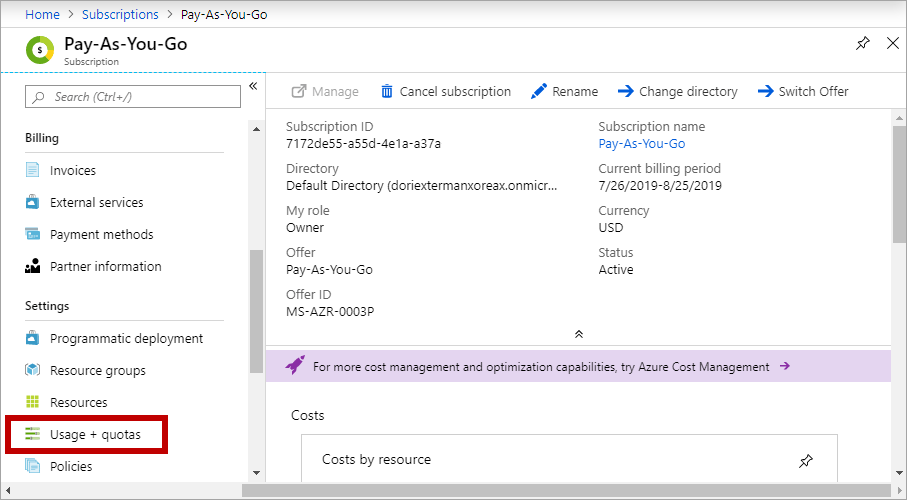
 4. On the selected subscription page, select **Usage + quotas**:
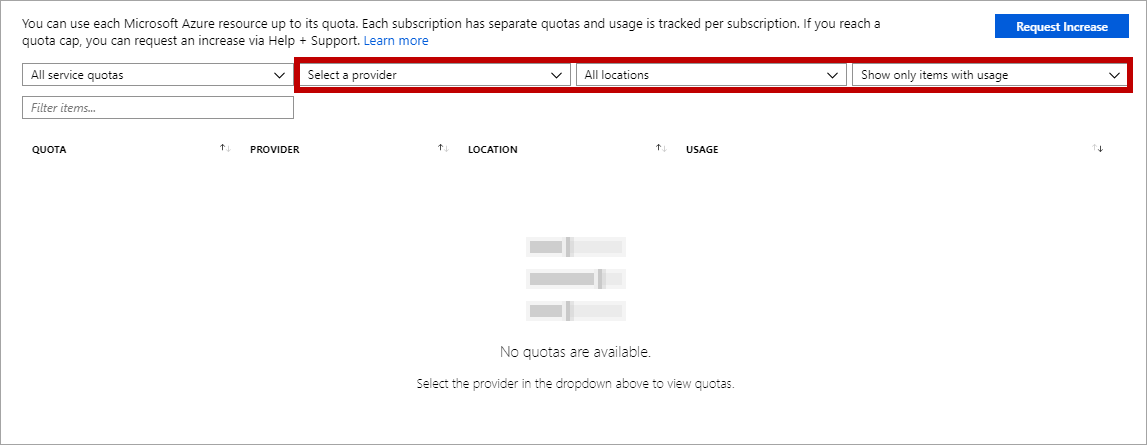
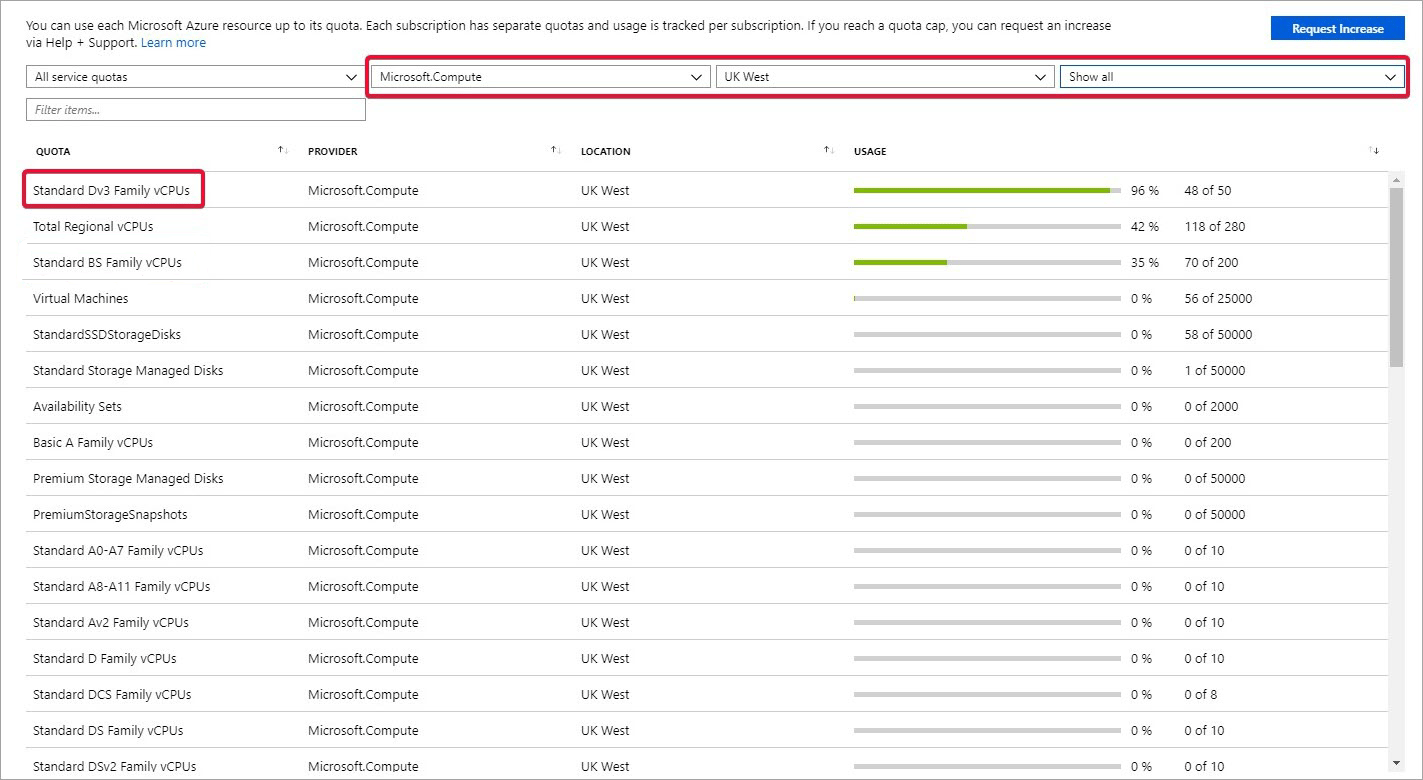
 5. On the **Usage + quotas** section, search for the current quota of your chosen region by using the Usage + quotas filters as follows:**- Select a provider** – select **Microsoft. Compute**.**- All locations** – select the region you will use for Incredibuild Cloud.**- Show only items with usage** – select **Show all**.
 6. Once the results appear, on the **QUOTA** column locate the vCPU whose quota you want to change.
* For low costs and cost-performance optimization we recommend using the **Standard FSv2 Family vCPUs**.
* Each quota limit refers to a specific Azure region and a specific Family vCPUs, as described in Step 10 below.
The current usage and quota limit values are displayed at the end of the row. In the following example, the usage for the **Dv3** **Family** is currently 48 cores, while the quota limit is 50 cores:
6. Once the results appear, on the **QUOTA** column locate the vCPU whose quota you want to change.
* For low costs and cost-performance optimization we recommend using the **Standard FSv2 Family vCPUs**.
* Each quota limit refers to a specific Azure region and a specific Family vCPUs, as described in Step 10 below.
The current usage and quota limit values are displayed at the end of the row. In the following example, the usage for the **Dv3** **Family** is currently 48 cores, while the quota limit is 50 cores:
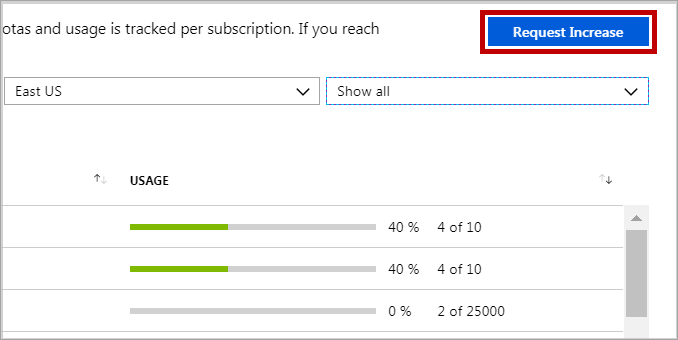
 7. To increase the quota limit of cores for this region, click the **Request Increase** button on the upper right corner:
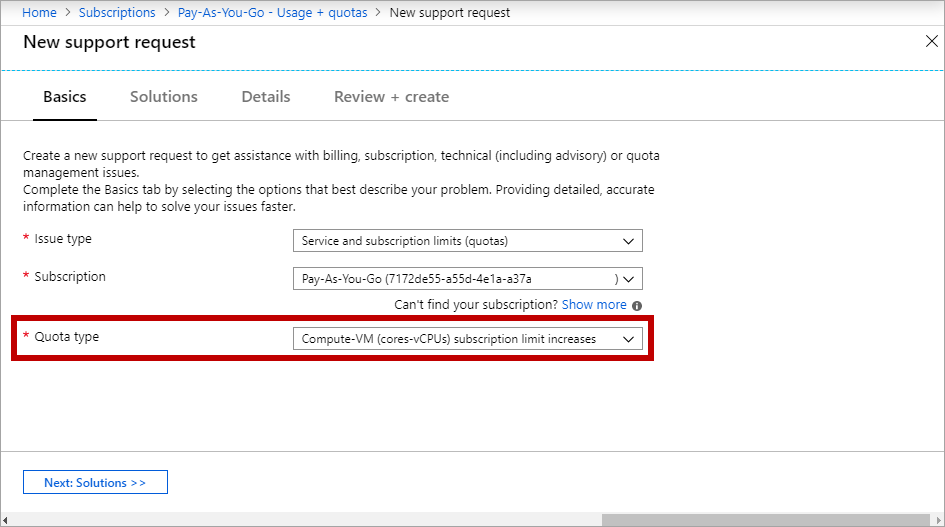
 8. On the **New support request** page – **Basics** step, open the **Quota type** drop-down list and select **Compute-VM (CORES-VCPUs) subscription limit increases**. Then, click the **Next: Solutions** button:
 9. On the **New support request** page - **Details** step, click the **Provide details** option to open the **Quota details** pane:
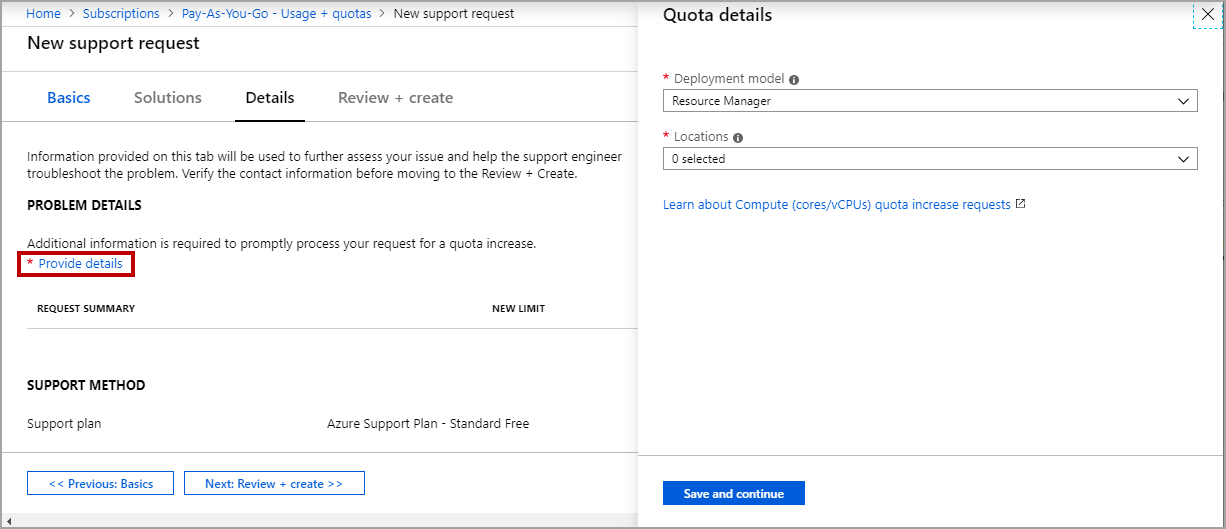 10. On the **Quota details** pane, set the following: **- Deployment model** – select **Resource Manager**. **-** **Location** - select the region where the VMs of Incredibuild Cloud will run.**- SKU family** – select he family of VMs you want to use. **-** **SKU Series** - **NEW LIMIT** box – enter the number of cores that will serve as the new limit. This number should not be lower than the value of the **Total Cores Limit** parameter of the solution settings, which is set during the activation procedure. The **Total Cores Limit** parameter defines the maximum number of cores on the cloud that can be allocated to the execution of tasks. **Info**: For more information on the **Total Cores Limit** parameter, see: [Incredibuild Cloud Settings](/cloud/settings).
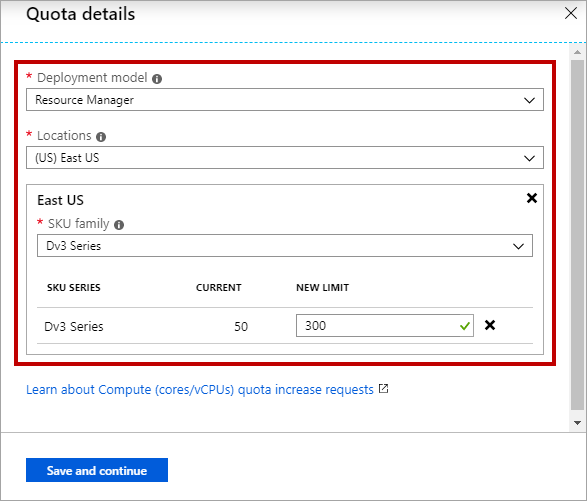 11. After you set all the parameters, click the **Save and** **Continue** button.**The Quota details** pane is closed, and you return to the **Details** section.
12. On the **New support request** page - **Details** section, fill in the mandatory fields. You can also change the **Severity** level of your request.
11. After you set all the parameters, click the **Save and** **Continue** button.**The Quota details** pane is closed, and you return to the **Details** section.
12. On the **New support request** page - **Details** section, fill in the mandatory fields. You can also change the **Severity** level of your request.
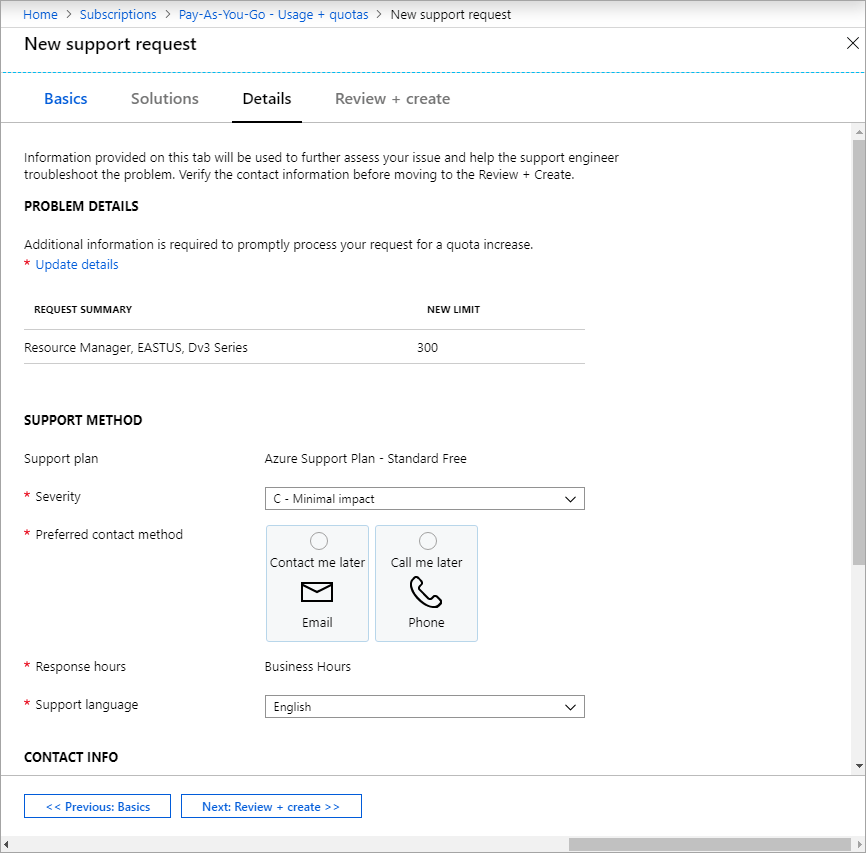 13. Once you set all the details of your request, click the **Next: Review – create** button. The **Review + create** page appears, allowing you to review the details of your request before sending it to Azure.
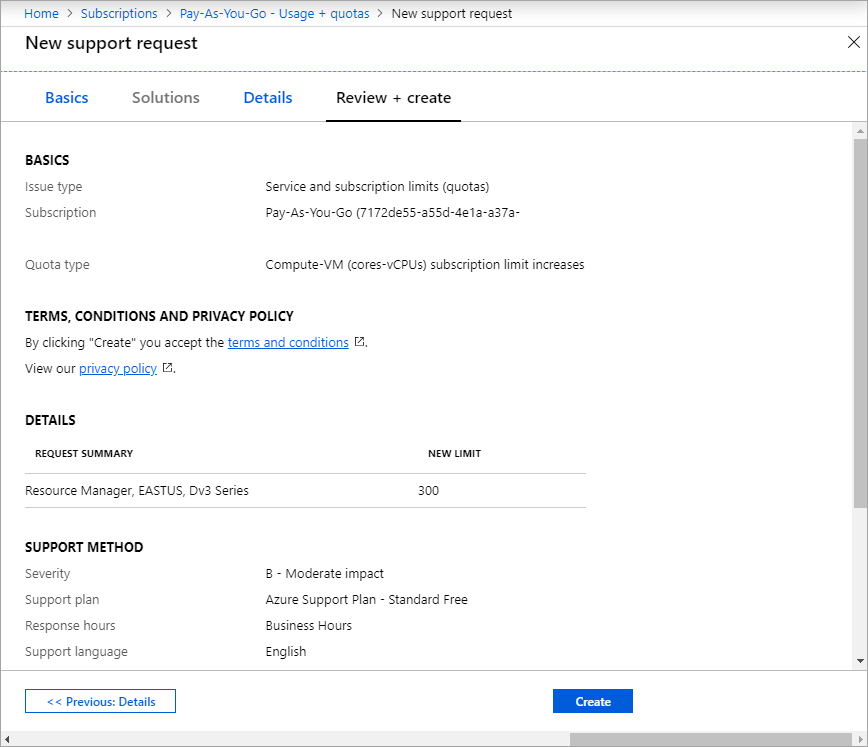 14. Review the details of your request, and click the **Create** button to send it to Azure Support. Wait for the confirmation from Azure of the quota increase, before activating Incredibuild Cloud solution.