> ## Documentation Index
> Fetch the complete documentation index at: https://docs.incredibuild.com/llms.txt
> Use this file to discover all available pages before exploring further.
# Cloud Reports
The **Cloud Reports** tab is opened in different ways depending on your version of Incredibuild:
1. In the Coordinator Monitor, go to the **Cloud** menu and click **Edit Incredibuild Cloud Settings**.
 2. Go to the **Reports** tab.
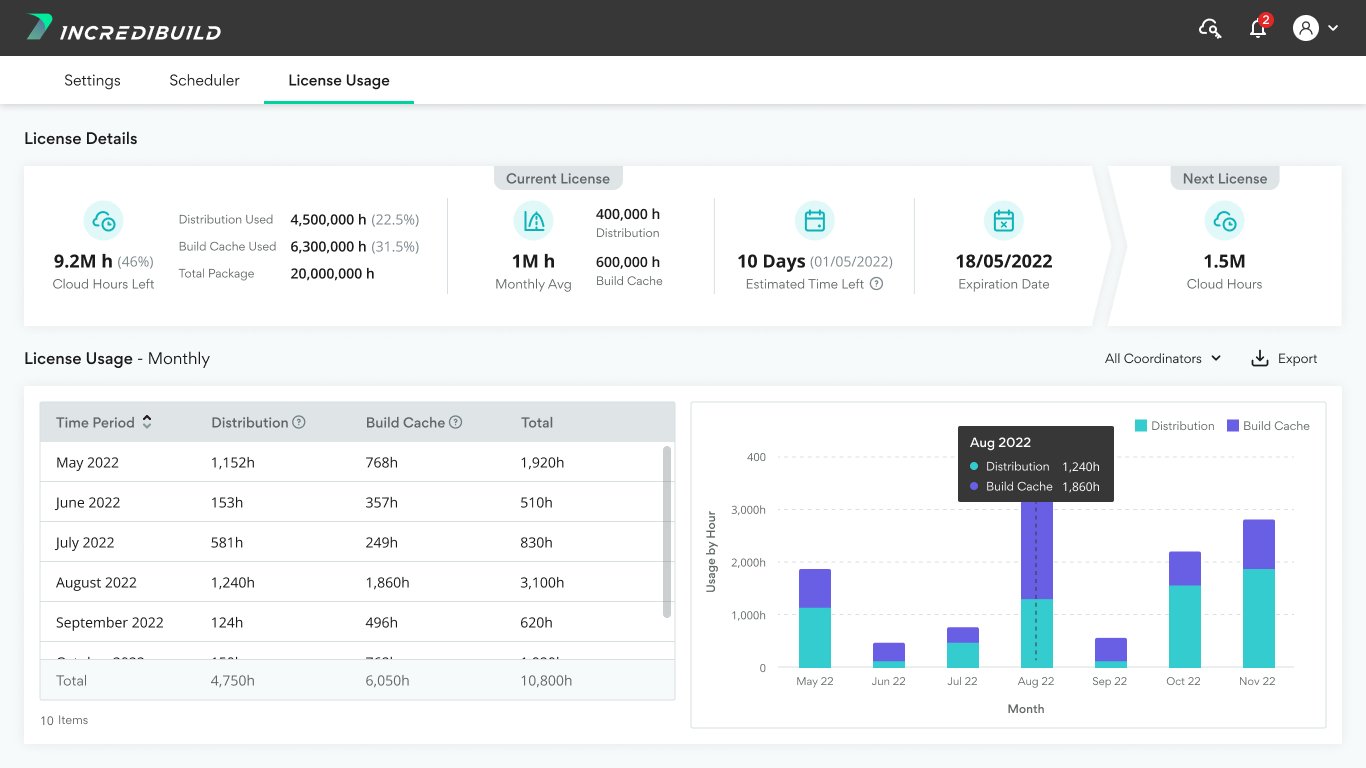 1. In the Coordinator, go to the **Settings** > **Cloud** tab and click **Cloud Settings**.
 2. Go to the **Reports** tab.
1. In the Coordinator, go to the **Cloud Enabled** menu and click **Edit Cloud Settings**.
2. Go to the **Reports** tab.
1. In the Coordinator, go to the **Cloud Enabled** menu and click **Edit Cloud Settings**.
 2. Go to the **Reports** tab.
The report displays details about your license package and usage such as how many hours you are using each month. Your license has an expiration date regardless of the hourly usage. The estimated time left is the lower number of either the days until your expiration date, or the estimated number of days left based on your history of cloud usage and the number of hours left in your license.
2. Go to the **Reports** tab.
The report displays details about your license package and usage such as how many hours you are using each month. Your license has an expiration date regardless of the hourly usage. The estimated time left is the lower number of either the days until your expiration date, or the estimated number of days left based on your history of cloud usage and the number of hours left in your license.