ビルド グループへの割り当て
エンタープライズ版のみ
ここではインストール時に Agent をビルド グループに割り当てる方法をみていきます。次のインストール手順でご利用になれます。
-
サイレント インストール
-
セットアップ ウィザード
割り当ての有効化
インストール時に Agent をビルド グループに割り当てるには、Coordinator で割り当てを有効にしなければなりません。
> 割り当ての有効化
-
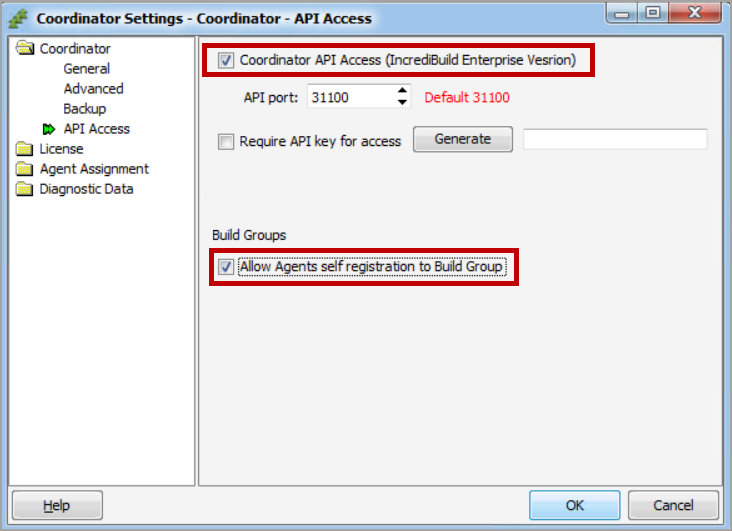
[Coordinator] > [Coordinator Settings]>[ Coordinator] >[ API Access]に進み、[Allow Agents self registration to Build Group] を選択します。
-
[OK] をクリックします。
Agent の割り当て: サイレント インストーラー
「/Agent:Group={Group name}」オプションを使用します。
{Group name}が指定されていない場合、または、存在しないグループ名が指定されている場合、Agent はデフォルトのビルドグループに割り当てられます。
> Agent をインストールしてビルド グループに割り当てる
-
{Group name}の値を追加して次のコマンドを使用します。IBSetupConsole.exe /Install /Components=Agent /Coordinator={COORDINATORNAME} /Agent:Group={Group name} [General Options] [Agent Options]コマンドの例:
IBSetupConsole.exe /Install /Components=Agent /Coordinator=win10-1 /Agent:Group=QA
> Coordinator と Agent をインストールしてビルド グループに割り当てる
-
{Group name}の値を追加して次のコマンドを使用します。IBSetupConsole.exe /Install /Components=Coordinator,Agent /Coordinator={COORDINATORNAME} /Agent:Group={Group name} [General Options] [Agent Options]
> シングルユース VM ライセンスで Agent をインストールしてビルド グループに割り当てる
-
{Group name}の値を追加して次のコマンドを使用します。IBSetupConsole.exe /Install /Components=Agent,oneuse /Coordinator={COORDINATORNAME} /Agent:Group={Group name} [General Options] [Agent Options]
Agent の割り当て: セットアップ ウィザード
> セットアップ中に Agent を割り当てる
-
Incredibuild セットアップ ファイルをダブルクリックして Agent のインストールを開始します。
-
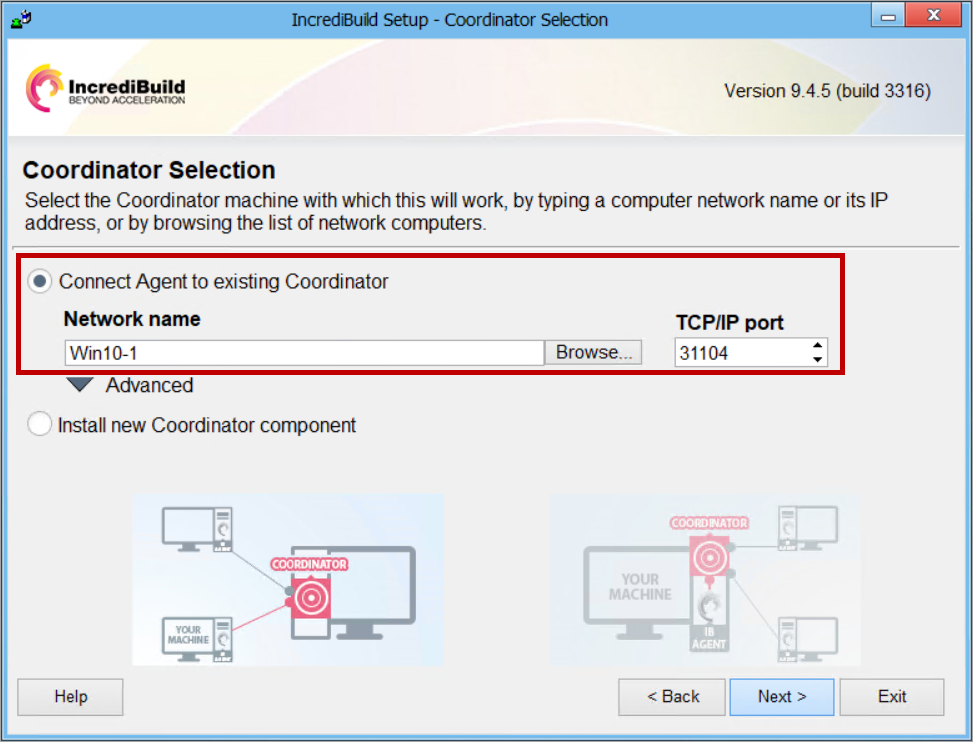
セットアップウィザードの指示に従い、Coordinator Selectionページに到達するまで、[Next]をクリックします。
-
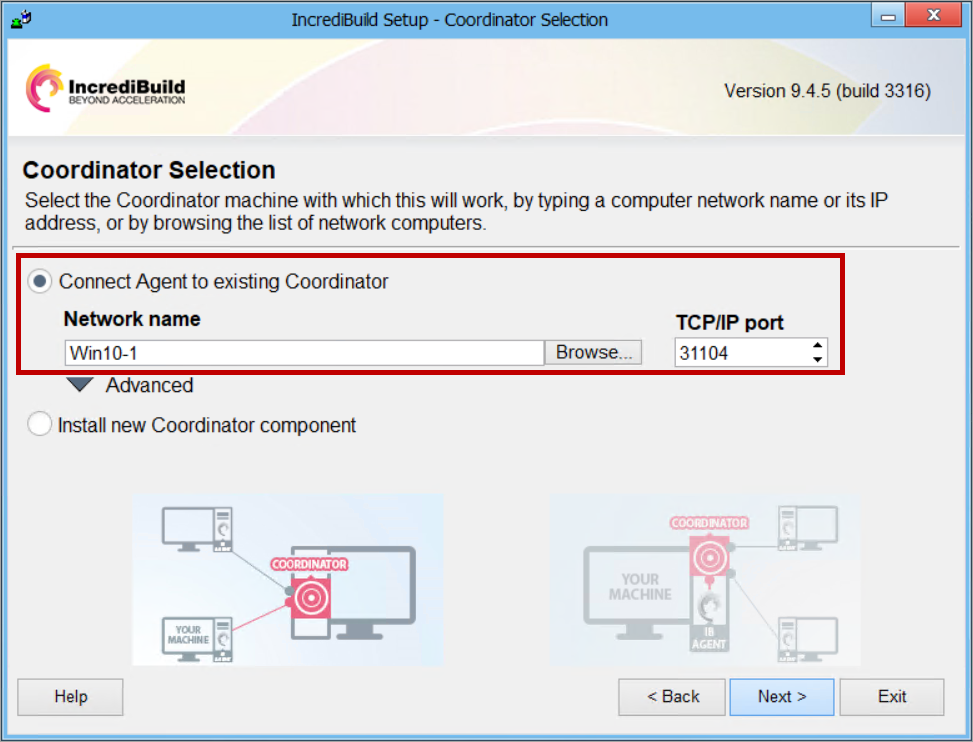
Connect Agent to existing Coordinator を選択し、[Network name]フィールドに Coordinator の IP アドレスまたはホストネームを入力します。
-
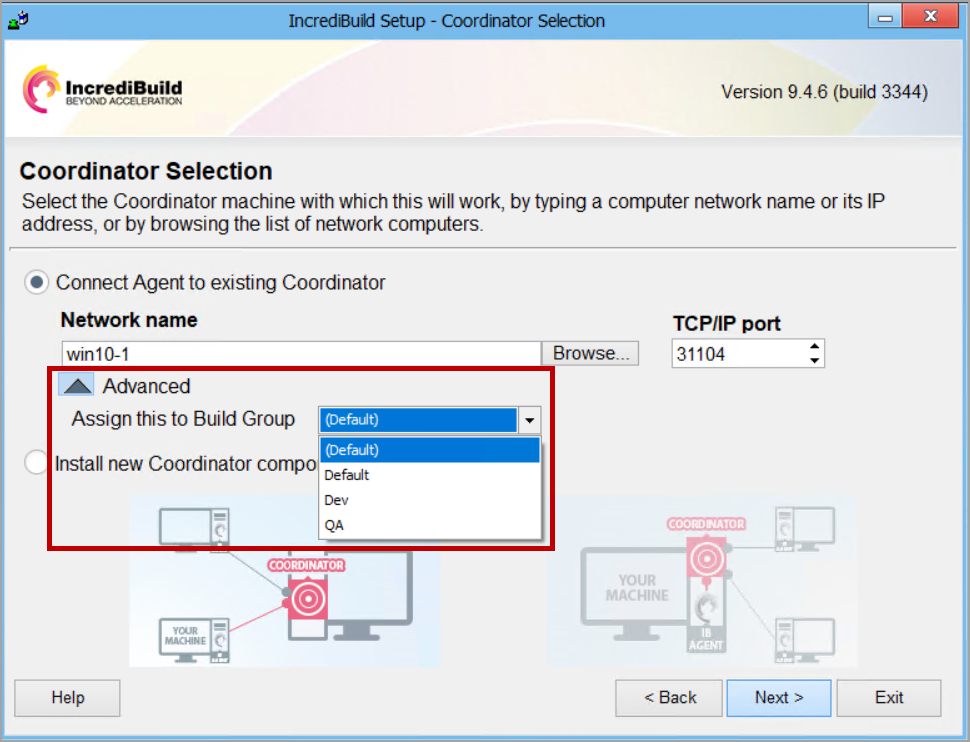
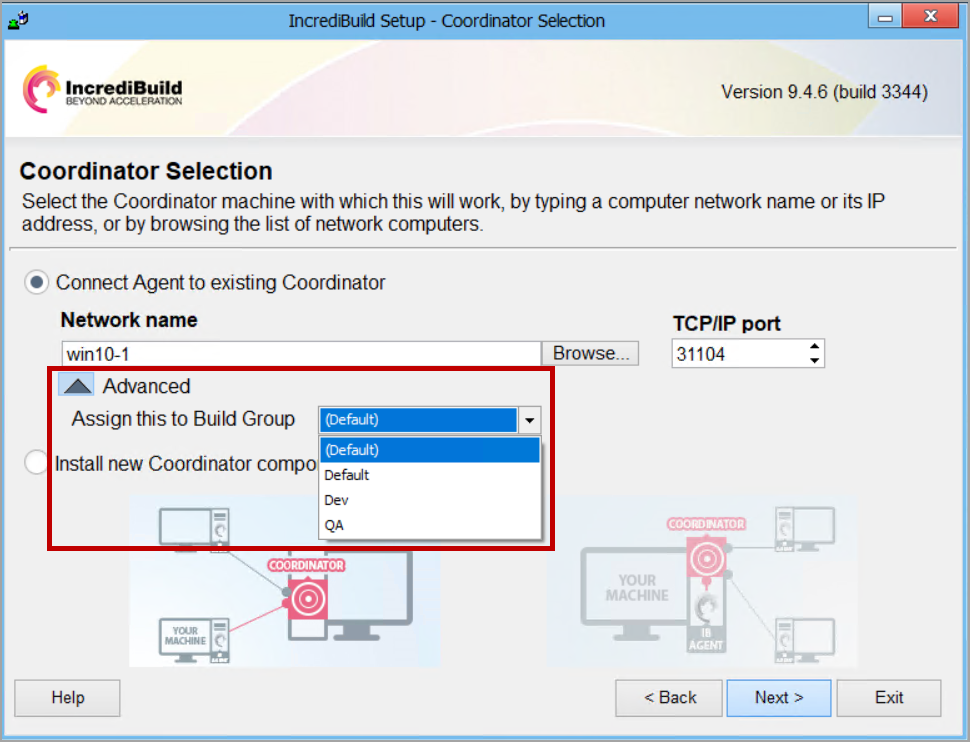
[Advanced]の矢印をクリックし、[Assign this to Build Group]のドロップダウンリストから、必要なビルドグループを選択します。
-
[Next]をクリックし、Agent のインストールが完了するまで、ウィザードの指示に従います。