Activating Licenses
In order to use Incredibuild Linux to accelerate your builds, a valid license file needs be loaded to the Coordinator machine. The License file includes all the licenses you purchase for using the cores of your Incredibuild Environment.
If you are an existing customer and want to renew or change your license, you need to unload your existing license before loading the new one that you receive from sales@incredibuild.com.
Obtaining an Incredibuild License
If this is your first Incredibuild license, or if you are using a new Coordinator, you need to generate a PK file and send it to Customer Support. The PK file lets us uniquely identify a particular machine, and is used to generate a license file that can only be used on that machine.
-
Go to http://<IP address of the Coordinator machine>:8080/Incredibuild/.
-
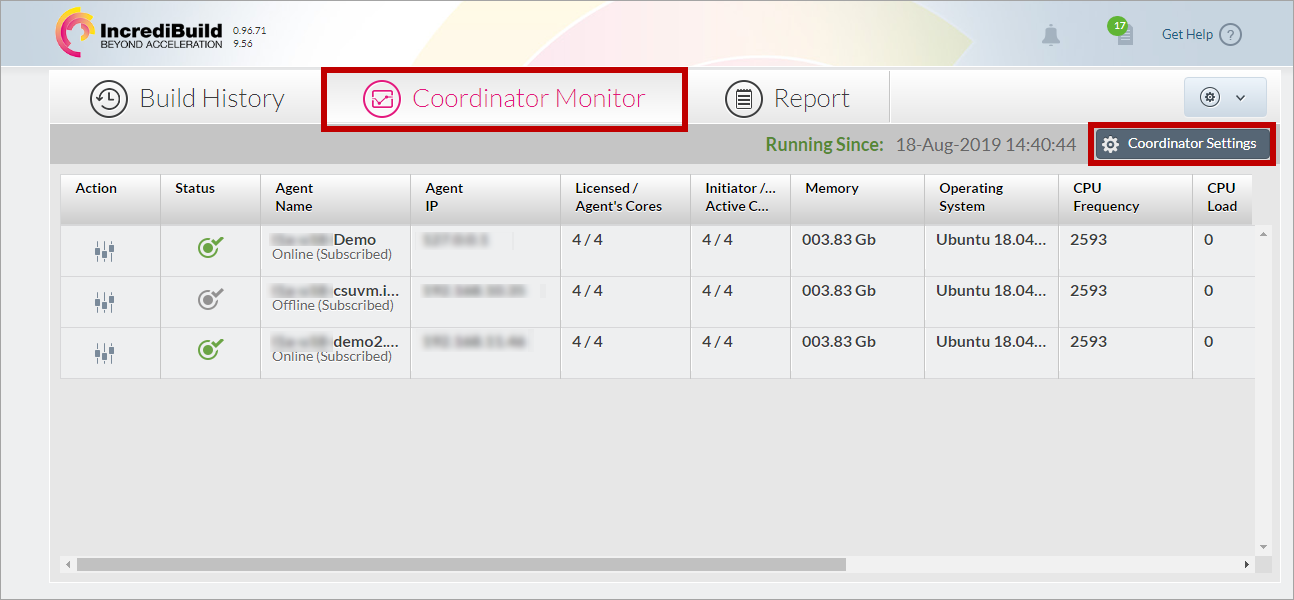
Go to Coordinator Monitor > Coordinator Settings.
-
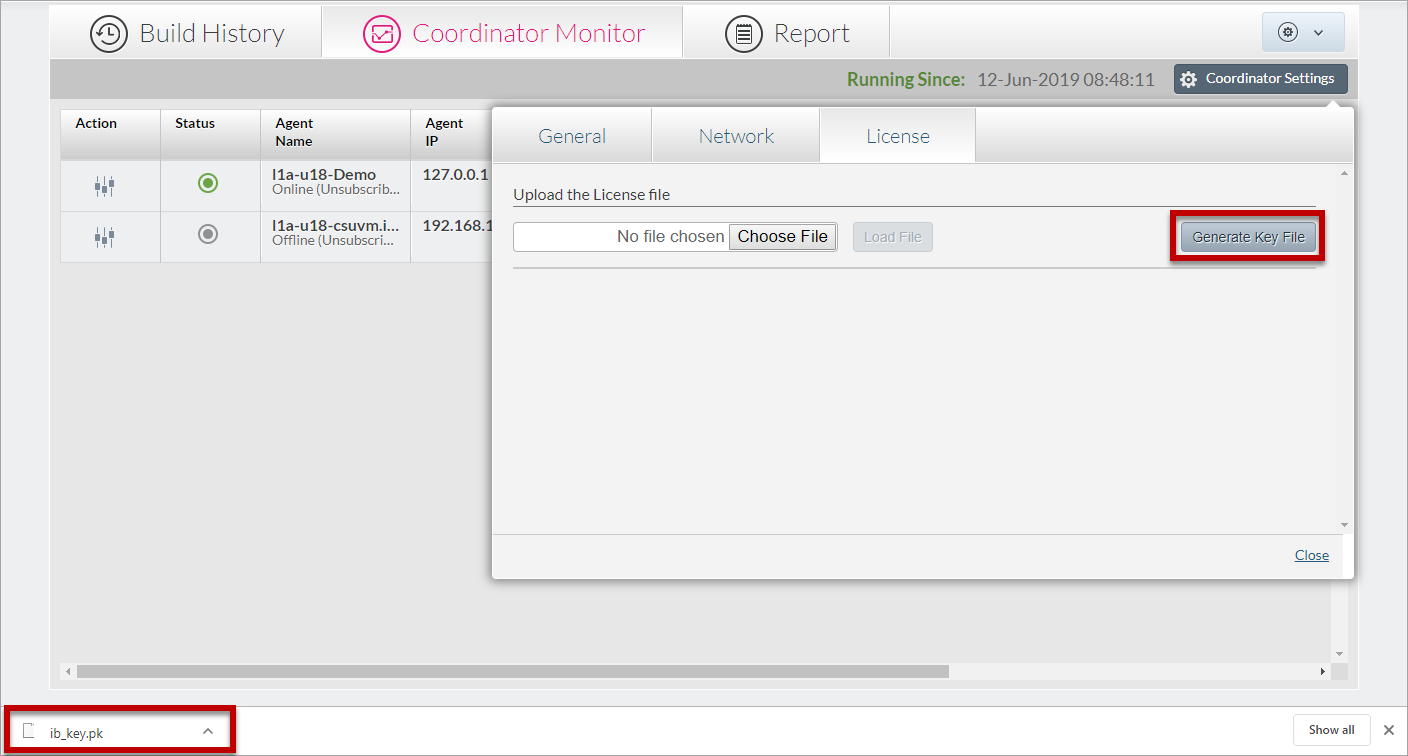
Go to the License tab and click Generate Key File. An ib_key.pk file is downloaded to your machine. Each subsequent click on the Generate Key File button will generate a new file, which invalidates any previously generated files. Make sure that you use the latest generated file.
-
Send the generated ib_key.pk file to sales@Incredibuild.com. They will send you a license file.
-
After you receive your license file, you need to load it to the Coordinator (see below).
Loading Incredibuild Licenses
-
Go to the Management Console of the Coordinator > Coordinator Monitor > Coordinator Settings .
-
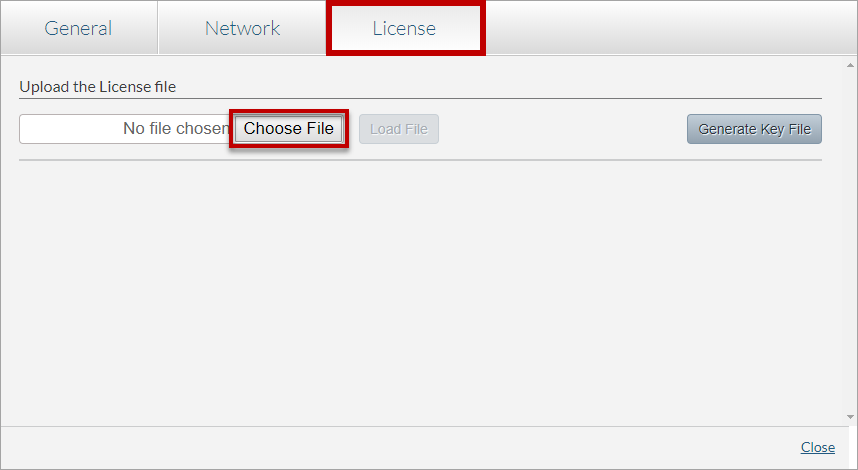
Go to the License tab. Click Choose File and browse to your license file.
Unloading an Incredibuild License
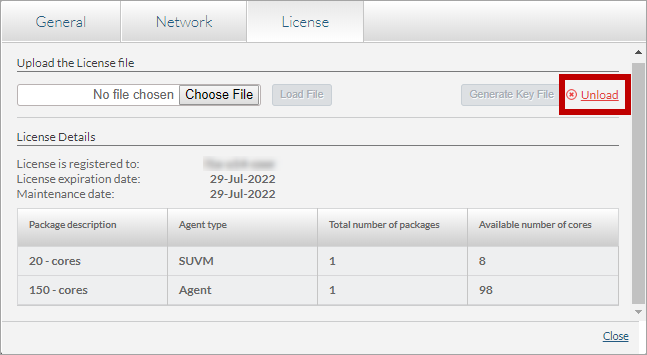
If you have received an updated license file, you need to unload the original license before you can load the new one.
On Coordinator Settings dialog box, open the License tab. Then, Click the Unload option.