Build Monitor Overview
From the Build Monitor tab, you can view the progress of a current build or playback the progress of a previous build with the benefits of intuitive graphical representations of your build output. You can also view the text version of your build's progress as well as a summary of the entire build process.
Accessing the Build Monitor Tab
-
In the Incredibuild Console, click the Build History tab. The Build History screen displays a list of current and previous builds.
-
Click the Action (icon) on the build that you wish to view.
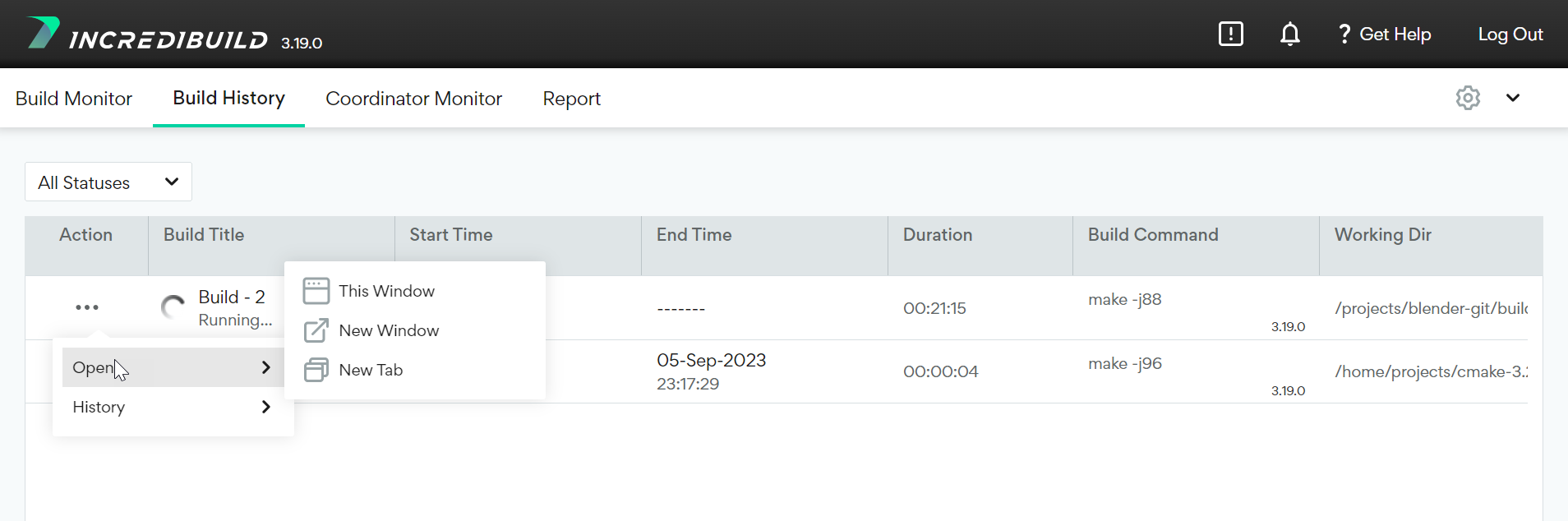
- Select Open and then select one of the following options:
This Window – opens the Build Monitor tab in the current window.
New Window - opens the Build Monitor tab in a new browser window.
New Tab - opens the Build Monitor tab in a new browser tab.
- In the Build Monitor tab, select one of the following views by clicking the relevant tab:
Graphical View - Build Monitor visualization and System Graphs.
Textual View - A textual output of the build process.
Summary - A summary of the build process.
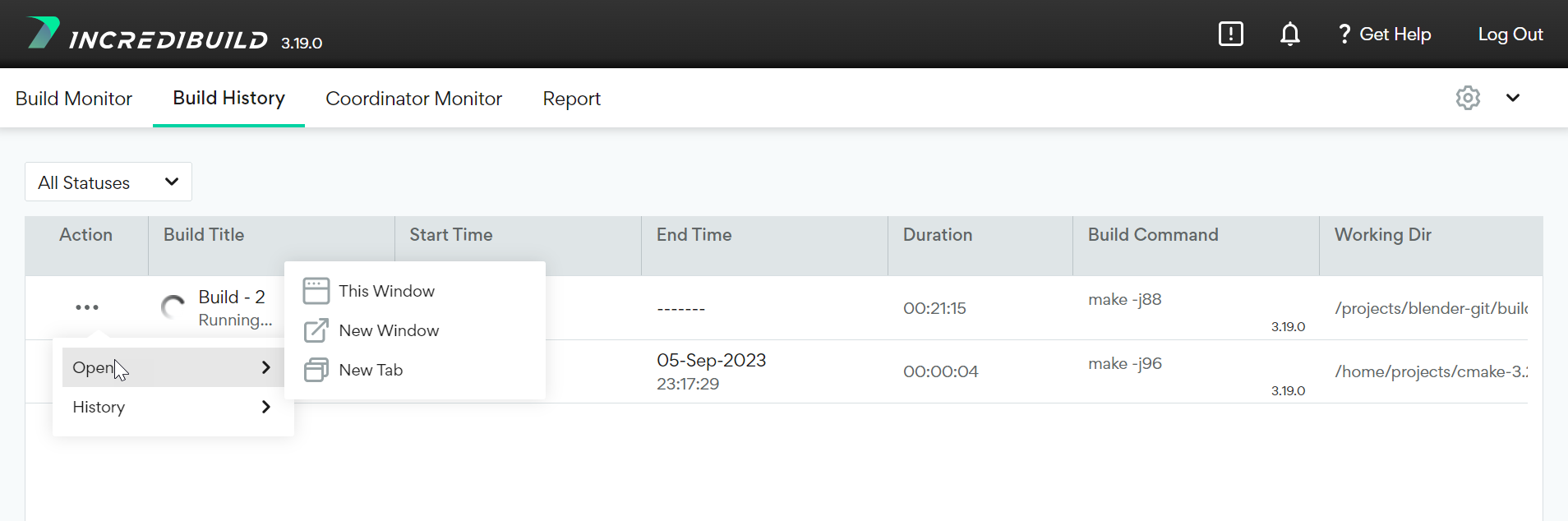
Viewing the Progress of the Last Viewed Build
You can view the progress of the last viewed build, in the Build Monitor tab.
This tab becomes available only after you view at least one build from the Build History tab.