> ## Documentation Index
> Fetch the complete documentation index at: https://docs.incredibuild.com/llms.txt
> Use this file to discover all available pages before exploring further.
# SSL and HTTPS
Last updated on Apr 10, 2022
You can configure Incredibuild to use secure communication between internal components (SSL), and to use HTTPS when accessing the Incredibuild user interfaces. When this setting is enabled, traffic is automatically redirected from HTTP to HTTPS, and the port 8081 is used instead of 8080.
## To Enable SSL Using Incredibuild's Self-Signed Certficiate
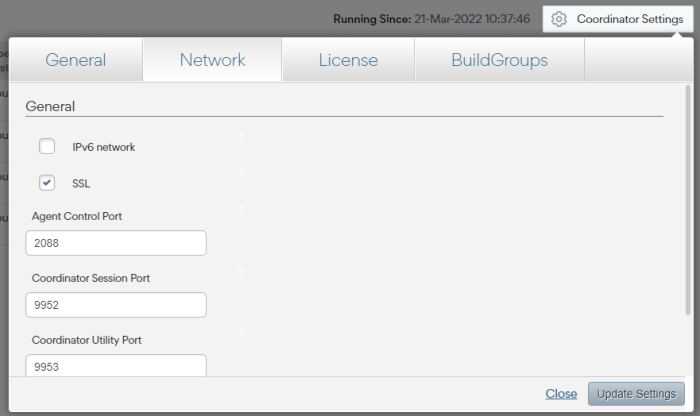
Go to the **Coordinator Settings > Network** tab and use the **SSL** checkbox (disabled by default):
 ## Enable SSL Using a Custom SSL Certificate
If you want to use your own certificate instead of Increduild's self-signed certificate, you can upload your certificate manually.
1. Go to the **Coordinator Settings > Network** tab and check **SSL**.
2. Run the following script pointing to your certificate. Both the certificate and key must be **base64 encoded** and the key cannot be password protected.
```
/opt/incredibuild/management/ib_cert.sh install
```
## Switch Certificates
If you have more than one certificate loaded into Incredibuild, you can switch using the following command:
```
/opt/incredibuild/management/ib_cert.sh select ib|user
```
## Regenerate Incredibuild's Self-Signed Certificate
If your certificate expired or you want to regenerate Incredibuild's certificate for any other reason, use the following command:
```
/opt/incredibuild/management/ib_cert.sh regenerate
```
## Enable SSL Using a Custom SSL Certificate
If you want to use your own certificate instead of Increduild's self-signed certificate, you can upload your certificate manually.
1. Go to the **Coordinator Settings > Network** tab and check **SSL**.
2. Run the following script pointing to your certificate. Both the certificate and key must be **base64 encoded** and the key cannot be password protected.
```
/opt/incredibuild/management/ib_cert.sh install
```
## Switch Certificates
If you have more than one certificate loaded into Incredibuild, you can switch using the following command:
```
/opt/incredibuild/management/ib_cert.sh select ib|user
```
## Regenerate Incredibuild's Self-Signed Certificate
If your certificate expired or you want to regenerate Incredibuild's certificate for any other reason, use the following command:
```
/opt/incredibuild/management/ib_cert.sh regenerate
```