> ## Documentation Index
> Fetch the complete documentation index at: https://docs.incredibuild.com/llms.txt
> Use this file to discover all available pages before exploring further.
# User Management
Last updated on Jul 09, 2025
You need to log in every time you [access the Coordinator Manager](/linux/4.18.1/coord-access). A default user is created during installation with the username **ibadmin** and the password **ChangePass**. We recommend changing this as soon as you log in for the first time.
You can create and edit additional users. Each user is assigned a role the determines their level of permissions in the Coordinator Manager.
When a user is inactive in the user interface for more than 45 minutes, they need to log in again.
The **username** supports all characters other than " / \ \[ ] : ; | = , + \* ? \< >
## User Roles
* **Grid Admin:** Has full permissions to view and edit all items in the Coordinator Manager. The first user created is automatically assigned the role of Grid Admin.
* **Group Manager**: Has permissions to edit the Agents in the Agent List, as well as view (but not edit) the Settings and License areas.
* **Viewer:** Has permissions to view the Agent List, but cannot edit anything in the Coordinator Manager.
## Create a New User
1. In the **User Management** area, click **Add User**.
 2. Fill in the **Role** and **Password**, and any optional details that will help you manage your users and click **Add**.
 ## Edit an Existing User
Grid Admin users can edit the details of any user by clicking the edit icon next to a single user and modifying the details.
## Edit an Existing User
Grid Admin users can edit the details of any user by clicking the edit icon next to a single user and modifying the details.

 Grid Admin users can also change a user's role directly in the User grid by using the Role dropdown.
 Additionally, all users can view and edit their own user details and password. For details, see below.
## View and Edit your User Details and Password
All users who are logged into the Coordinator Monitor can view and edit their user details and password in **My Profile** > **Profile Settings**.
Additionally, all users can view and edit their own user details and password. For details, see below.
## View and Edit your User Details and Password
All users who are logged into the Coordinator Monitor can view and edit their user details and password in **My Profile** > **Profile Settings**.

 ## Forgot Username or Password
### Non-Admin User
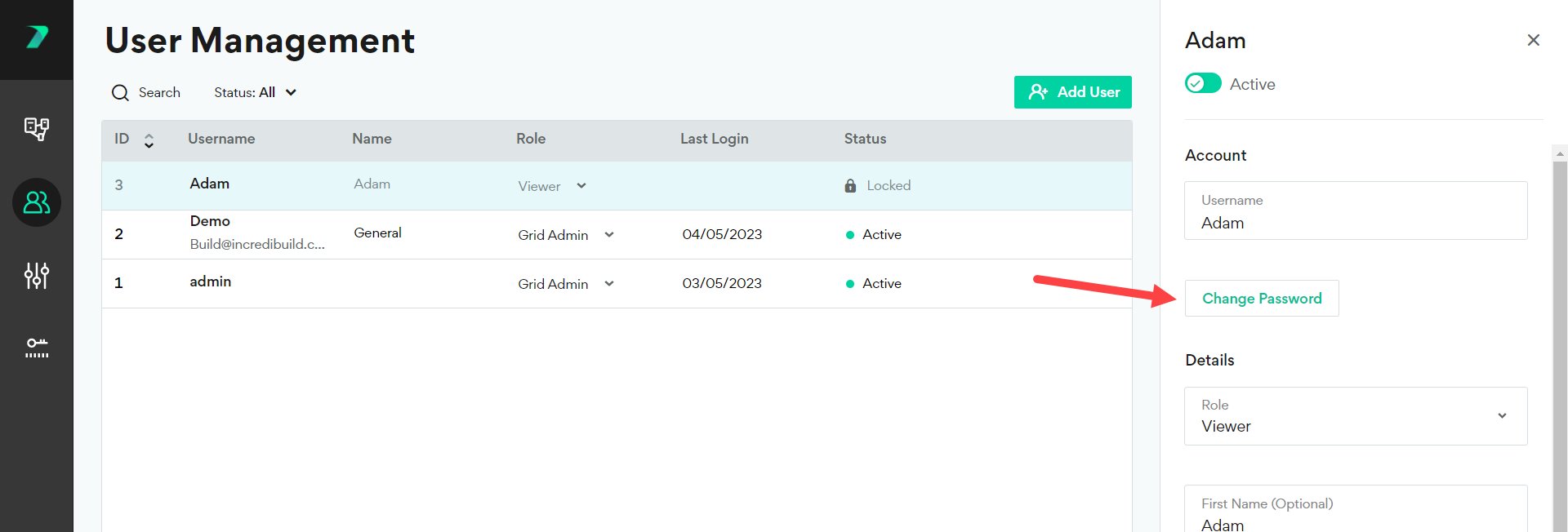
If a user who is not an admin forgot their username or password, the following procedure can be used by their admin to set a new password:
1. Go to the Coordinator Manager > User Management area.
2. Select a user and click **Change Password**.
## Forgot Username or Password
### Non-Admin User
If a user who is not an admin forgot their username or password, the following procedure can be used by their admin to set a new password:
1. Go to the Coordinator Manager > User Management area.
2. Select a user and click **Change Password**.
 ### Admin User
If your Grid Admin user is locked out, or you forgot your password, use the following command. The -p flag will update the password to the input value. The -t Active flag will activate your user if it is locked. This must be done on the Coordinator machine in the command line:
```
cd /opt/incredibuild_management/ib_manager/
sudo ./manager updateUser -u -p -t Active
```
If you forgot your Grid Admin username, you need to create a new Grid Admin user. Run the following command on the Coordinator machine in the command line:
```
cd /opt/incredibuild_management/ib_manager/
sudo ./manager createUser -u -p
```
## Locking and Unlocking Users
If a user attempts to log in a number of times with the incorrect credentials, they will be locked out and see a screen like this:
### Admin User
If your Grid Admin user is locked out, or you forgot your password, use the following command. The -p flag will update the password to the input value. The -t Active flag will activate your user if it is locked. This must be done on the Coordinator machine in the command line:
```
cd /opt/incredibuild_management/ib_manager/
sudo ./manager updateUser -u -p -t Active
```
If you forgot your Grid Admin username, you need to create a new Grid Admin user. Run the following command on the Coordinator machine in the command line:
```
cd /opt/incredibuild_management/ib_manager/
sudo ./manager createUser -u -p
```
## Locking and Unlocking Users
If a user attempts to log in a number of times with the incorrect credentials, they will be locked out and see a screen like this:
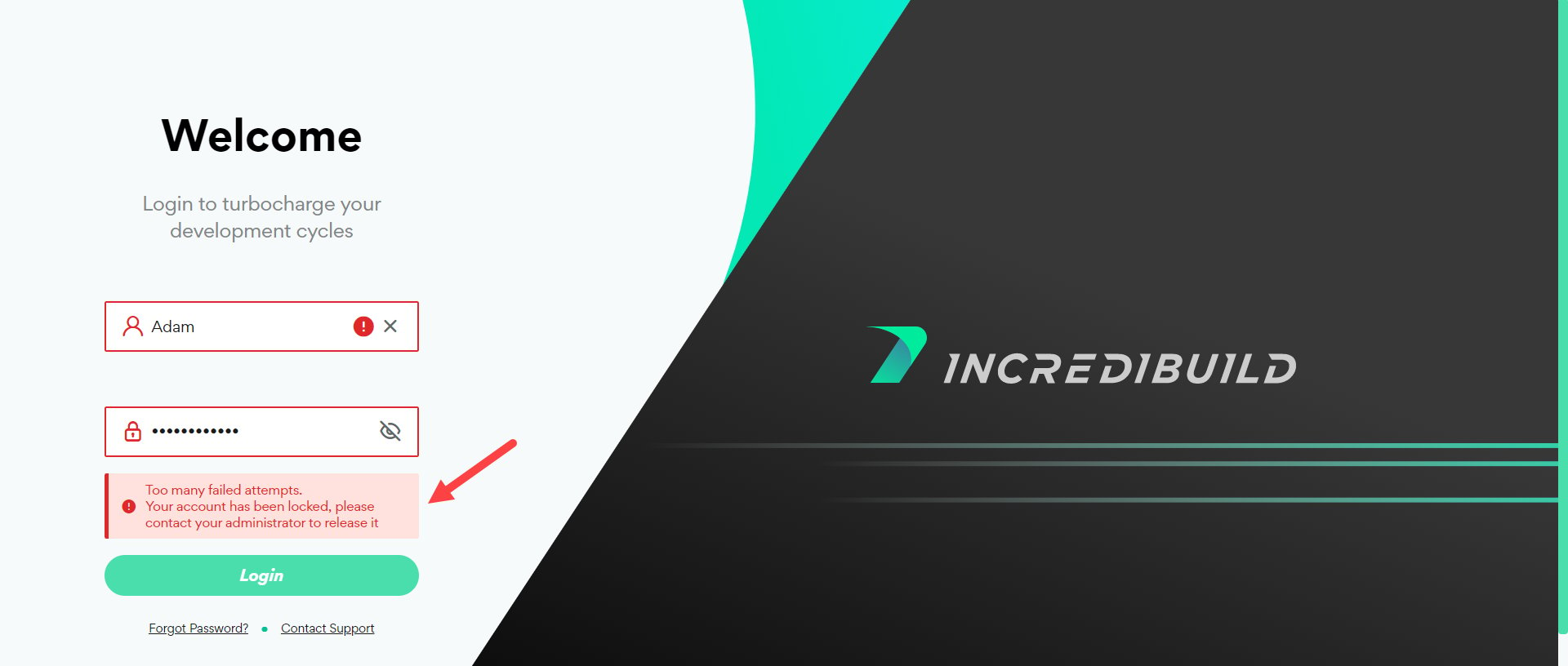 Any admin user can unlock another user by clicking **Unlock** in the user details and **Save**.
