> ## Documentation Index
> Fetch the complete documentation index at: https://docs.incredibuild.com/llms.txt
> Use this file to discover all available pages before exploring further.
# Build Groups
Last updated on Nov 05, 2024
Build Groups allow you to limit build distribution to a select group of Agents. Each Build Group includes Initiator Agents and Helper Agents. By default, every Agent is assigned to the **Default** Build Group.
You can assign an Agent to a different Build Group in the Coordinator's Agent List.
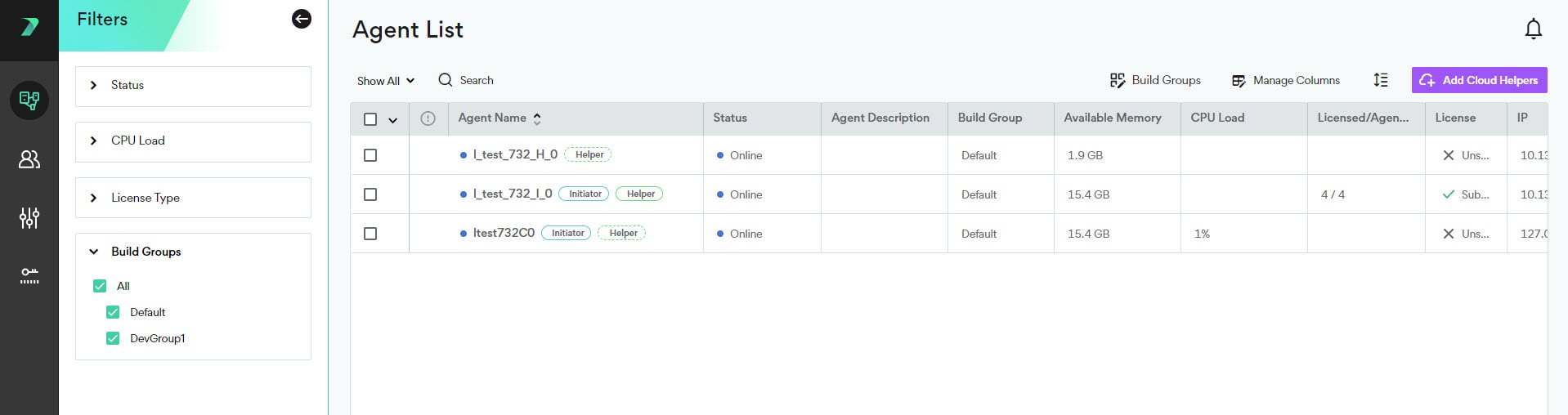
You can view the Build Group of every agent in the **Coordinator Monitor >** **Agent List's** **Build Group** column.
 ## Creating or Edit a Build Group
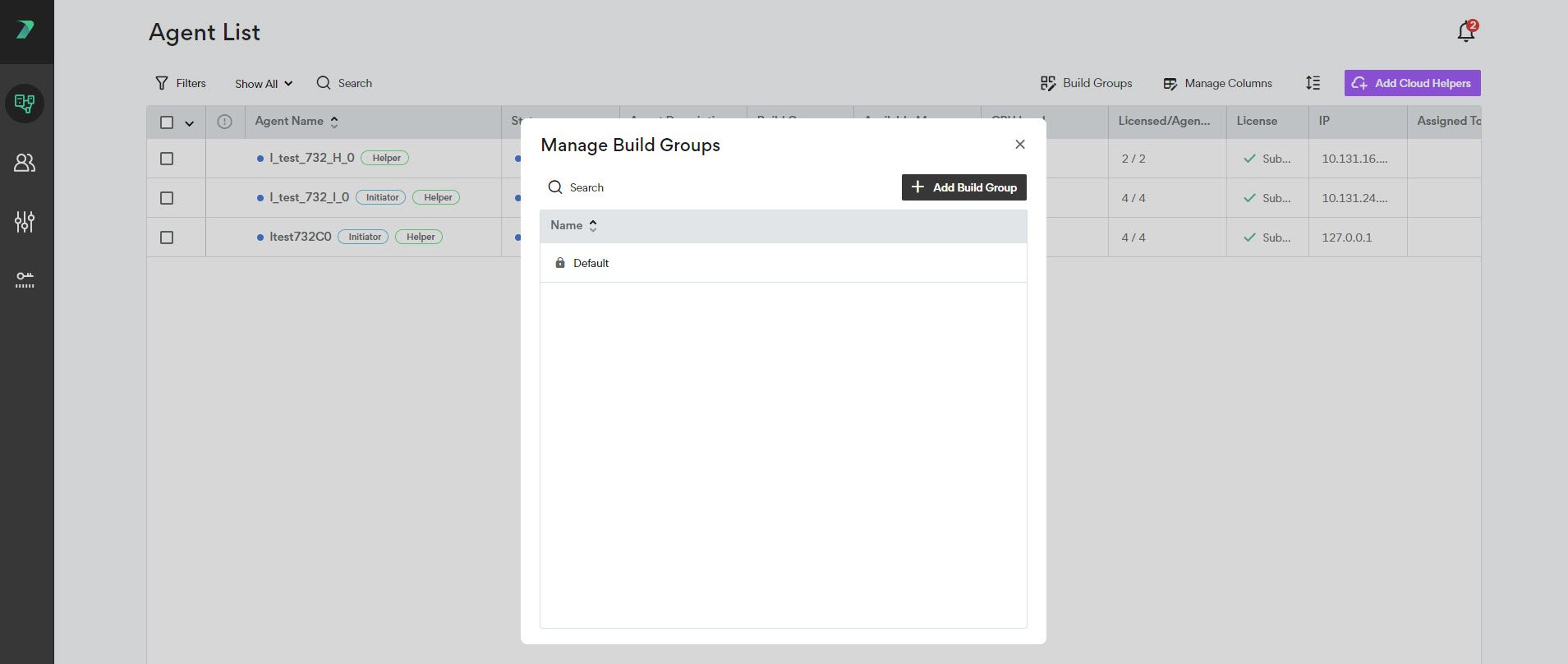
1. In the Coordinator Manager's **Agent List**, click the **Build Groups** button.
## Creating or Edit a Build Group
1. In the Coordinator Manager's **Agent List**, click the **Build Groups** button.
 2. Click **Add Build Group** to create a new Build Group.
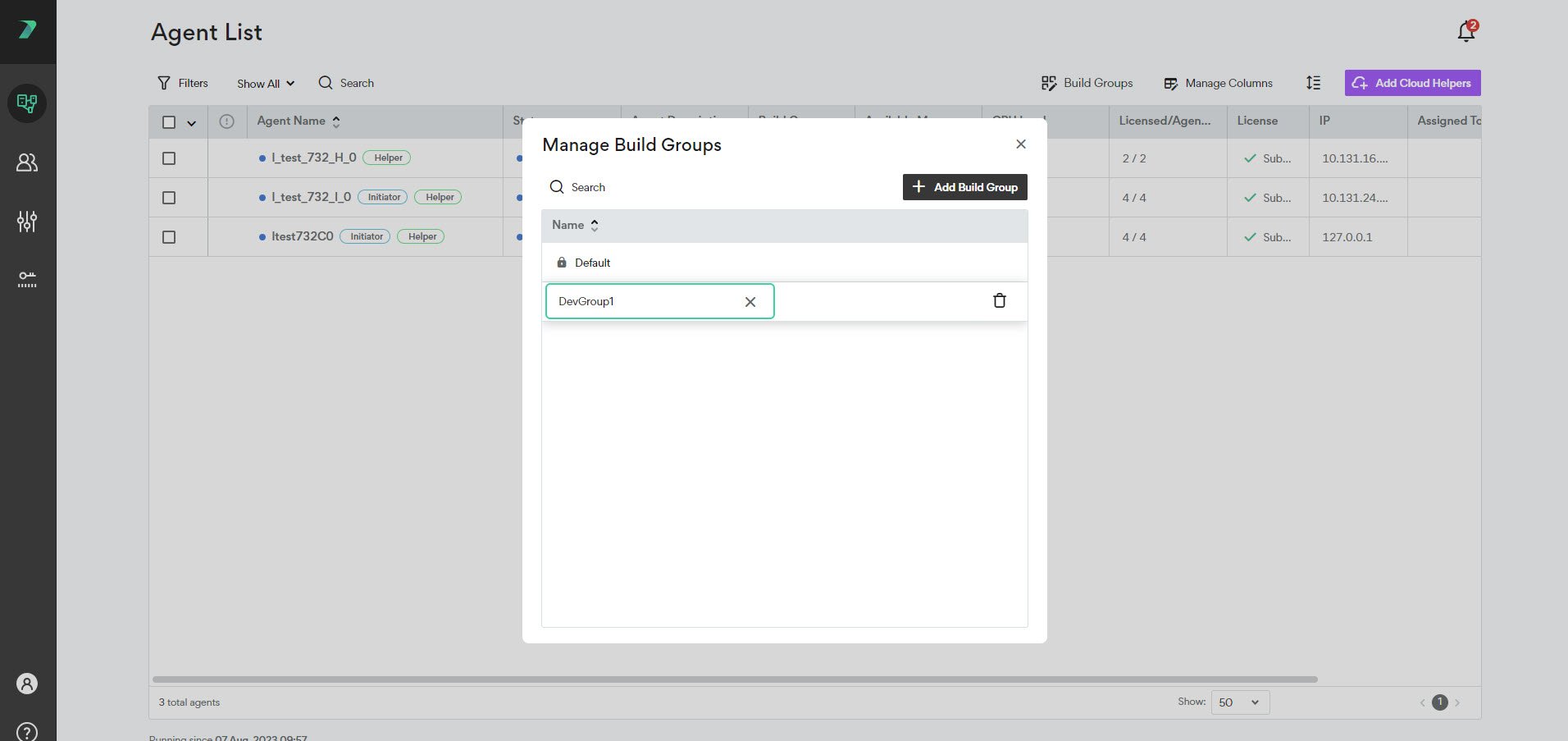
 3. Click inside the name field and modify it to change the name of the Build Group.
 ## Deleting a Build Group
To delete an existing Build Group, click **Build Groups** and use the trash button next to the Build Group you want to delete.
## Deleting a Build Group
To delete an existing Build Group, click **Build Groups** and use the trash button next to the Build Group you want to delete.
 ## Assigning Agents to a Build Group
1. In the Coordinator's **Agent List**, click the three dots menu next to an agent, click **Build Groups** and select an existing Build Group. You can use the search box to narrow the results.
2. To assign multiple agents at once, select multiple agents and open the **Actions** menu.
## Assigning Agents to a Build Group
1. In the Coordinator's **Agent List**, click the three dots menu next to an agent, click **Build Groups** and select an existing Build Group. You can use the search box to narrow the results.
2. To assign multiple agents at once, select multiple agents and open the **Actions** menu.
 3. Click **Add to Build Group**.
 ## Viewing all Agents in a Build Group
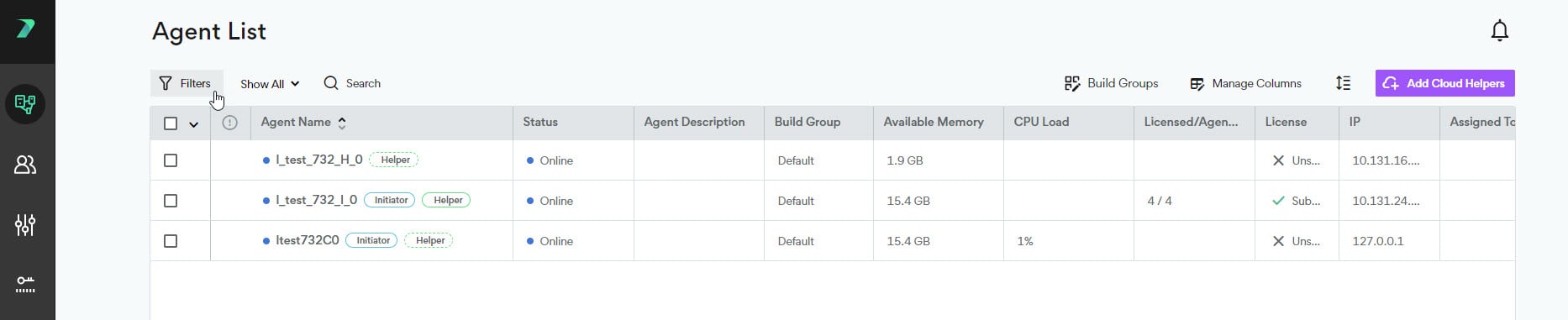
1. In the Agent List, click **Filters**.
## Viewing all Agents in a Build Group
1. In the Agent List, click **Filters**.
 2. Expand the **Build Groups** section, and select the Build Groups you want to display.