> ## Documentation Index
> Fetch the complete documentation index at: https://docs.incredibuild.com/llms.txt
> Use this file to discover all available pages before exploring further.
# Customizing Incredibuild Options in Visual Studio
Last updated on Nov 05, 2024
You can enable the Incredibuild menu, toolbar and shortcuts in Visual Studio.
1. To enable the Incredibuild menu, in Visual Studio, go to **Tools** > **Customize** > **Extensions Menu,** select **Incredibuild** and then click **Save and Restart**.

 2. To enable the Incredibuild toolbar, go to **Tools** > **Customize** > **Toolbars**, select **Incredibuild** and then click **Close**.
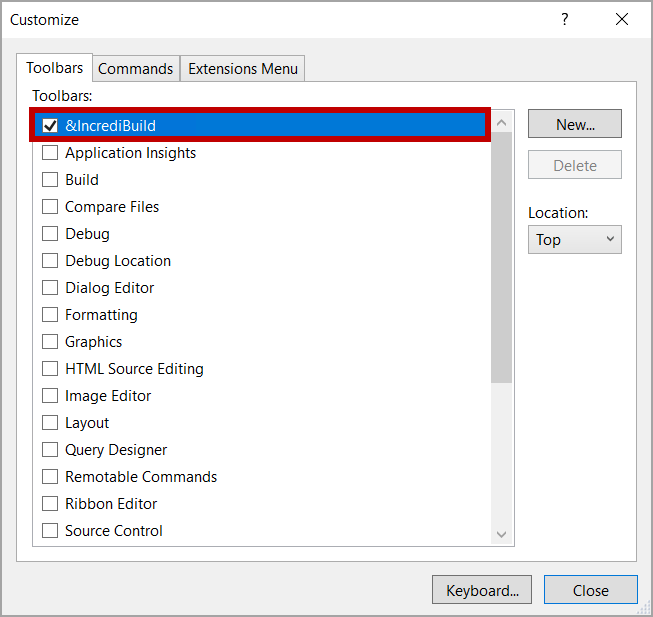 3. To customize the Incredibuild toolbar, go to **Tools** > **Customize** > **Commands**, and then from the **Toolbar** dropdown, select **Incredibuild**.
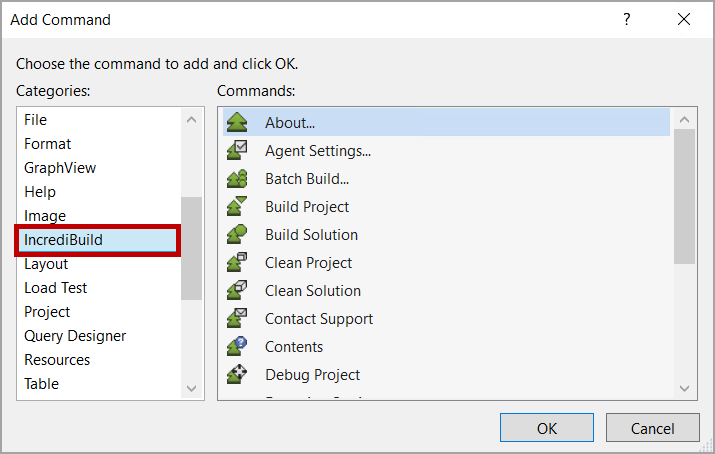
 4. To add commands to the Incredibuild toolbar, click **Add Command**, select **Incredibuild** from the **Categories** list and then select the commands to add to the toolbar, and click **OK**.
 5. Click **Close**.
6. To add keyboard shortcuts to Incredibuild commands (use this to override standard Visual Studio keyboard shortcuts, for example, by setting F7 to start an Incredibuild build, or CTRL-F7 to compile the currently edited file):
* Go to **Tools** > **Options** > **Environment** > **Keyboard**.
* In **Show commands containing**, enter **Incredibuild**.
* Select the required command, and in **Press shortcut keys**, enter the keyboard shortcut.
* Click **Assign**.
* Click **OK**.
5. Click **Close**.
6. To add keyboard shortcuts to Incredibuild commands (use this to override standard Visual Studio keyboard shortcuts, for example, by setting F7 to start an Incredibuild build, or CTRL-F7 to compile the currently edited file):
* Go to **Tools** > **Options** > **Environment** > **Keyboard**.
* In **Show commands containing**, enter **Incredibuild**.
* Select the required command, and in **Press shortcut keys**, enter the keyboard shortcut.
* Click **Assign**.
* Click **OK**.
