> ## Documentation Index
> Fetch the complete documentation index at: https://docs.incredibuild.com/llms.txt
> Use this file to discover all available pages before exploring further.
# Build Groups
Last updated on Nov 05, 2024
Build Groups allow you to limit build distribution to a select group of Agents. Each Build Group includes Initiator Agents and Helper Agents. By default, every Agent is assigned to the **Default** Build Group. You can assign an Agent to a different Build Group in the Coordinator's Agent List.
There is also a unique Build Group called the **Universal Helpers**. Helpers in this group assist with builds from all initiators in your Incredibuild environment, regardless of Build Group. Initiators cannot be added to the Universal Helpers Build Group.
You can view the Build Group of every agent in the **Coordinator Monitor >** **Agent List's** **Build Group** column.
 ## Creating or Edit a Build Group
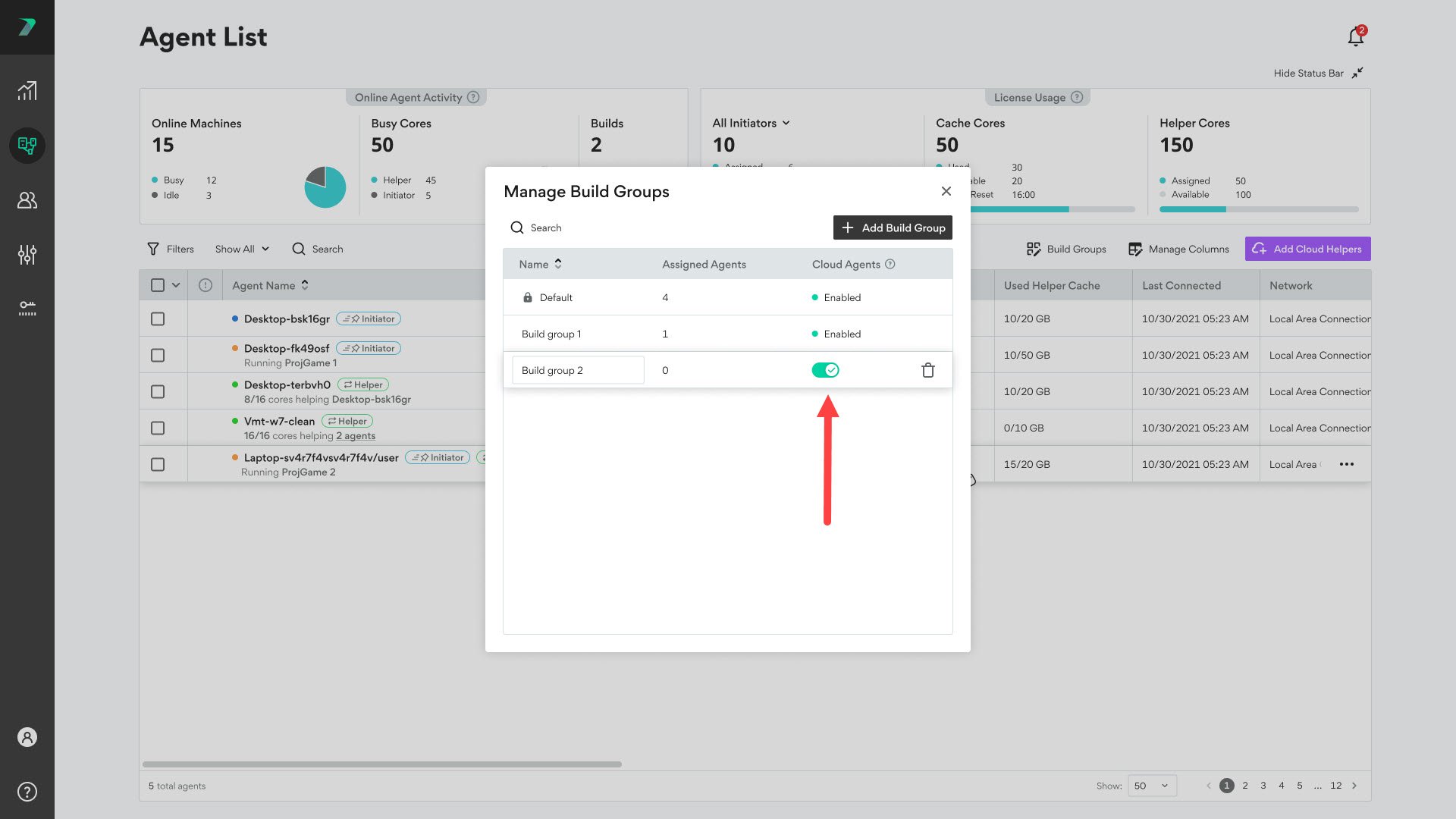
1. In the Coordinator's **Agent List**, click the **Build Groups** button.
## Creating or Edit a Build Group
1. In the Coordinator's **Agent List**, click the **Build Groups** button.
 2. Click **Add Build Group** to create a new Build Group.
 3. Click inside the name field and modify it to change the name of the Build Group.
 ## Deleting a Build Group
To delete an existing Build Group, click Build Groups and use the trash button next to the Build Group you want to delete.
## Deleting a Build Group
To delete an existing Build Group, click Build Groups and use the trash button next to the Build Group you want to delete.
 ## Using Cloud Agents in a Build Group
When you scale Incredibuild to the cloud, you enable Incredibuild to create and use Incredibuild Agents in your cloud provider. To allow you to better manage these resources, you can define when the Initiator Agents in a Build Group can use your Cloud Helper Agents or not. By default, this setting is enabling allowing all of your Initiator agents to use your Cloud Helper Agents.
## Using Cloud Agents in a Build Group
When you scale Incredibuild to the cloud, you enable Incredibuild to create and use Incredibuild Agents in your cloud provider. To allow you to better manage these resources, you can define when the Initiator Agents in a Build Group can use your Cloud Helper Agents or not. By default, this setting is enabling allowing all of your Initiator agents to use your Cloud Helper Agents.
 ## Assigning Agents to a Build Group
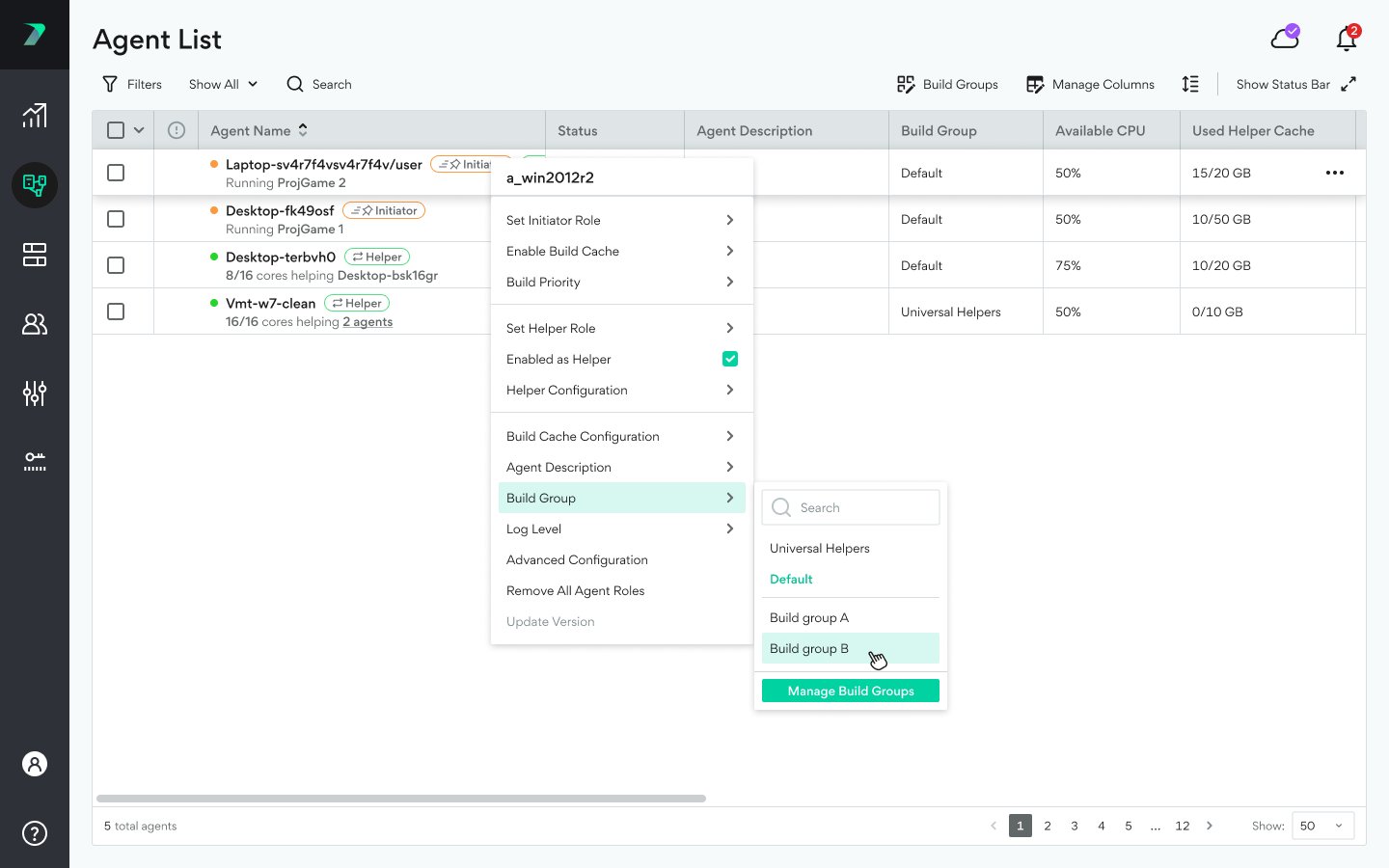
1. In the Coordinator's **Agent List**, click the three dots menu next to an agent, click **Build Groups** and select an existing Build Group. You can use the search box to narrow the results.
## Assigning Agents to a Build Group
1. In the Coordinator's **Agent List**, click the three dots menu next to an agent, click **Build Groups** and select an existing Build Group. You can use the search box to narrow the results.
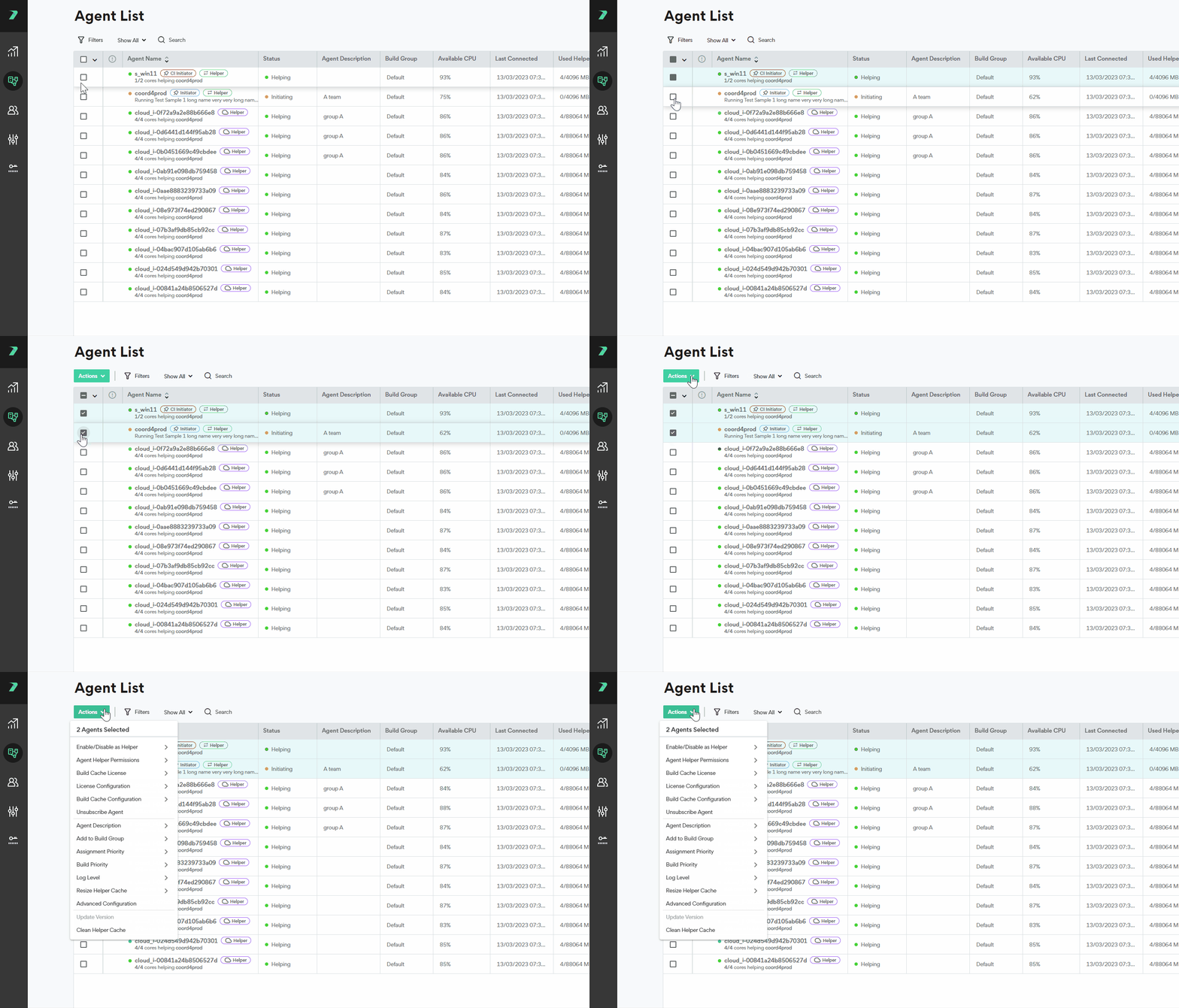
 2. To assign multiple agents at once, select the agents and use the **Actions** menu options.
 ## Viewing all Agents in a Build Group
1. In the Agent List, click **Filters**.
## Viewing all Agents in a Build Group
1. In the Agent List, click **Filters**.
 2. Expand the **Build Groups** section, and select the Build Groups you want to display.
