> ## Documentation Index
> Fetch the complete documentation index at: https://docs.incredibuild.com/llms.txt
> Use this file to discover all available pages before exploring further.
# Installing Additional Components
Last updated on Dec 22, 2025
If you have already installed an Incredibuild Coordinator on a machine, you can install an Incredibuild Agent on the same machine using the procedure below.
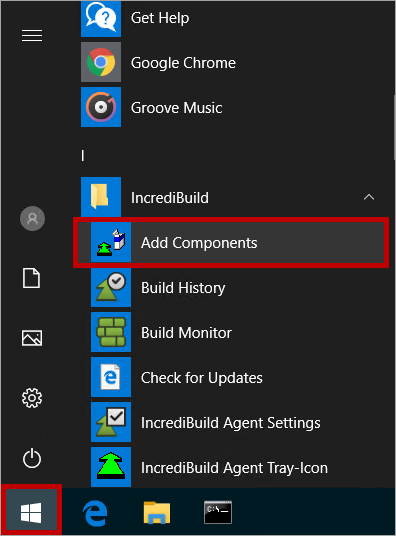
1. Rerun the installation file, or go to **Start** menu > **Incredibuild** > **Add Components**:
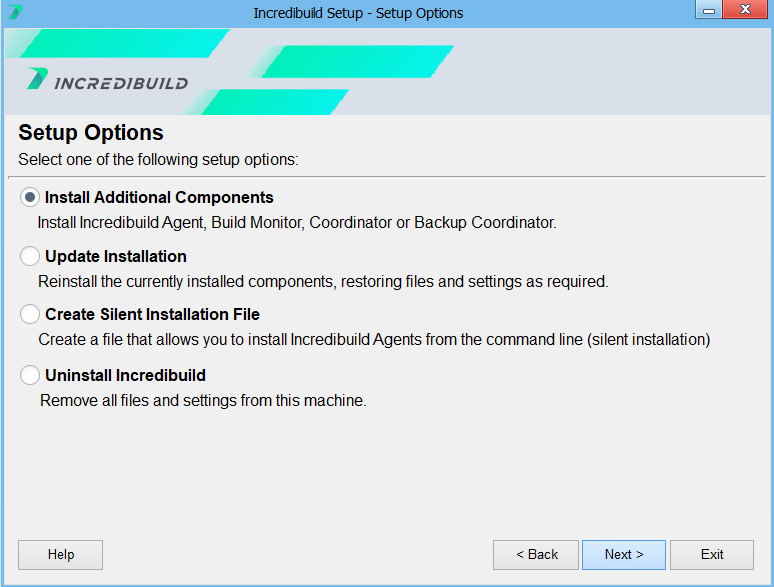
 2. On the **Setup Options** page, select **Install Additional Components**. Then, click **Next**:
 3. On the **Installation Options** page, select the component you want to add.
 Continue to follow the wizard instructions until completion.