> ## Documentation Index
> Fetch the complete documentation index at: https://docs.incredibuild.com/llms.txt
> Use this file to discover all available pages before exploring further.
# Incredibuild and Visual Studio Integration Modes
Last updated on Dec 22, 2025
You can run your builds in Visual Studio in External mode (by default) or Internal mode. You can change the mode between builds.
**Note**: CMake projects always run in Internal mode, regardless of the selected mode.
1. In Visual Studio, go to **Tools** > **Options**, or **Incredibuild** > **Extension Settings**, or **Extensions** > **Incredibuild** > **Extension Settings**.
2. Select **Incredibuild Extension** > **Integration Mode**, and then select the required **Incredibuild Integration** mode.
 ## External Mode
In External mode, Incredibuild fully controls the build process and executes it from start to finish, bypassing Visual Studio settings and procedures. Although Incredibuild is activated from Visual Studio, its operation is external to Visual Studio native processes. Prior to Incredibuild version 9.5.0, this was the only mode. The initiation of builds in External mode does consume additional memory, and the initialization time is a fraction slower.
The External mode includes:
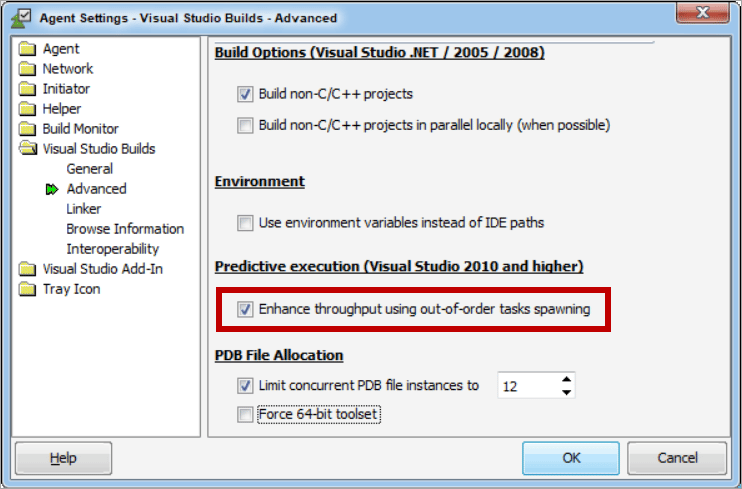
* Predictive execution, which is not natively supported by Visual Studio. This can further optimize your build acceleration, by increasing the execution parallelization of compilation tasks when no dependencies exist.
## External Mode
In External mode, Incredibuild fully controls the build process and executes it from start to finish, bypassing Visual Studio settings and procedures. Although Incredibuild is activated from Visual Studio, its operation is external to Visual Studio native processes. Prior to Incredibuild version 9.5.0, this was the only mode. The initiation of builds in External mode does consume additional memory, and the initialization time is a fraction slower.
The External mode includes:
* Predictive execution, which is not natively supported by Visual Studio. This can further optimize your build acceleration, by increasing the execution parallelization of compilation tasks when no dependencies exist.
 * The Batch Build feature.
 * The output of the builds run from Visual Studio, are identical to the output of the builds run from the CLI using the Incredibuild BuildConsole.
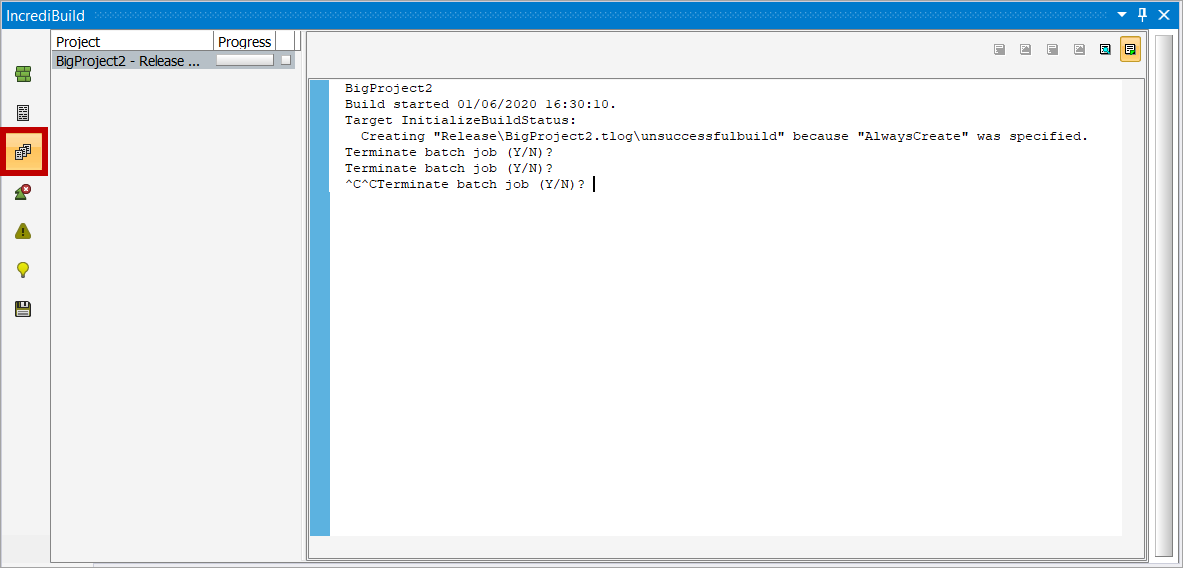
* The progress and output of your builds are displayed in the Incredibuild Build Monitor inside Visual Studio .
* The output of the builds run from Visual Studio, are identical to the output of the builds run from the CLI using the Incredibuild BuildConsole.
* The progress and output of your builds are displayed in the Incredibuild Build Monitor inside Visual Studio .
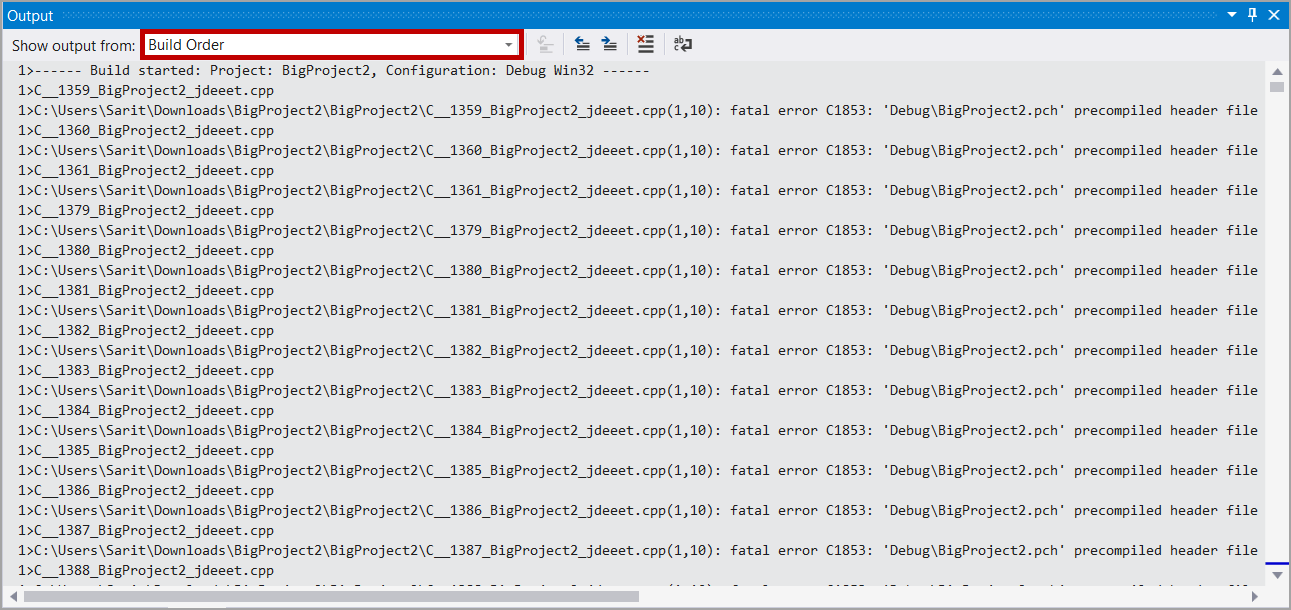
 * The **Build Order** view in Visual Studio **Output** window is displayed (instead of the **Projects** view in Internal mode):
 ## Internal Mode
If you want to apply special Visual Studio settings to your builds, or use all Visual Studio post-build windows, procedures, extensions and messages, use the Internal mode.
**Note**: The Internal mode is available for Visual Studio 2017 and later.
The Internal mode includes:
* Visual Studio executes the build with all its native processes and configurations, and Incredibuild integrates with the build process. The Visual Studio settings and procedures are used. The result is a more natural operation of Visual Studio.
* All the execution and post-build processes, operate as normal, as they would operate when running a build in Visual Studio without Incredibuild. The build time is faster than the External mode.
* The output and errors of a build are displayed in the native Visual Studio windows.
## Internal Mode
If you want to apply special Visual Studio settings to your builds, or use all Visual Studio post-build windows, procedures, extensions and messages, use the Internal mode.
**Note**: The Internal mode is available for Visual Studio 2017 and later.
The Internal mode includes:
* Visual Studio executes the build with all its native processes and configurations, and Incredibuild integrates with the build process. The Visual Studio settings and procedures are used. The result is a more natural operation of Visual Studio.
* All the execution and post-build processes, operate as normal, as they would operate when running a build in Visual Studio without Incredibuild. The build time is faster than the External mode.
* The output and errors of a build are displayed in the native Visual Studio windows.
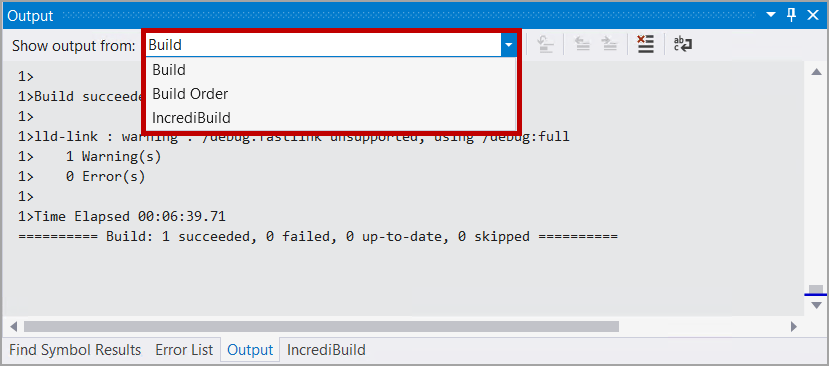 * The **Build Order** view in Visual Studio **Output** window is displayed.
* Extensions that are designed to either track the build progress, or to process the results that are displayed in the Output windows, are supported.
* The **Error List** is populated with the results of the build and displays a filtered view of the build errors. This allows for easy navigation to the source code.
* The **Build Order** view in Visual Studio **Output** window is displayed.
* Extensions that are designed to either track the build progress, or to process the results that are displayed in the Output windows, are supported.
* The **Error List** is populated with the results of the build and displays a filtered view of the build errors. This allows for easy navigation to the source code.
 * The output of your builds when running them from Visual Studio, will be different in most cases from the output of the builds when running them using the Incredibuild BuildConsole CLI. This occurs because the special settings that are configured in Visual Studio are applied to the builds when they are executed from Visual Studio, but are not applied when executed from the Incredibuild BuildConsole CLI.
Incredibuild features and optimization capabilities NOT supported in Internal mode:
1. If the **Batch Build** feature is used, the mode is automatically switched by Incredibuild to External mode once the build starts.
2. If the **Predictive execution** feature is enabled in the **Agent Settings**, once the build starts, Incredibuild automatically disables this feature, that is, the build is executed in Internal mode, without the feature.
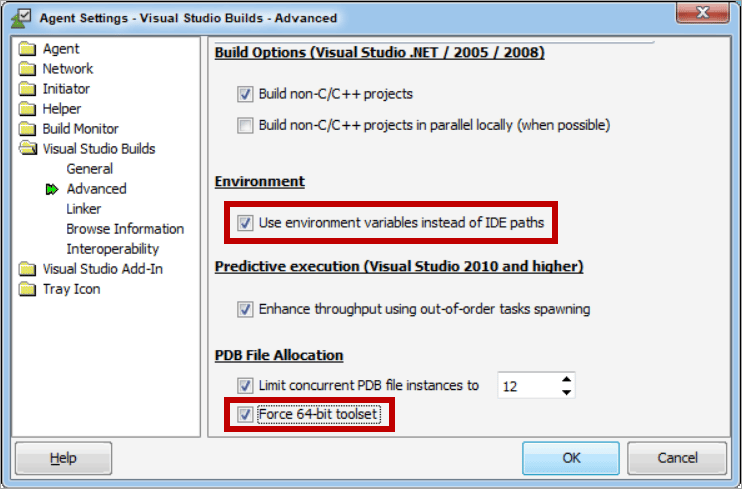
3. The **Use environment variables instead of IDE paths** and **Force 64-bit toolset** options are not applied in Internal mode.
* The output of your builds when running them from Visual Studio, will be different in most cases from the output of the builds when running them using the Incredibuild BuildConsole CLI. This occurs because the special settings that are configured in Visual Studio are applied to the builds when they are executed from Visual Studio, but are not applied when executed from the Incredibuild BuildConsole CLI.
Incredibuild features and optimization capabilities NOT supported in Internal mode:
1. If the **Batch Build** feature is used, the mode is automatically switched by Incredibuild to External mode once the build starts.
2. If the **Predictive execution** feature is enabled in the **Agent Settings**, once the build starts, Incredibuild automatically disables this feature, that is, the build is executed in Internal mode, without the feature.
3. The **Use environment variables instead of IDE paths** and **Force 64-bit toolset** options are not applied in Internal mode.
 4. The **Projects** view in the Incredibuild Build Monitor is not available, and is replaced by the **Build Order** view in the Visual Studio **Output** window (displays output results sorted by projects).
5. Some Incredibuild options that are set in the registry are not applicable in Internal mode.
4. The **Projects** view in the Incredibuild Build Monitor is not available, and is replaced by the **Build Order** view in the Visual Studio **Output** window (displays output results sorted by projects).
5. Some Incredibuild options that are set in the registry are not applicable in Internal mode.