> ## Documentation Index
> Fetch the complete documentation index at: https://docs.incredibuild.com/llms.txt
> Use this file to discover all available pages before exploring further.
# Exporting Logs to Support
Last updated on Dec 31, 2025
You can generate logs of your builds that can be used to troubleshoot issues in coordination with Incredibuild support. The following logging levels are available:
* **1 – Minimal:** Generates the fewest logs for optimal performance.
* **2 – Basic (Default):** Recommended setting. Produces limited logs, sufficient for most scenarios.
* **3 – Intermediate:** Provides additional details, useful for analyzing build cache hits and misses.
* **4 – Extended:** Includes extensive details, helpful for most distribution-related cases.
* **5 – Detailed:** Captures all log messages, ideal for troubleshooting environment or customer-specific setups.
1. Enhance the Log Level:
1. On the Agent that initiated the build, go to the **Agent Settings > Agent > General** page.
2. Change the **Logging level** to **Detailed**.
 2. Rerun your build on the same machine.
3. Save the Build History:
1. Right-click the IncrediBuild Agent icon on the taskbar, and select Build History.
2. Rerun your build on the same machine.
3. Save the Build History:
1. Right-click the IncrediBuild Agent icon on the taskbar, and select Build History.
 2. Select the desired Build, then go to **File > Save Build As...**.
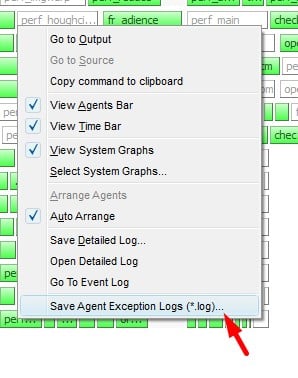
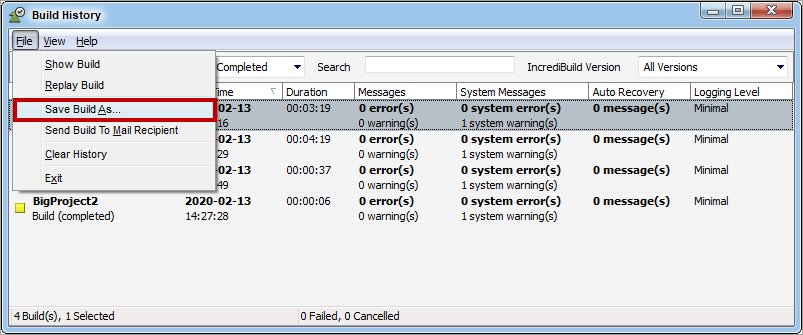 4. If you are having an issue with a few specific tasks, save their details in logs. In the Build Monitor, right click any task and click **Save Agent Exception Logs**.
 5. Send all the items that you saved to Incredibuild.