> ## Documentation Index
> Fetch the complete documentation index at: https://docs.incredibuild.com/llms.txt
> Use this file to discover all available pages before exploring further.
# Importing the Incredibuild Self-Signed Certificate
 After you have enabled the use of the Build Group APIs in the **Coordinator Settings** dialog box, you need to import Incredibuild self-signed certificate to the Coordinator machine. Importing this certificate and trusting it, secures the REST APIs communication over HTTPS protocol. The Incredibuild self-signed certificate, **BuildService.pfx**, is located in the Incredibuild installation directory.
**To import the Incredibuild self-signed certificate:**
1. On the Coordinator machine, in File Explorer, double-click on the **BuildService.pfx** file (located in *install\_dir\Incredibuild*).
After you have enabled the use of the Build Group APIs in the **Coordinator Settings** dialog box, you need to import Incredibuild self-signed certificate to the Coordinator machine. Importing this certificate and trusting it, secures the REST APIs communication over HTTPS protocol. The Incredibuild self-signed certificate, **BuildService.pfx**, is located in the Incredibuild installation directory.
**To import the Incredibuild self-signed certificate:**
1. On the Coordinator machine, in File Explorer, double-click on the **BuildService.pfx** file (located in *install\_dir\Incredibuild*).
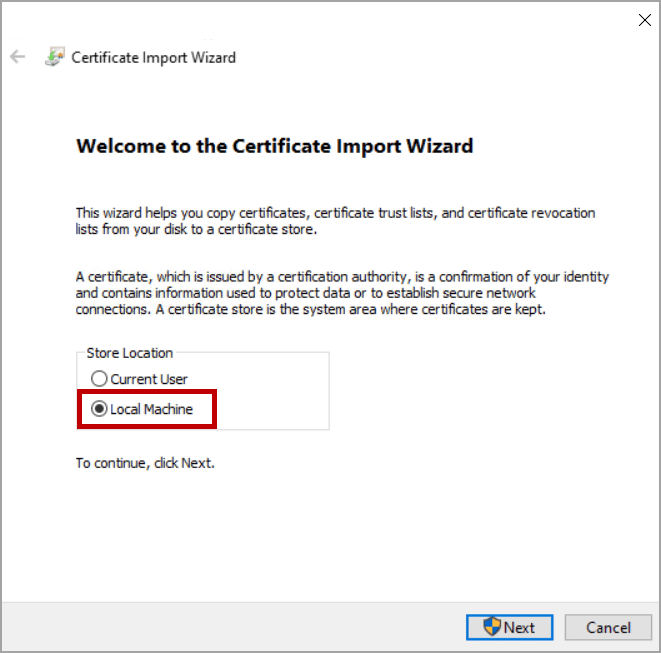
 2. Select **Local Machine**, and then click **Next**:
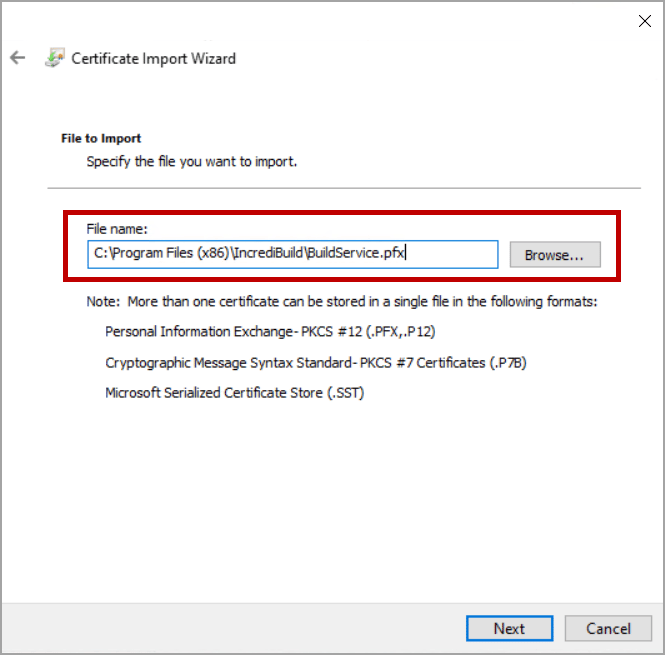
 3. Verify that the **BuildService.pfx** file is selected, or use the **Browse** button to load it, and then click **Next**.
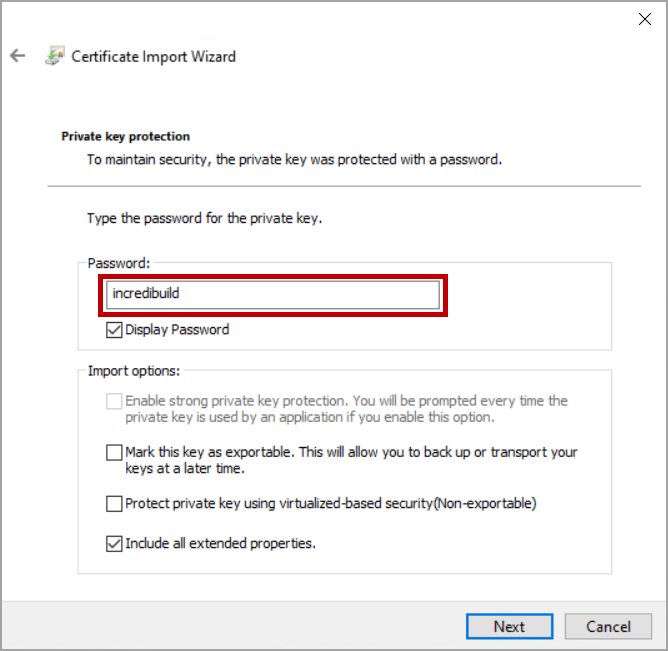
 4. Enter **Incredibuild** in the **Password** field and then, click **Next**.
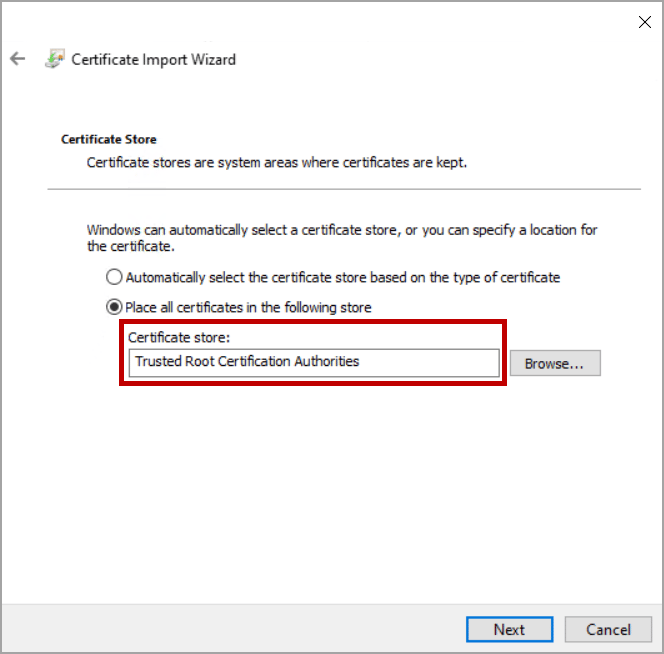
 5. Select **Place all certificates in the following store** and then click **Browse**.
 6. Select **Trusted Root Certification Authorities**and then click**OK**.
7. Verify that the **Trusted Root Certification Authorities** is selected in the **Certificate store** field and then click **Next.**
6. Select **Trusted Root Certification Authorities**and then click**OK**.
7. Verify that the **Trusted Root Certification Authorities** is selected in the **Certificate store** field and then click **Next.**
 8. Verify your settings, and then click **Finish** to import the certificate.
 Once you have imported the Incredibuild self-signed certificate to your machine, the next step is to [add this certificate to your API Client tool](/windows/add-cert-to-api-client-tool).