> ## Documentation Index
> Fetch the complete documentation index at: https://docs.incredibuild.com/llms.txt
> Use this file to discover all available pages before exploring further.
# Generating Logs for Successful Builds
**To generate a log for a successful build:**
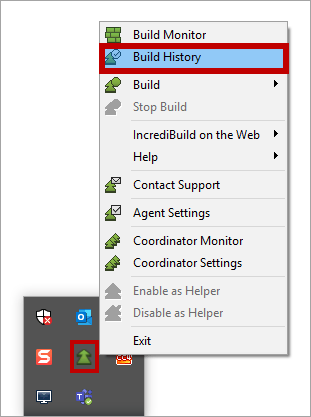
1. Open the Build History, by right-clicking **Incredibuild Agent** icon on the taskbar, and selecting **Build History**:
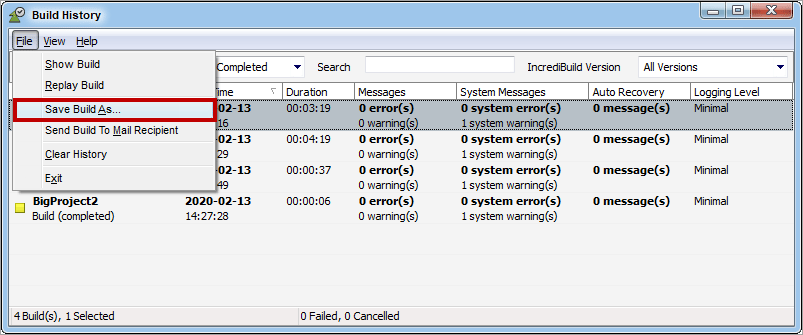
 2. On the Build History, select from the Build list one of the three builds you executed. Then, Open the **File** menu, click the **Save Build As** option, and save the log:
 3. Repeat the log generation procedure for the two other executions you performed.
4. Send the three logs to Incredibuild.
3. Repeat the log generation procedure for the two other executions you performed.
4. Send the three logs to Incredibuild.