> ## Documentation Index
> Fetch the complete documentation index at: https://docs.incredibuild.com/llms.txt
> Use this file to discover all available pages before exploring further.
# Installing the Coordinator and Activating Incredibuild by Loading Its License
When you install Incredibuild Windows for the first time, the first component you need to install is the Coordinator. The reason for installing the Coordinator first is that during the installation of Agents on other machines in the network, you need to provide the IP address/hostname of the Coordinator for the Agent-Coordinator communication. In addition to the Coordinator, you can install an Agent on the same machine.
The Agent-Coordinator communication requires a static identifier for the Coordinator - either an IP address or a hostname. Therefore, when selecting a machine for hosting the Coordinator, one of the following conditions need to be met:
* To identify the Coordinator using its IP address – you must use a machine with a static IP.
* To identify the Coordinator using its hostname – you can use a machine with a dynamic IP.
**Note**: It is recommended to install the coordinator on a High-Availability machine.
**To install the Coordinator and activate Incredibuild:**
1. On the machine that will host the Coordinator, double-click Incredibuild Setup file. Incredibuild Setup wizard appears.
2. Follow the Setup wizard instructions and click **Next** until you reach the **Coordinator Selection** page.
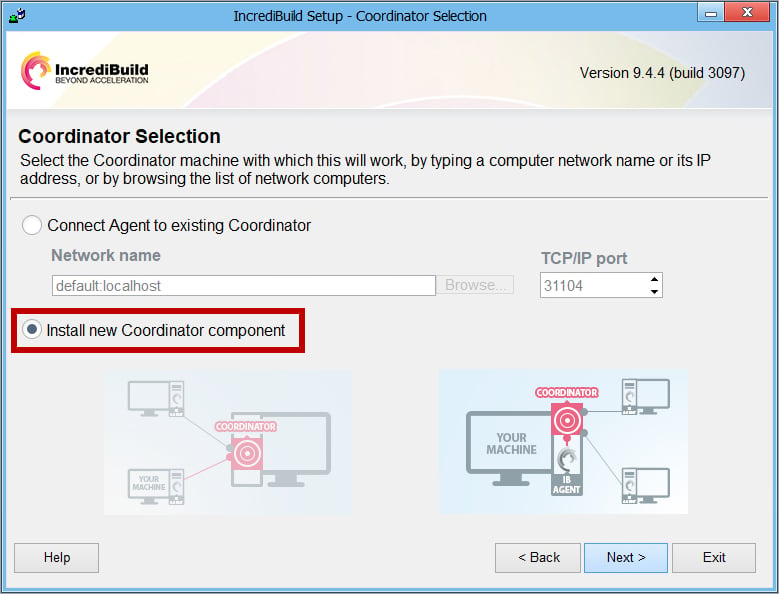
3. On the **Coordinator Selection** page, select the **Install new Coordinator component** option. Then, click **Next**:
 **Note**: You cannot install an Agent before you install a Coordinator.
4. Continue to follow the wizard instructions until you reach the **License Installation** page.
5. On the **License Installation** page, select – **I received an email with a license and would like to install it**.**Note**: Before loading your license, verify that the machine hosting the Coordinator is connected to the internet, in order to register the license. Then, click the **Browse** button to locate your license and load it. Once the license is loaded, click **Next**:
**Note**: You cannot install an Agent before you install a Coordinator.
4. Continue to follow the wizard instructions until you reach the **License Installation** page.
5. On the **License Installation** page, select – **I received an email with a license and would like to install it**.**Note**: Before loading your license, verify that the machine hosting the Coordinator is connected to the internet, in order to register the license. Then, click the **Browse** button to locate your license and load it. Once the license is loaded, click **Next**:
 6. Continue to follow the wizard instructions until the **Install complete** page, where you receive the following confirmation: **The selected Incredibuild components have been successfully installed**.
7. Exit the Setup wizard.
A Coordinator and an Agent are now installed on your machine.
6. Continue to follow the wizard instructions until the **Install complete** page, where you receive the following confirmation: **The selected Incredibuild components have been successfully installed**.
7. Exit the Setup wizard.
A Coordinator and an Agent are now installed on your machine.