Last updated on Jun 15, 2025 You can view details about each of your Agents in the Coordinator Manager’s Agent List.

View Agent Details and Status

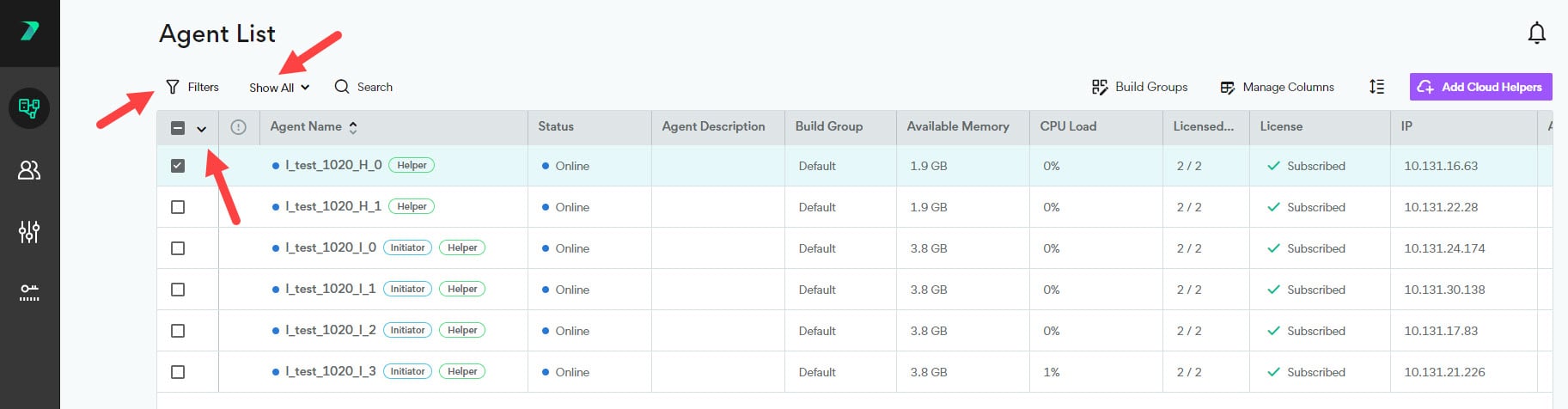
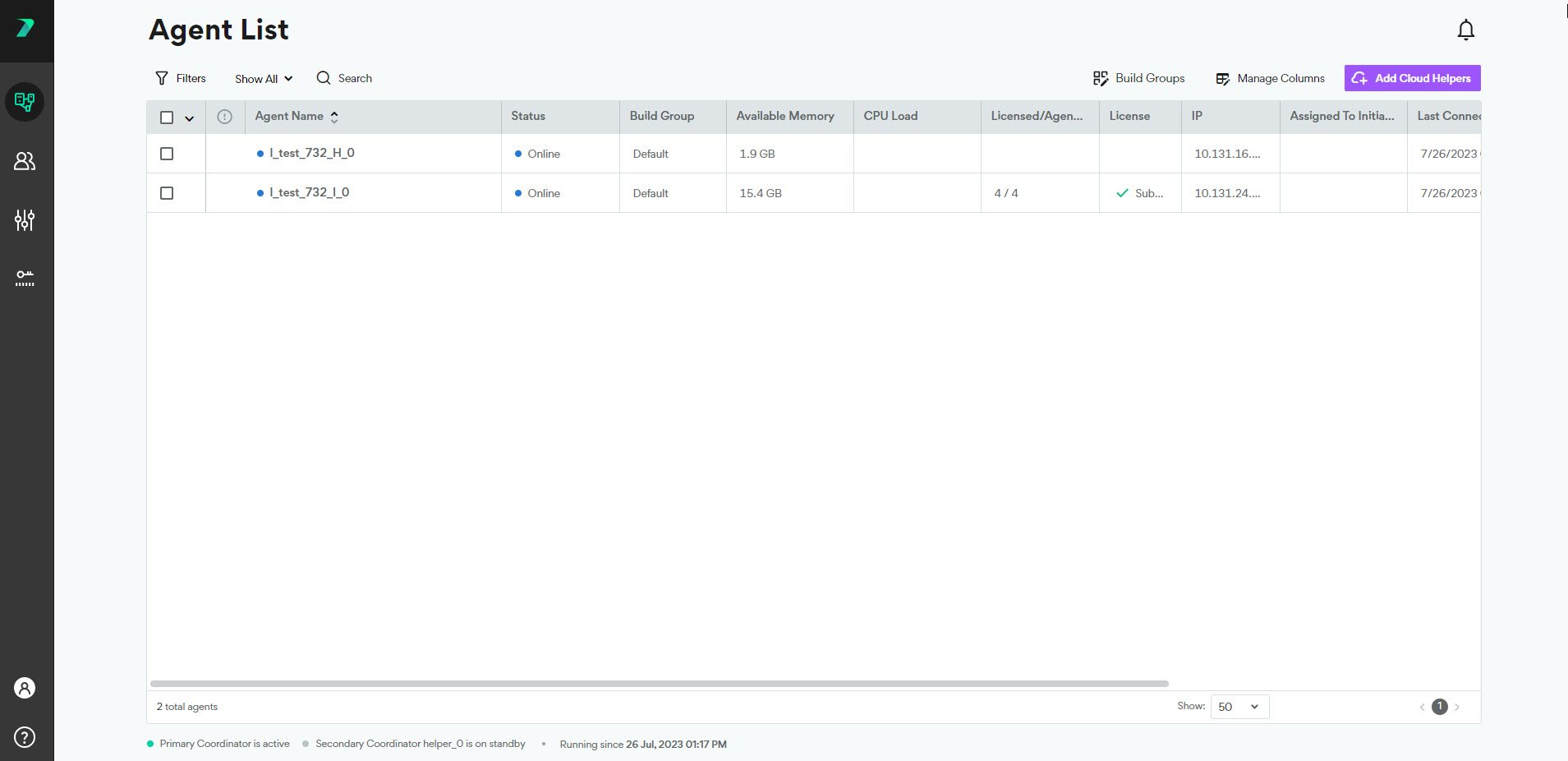
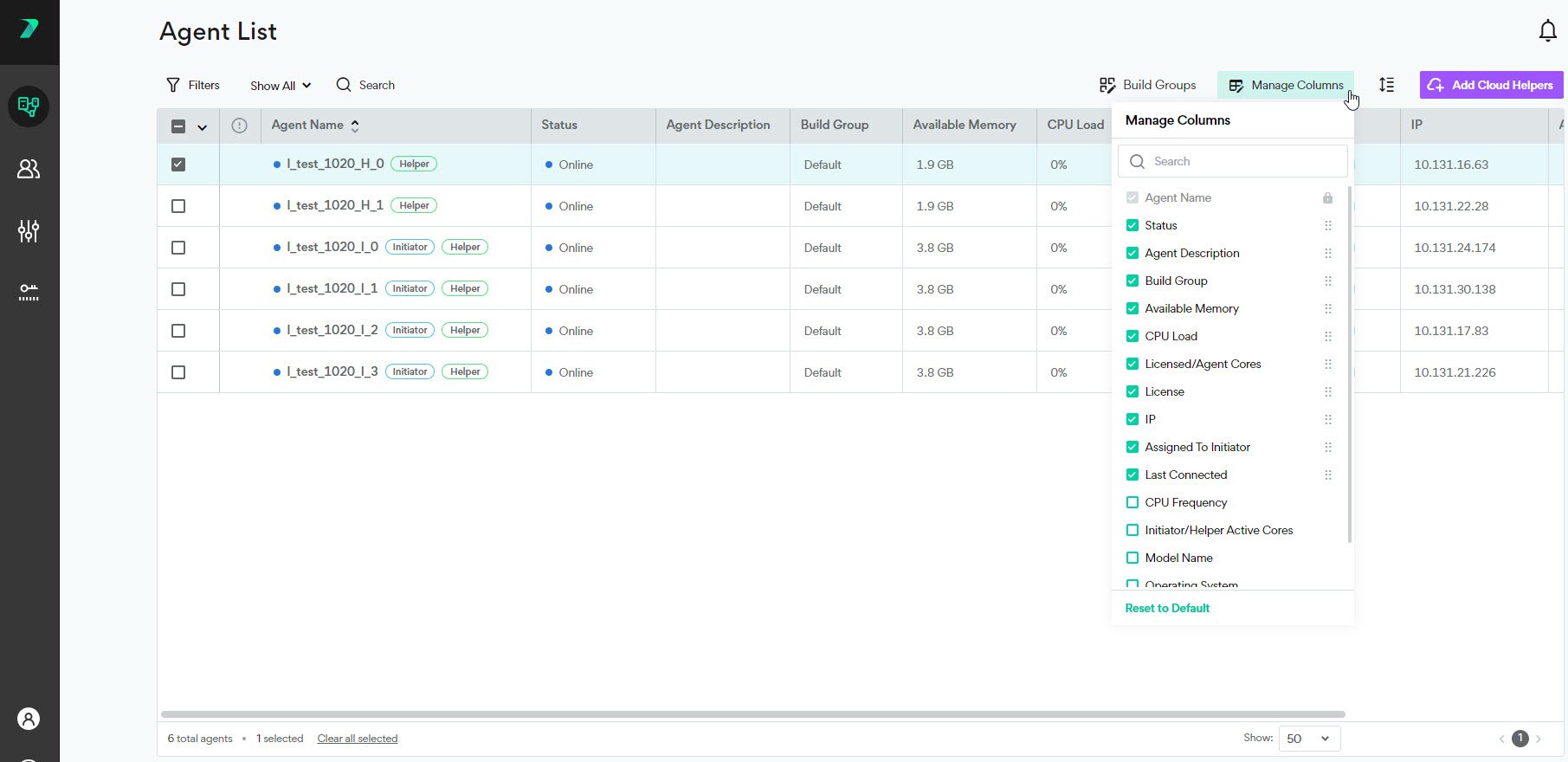
The agent list shows you information about each Agent such as it’s status, available CPU, and description. Click Manage Columns to add or remove columns from the list. You can filter the list of options by typing a string in the search column Available Columns: A colored circle indicates the status of each Agent:
  • Online: Agent is available to run a build.
  • Offline: Agent is not connected to the Coordinator.
  • Stopped: A Cloud Agent from your pool when it has been paused.
  • Updating: The Agent is installing the latest version.
  • Incompatible: The Agent has a different version of Incredibuild than the Coordinator and cannot fuction.

Filter the Agent List

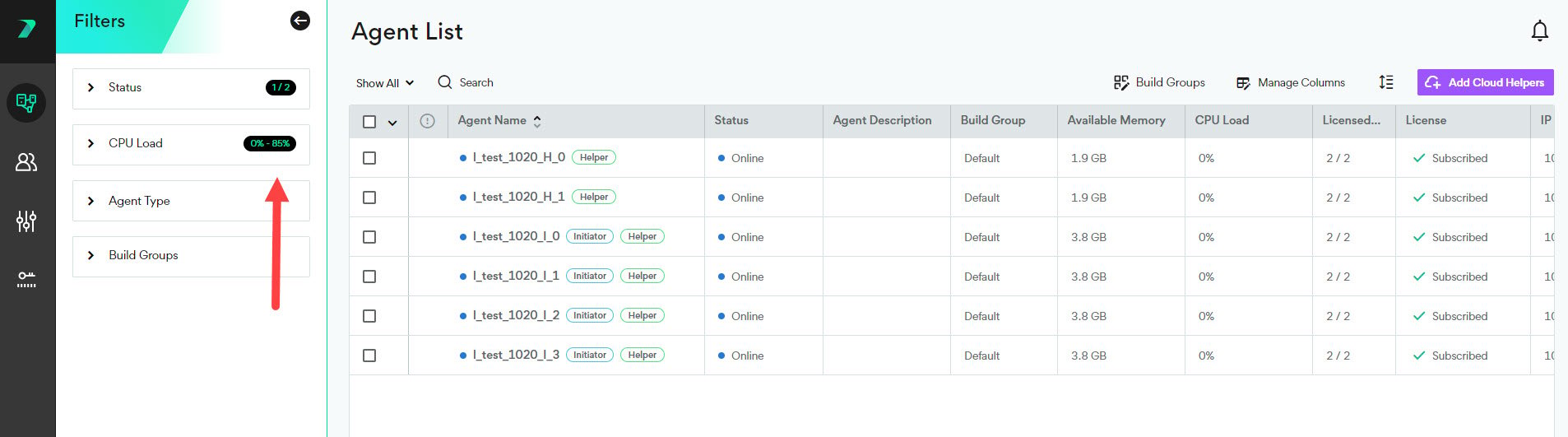
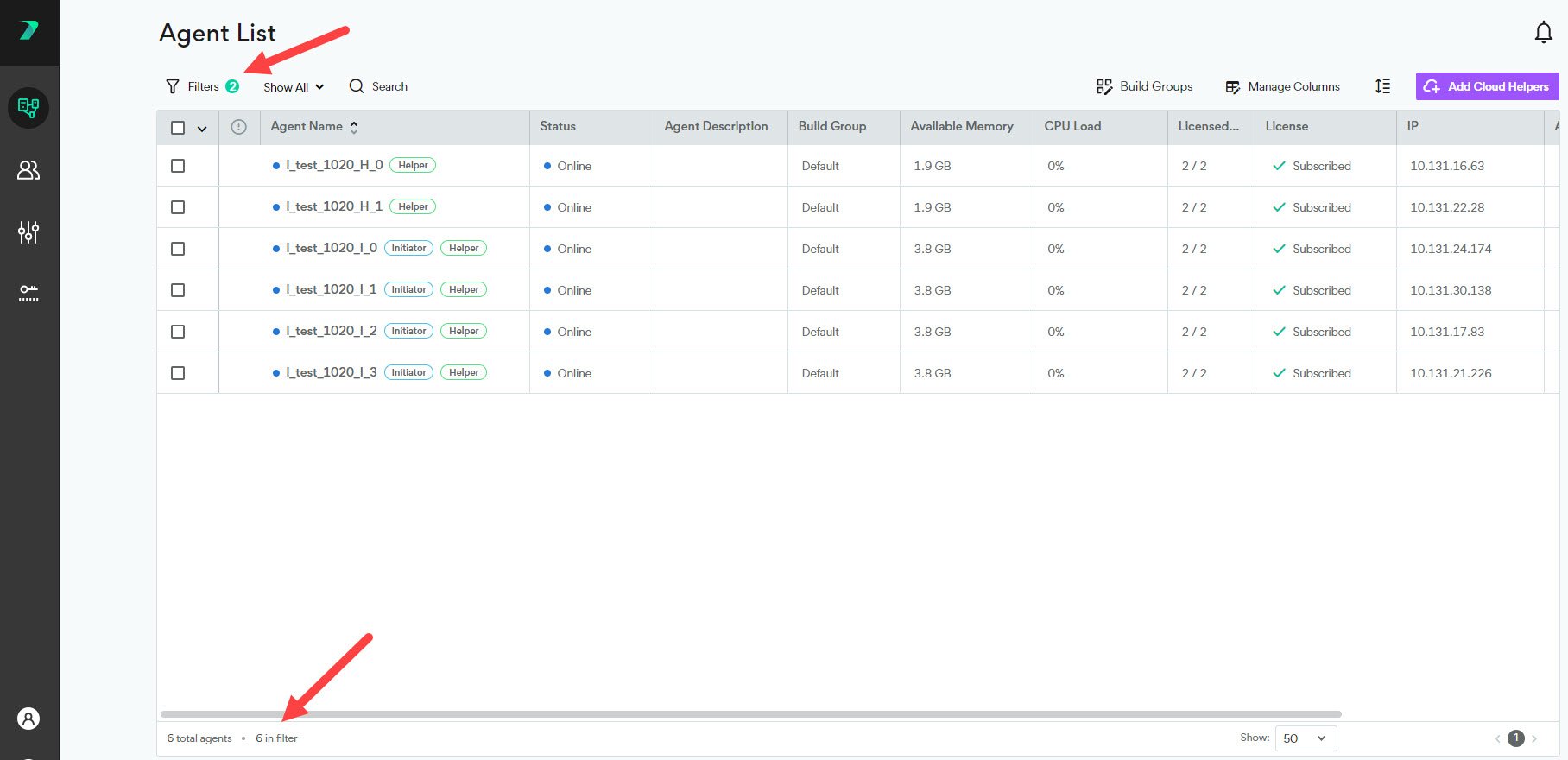
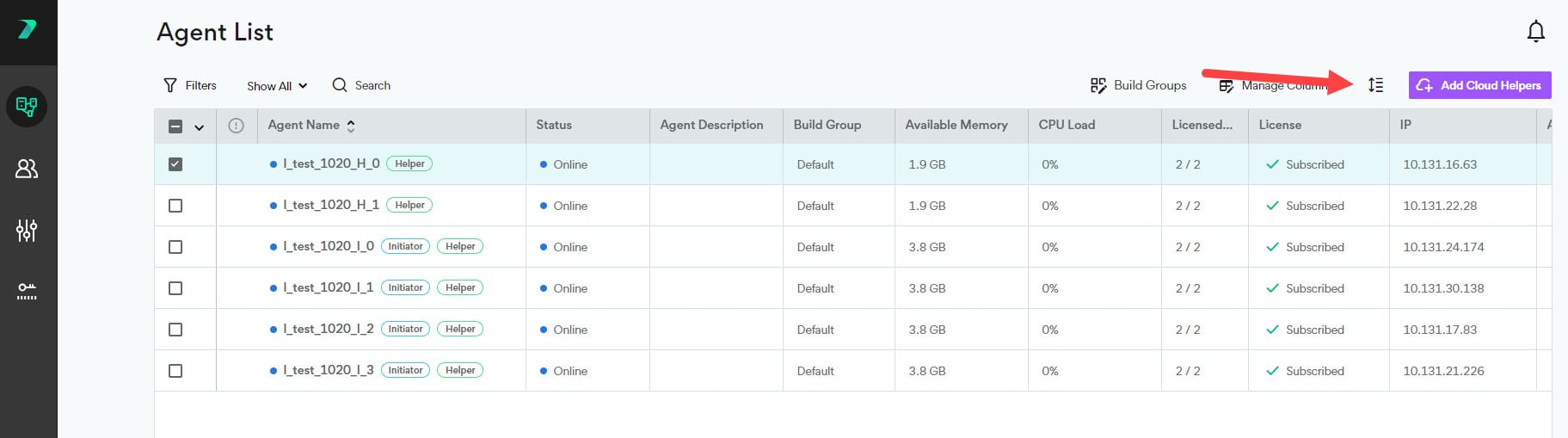
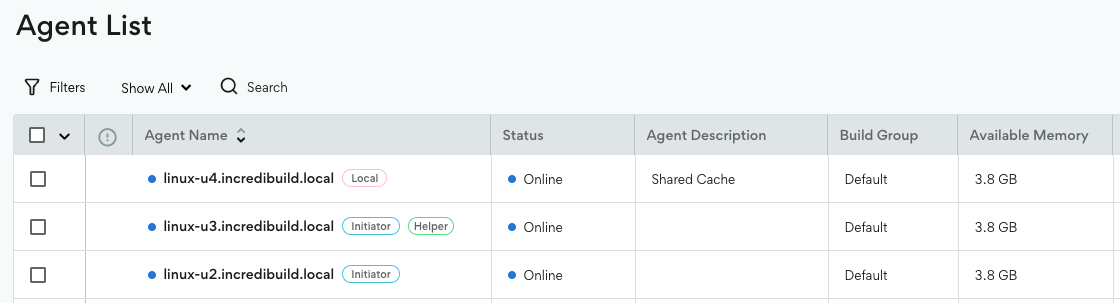
You can filter the agent list by typing in the search bar, using the quick filter drop-down, or using the filter button. The search bar scans the following attributes: Agent Name, Build Group, IP, routing IP, Mac Address and current build title. The filter button lets you filter the list of agents based on items such as status and available CPU. Filters with a black label on the right show you which items are currently being filtered. After filters have been applied and the filter tab is closed, you can see an indication of any active filters next to the Filters button. You can view the total number of Agents, and how many are currently included in your filter in the footer at the bottom of the Agent list. You can also modify the height of the rows using this button: The Agents page now shows shared cache servers in the list: