Upgrading to Incredibuild 10.x
The entire Incredibuild environment can be upgraded from the Incredibuild Coordinator machine. After the upgrade process is complete on the Coordinator machine, it is automatically applied to all associated Agent machines. In order for Agents to be able to receive remote version updates, you must have local Administrator privileges, and the IncrediBuild Agent tray-icon display must be running
There are two different methods for upgrading your environment:
-
Indirect Upgrade (recommended): Install a new Incredibuild Coordinator and migrate your Agents to this machine. This method allows you to verify that everything is working properly before removing your Incredibuild 9 Coordinator.
-
Direct Upgrade: Upgrade your Incredibuild 9 Coordinator directly to Incredibuild 10.
Upgrading Indirectly (recommended method)
-
Prerequisites:
-
If you have Visual Studio, close it on all Incredibuild Agents in your environment.
-
Download the latest version of Incredibuild from our website.
-
If you are using Incredibuild Cloud with Incredibuild 9, Incredibuild Cloud must be deactivated and reinstalled after the upgrade to Incredibuild 10. Additionally, contact your Customer Success Manager to make sure you current cloud package is migrated to the new environment.
-
Prepare any certificates and keys if you are planning to use SSL.
-
-
Run the setup file you downloaded from our website on a new Coordinator machine.
-
Move a few Agents to the new Coordinator. For details, see Moving the Coordinator to a New Machine.
-
Verify that the new environment is functioning as expected. We recommend running a build and verifying that it is distribute across your Agents.
-
If you are ready to migrate all Agents to the new Coordinator, repeat the procedure in step 4 for all Agents.
-
If you want to roll back Agents from Incredibuild 10 to the original Coordinator, using the following procedure:
-
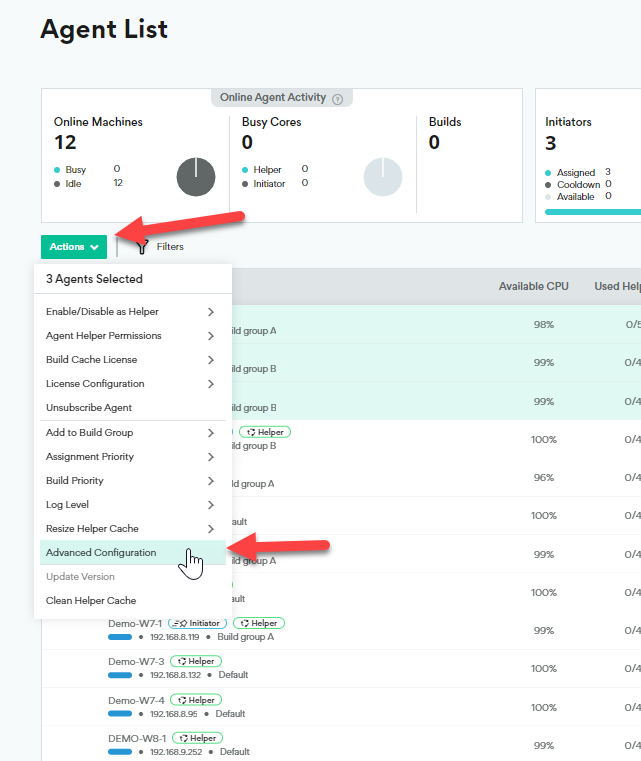
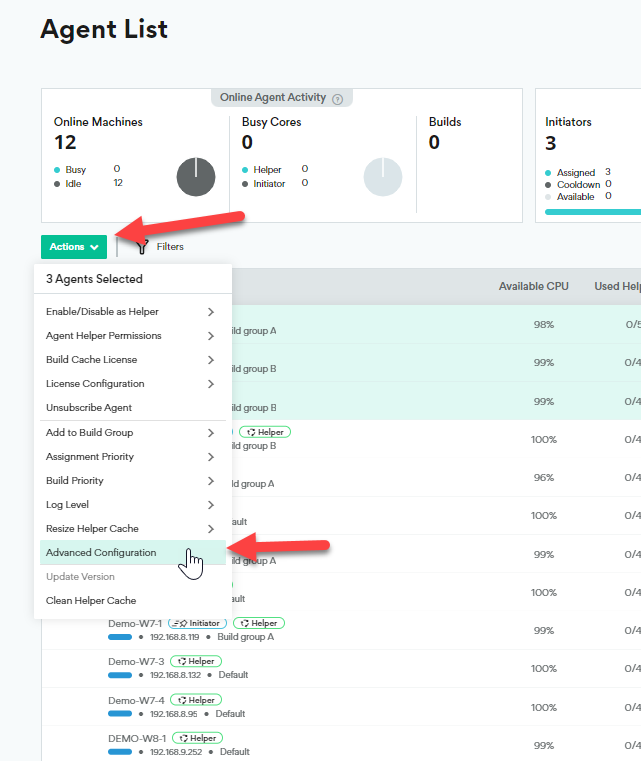
Select the Agents in the Incredibuild 10 Coordinator.
-
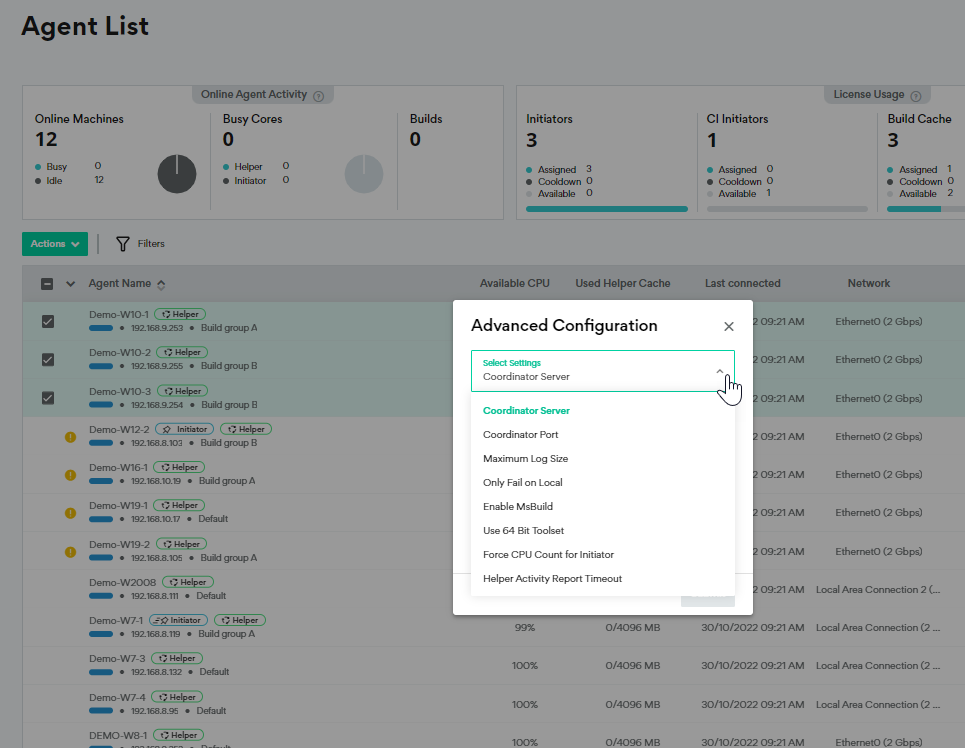
Go to Actions > Advanced Configuration.
-
Update the Coordinator Server and Coordinator Port values to point to the other Coordinator.
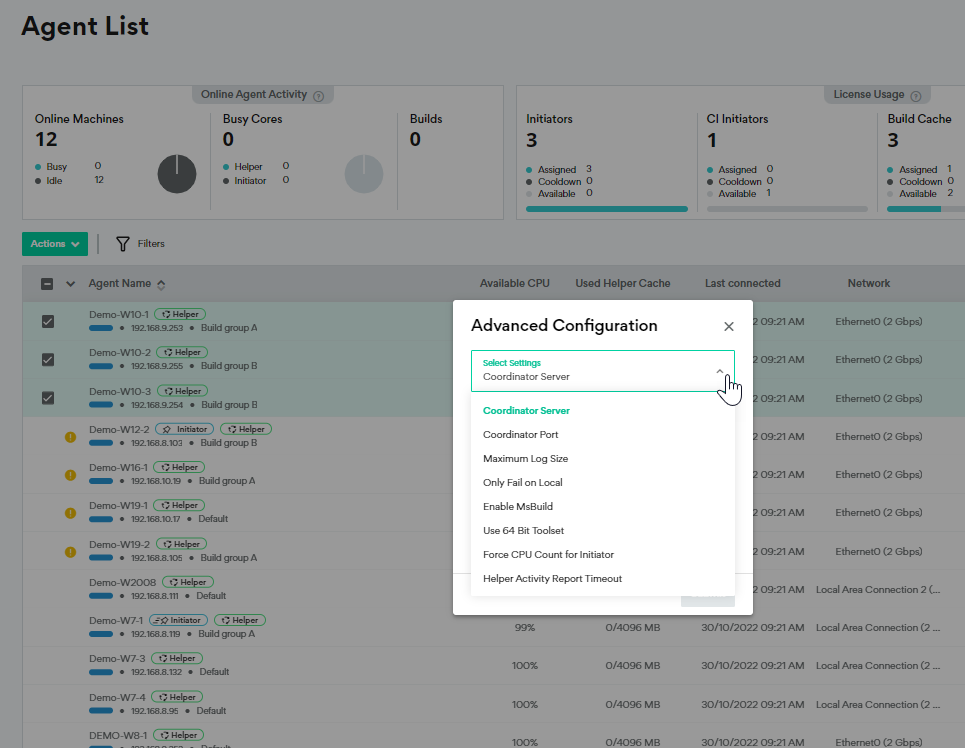
The Agents are now associated with the original Coordinator and will be rolled back to the version of that Coordinator automatically.
-
Upgrading Directly
-
Prerequisites
-
If you have Visual Studio, close it on all Incredibuild Agents in your environment.
-
Download the latest version of Incredibuild from our website.
-
If you are using Incredibuild Cloud with Incredibuild 9, Incredibuild Cloud must be deactivated and reinstalled after the upgrade to Incredibuild 10. We plan to resolve this issue as quickly as possible.
-
Prepare any certificates and keys if you are planning to use SSL.
-
-
Run the setup file you downloaded from our website on your Coordinator.
-
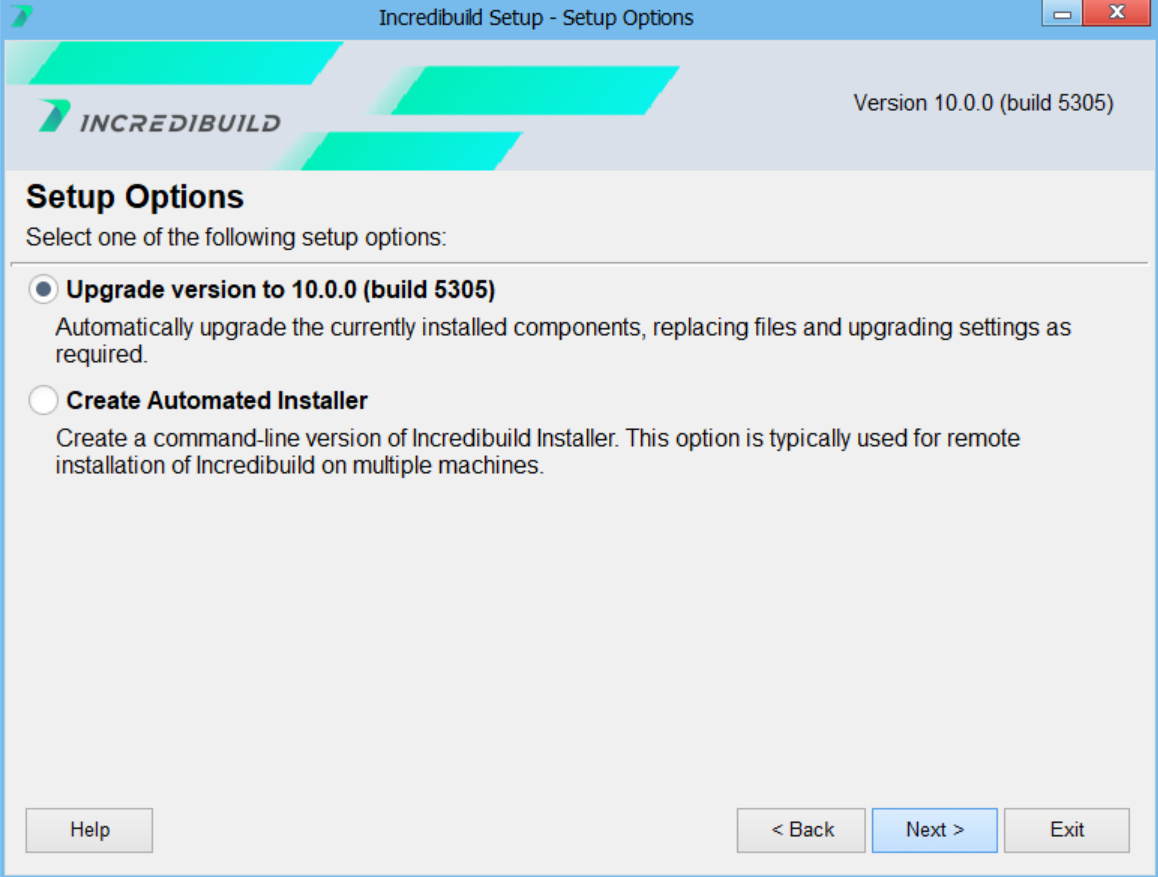
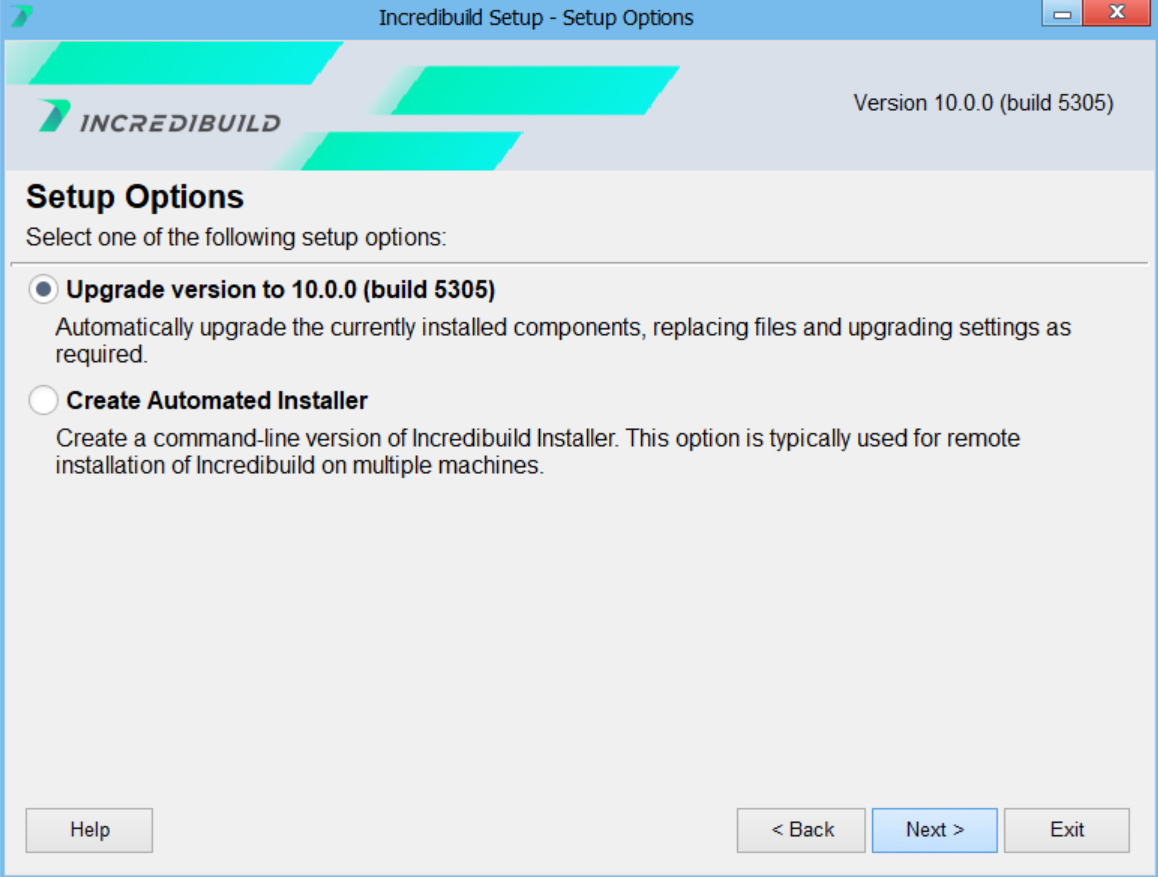
Select upgrade version click Next.
-
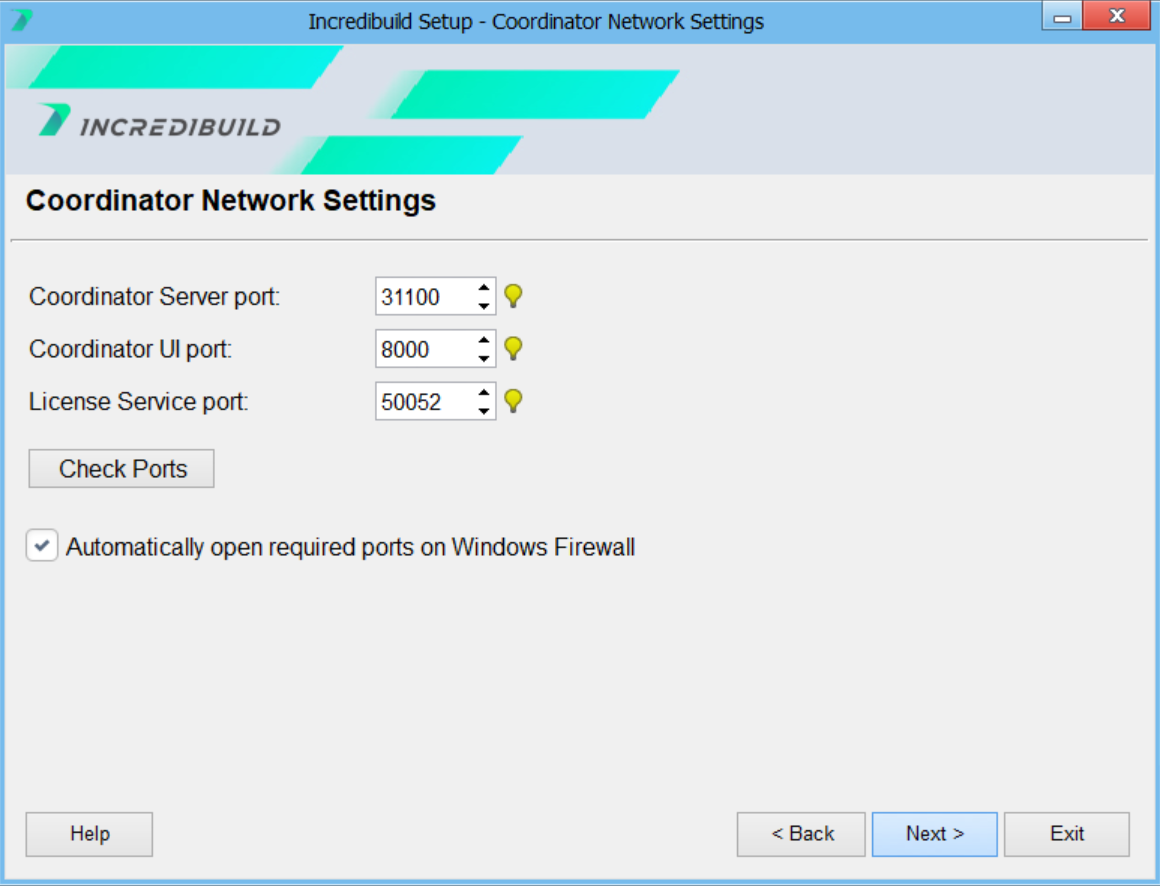
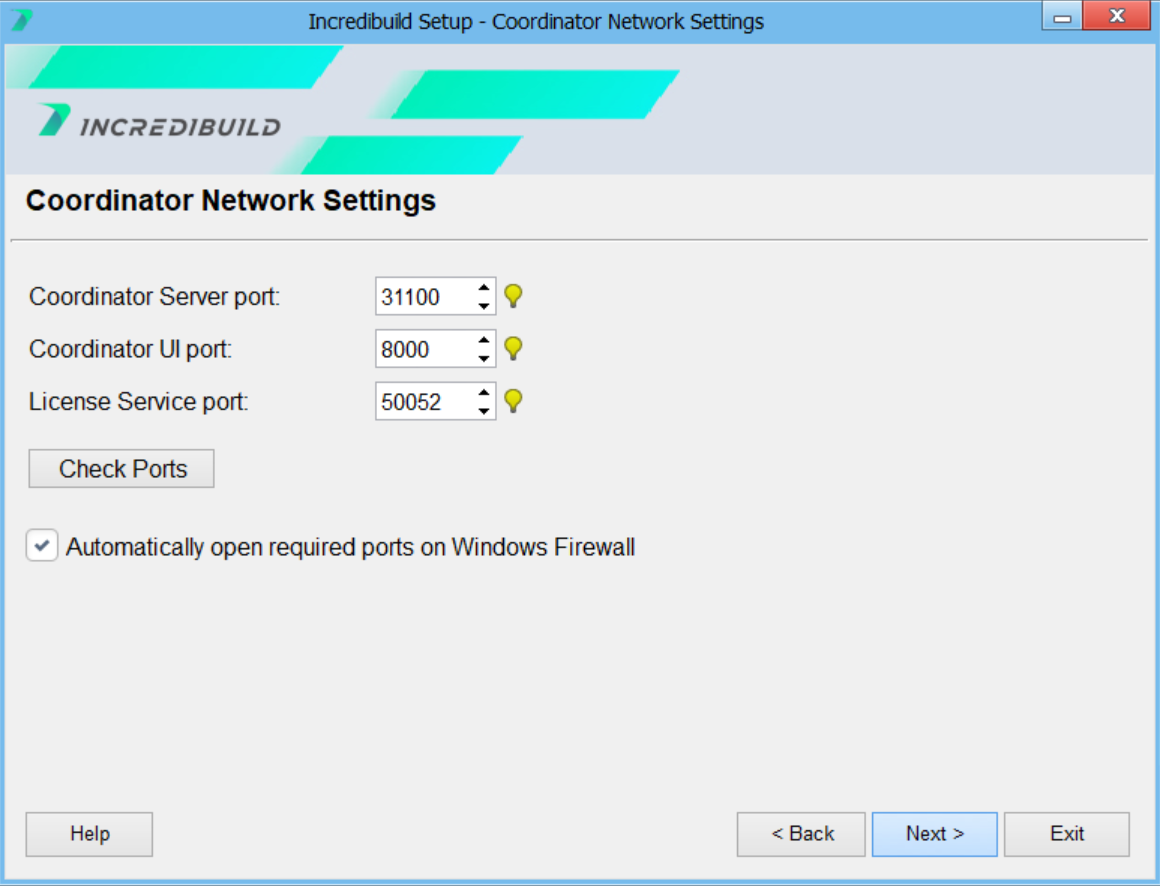
On the Coordinator Network Settings page, accept the default values or set the following ports for the installed Coordinator:
-
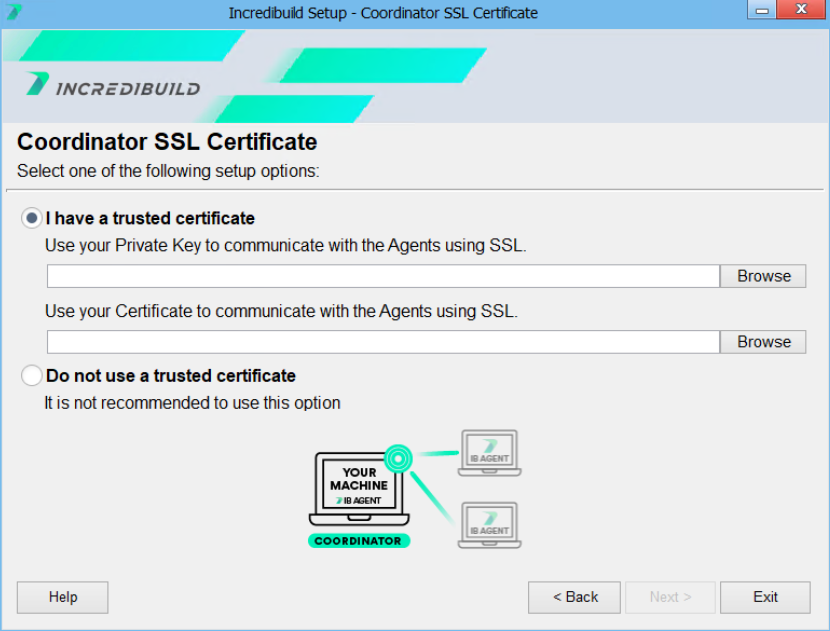
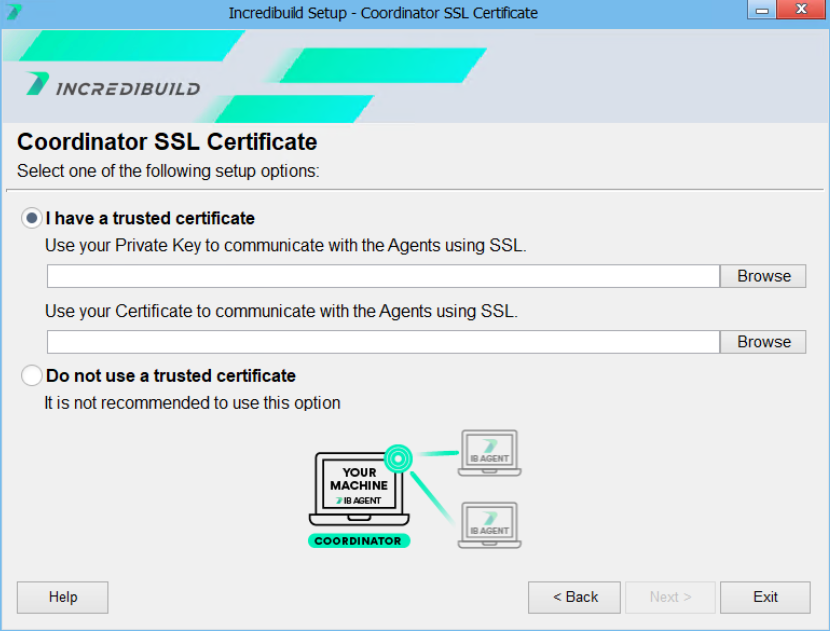
(Recommended) Enter a private key and certificate to use to secure communication between the Incredibuild Coordinator and the Coordinator's user interface.
-
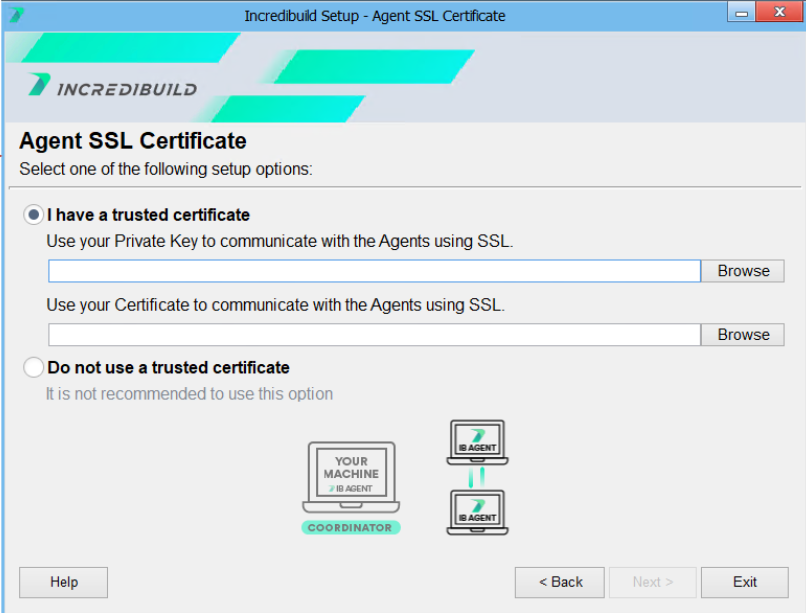
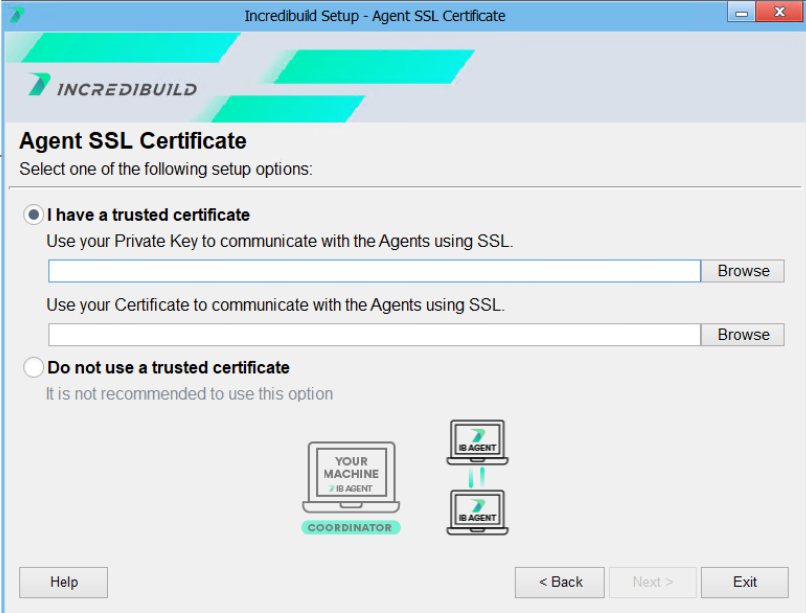
(Recommended) Enter a private key and certificate to use to secure communication between the Incredibuild Agent and the Coordinator.
-
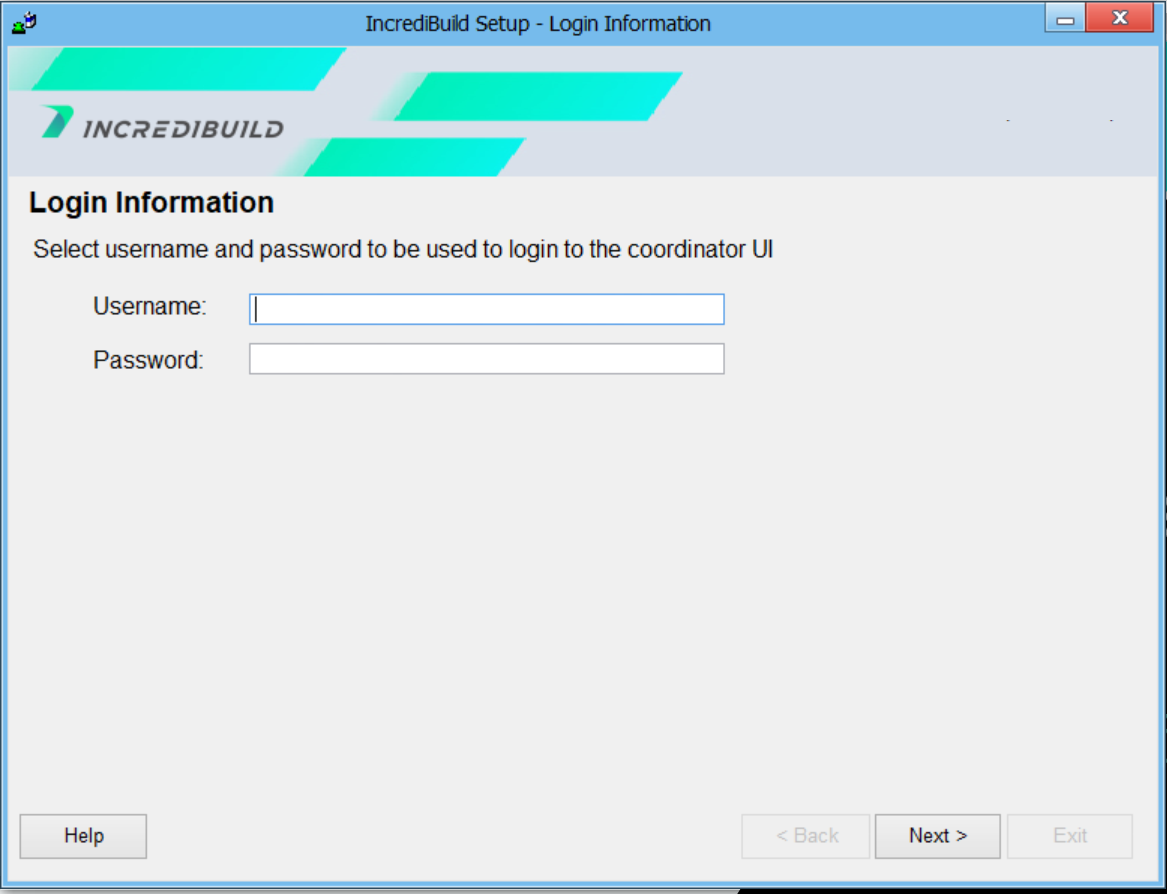
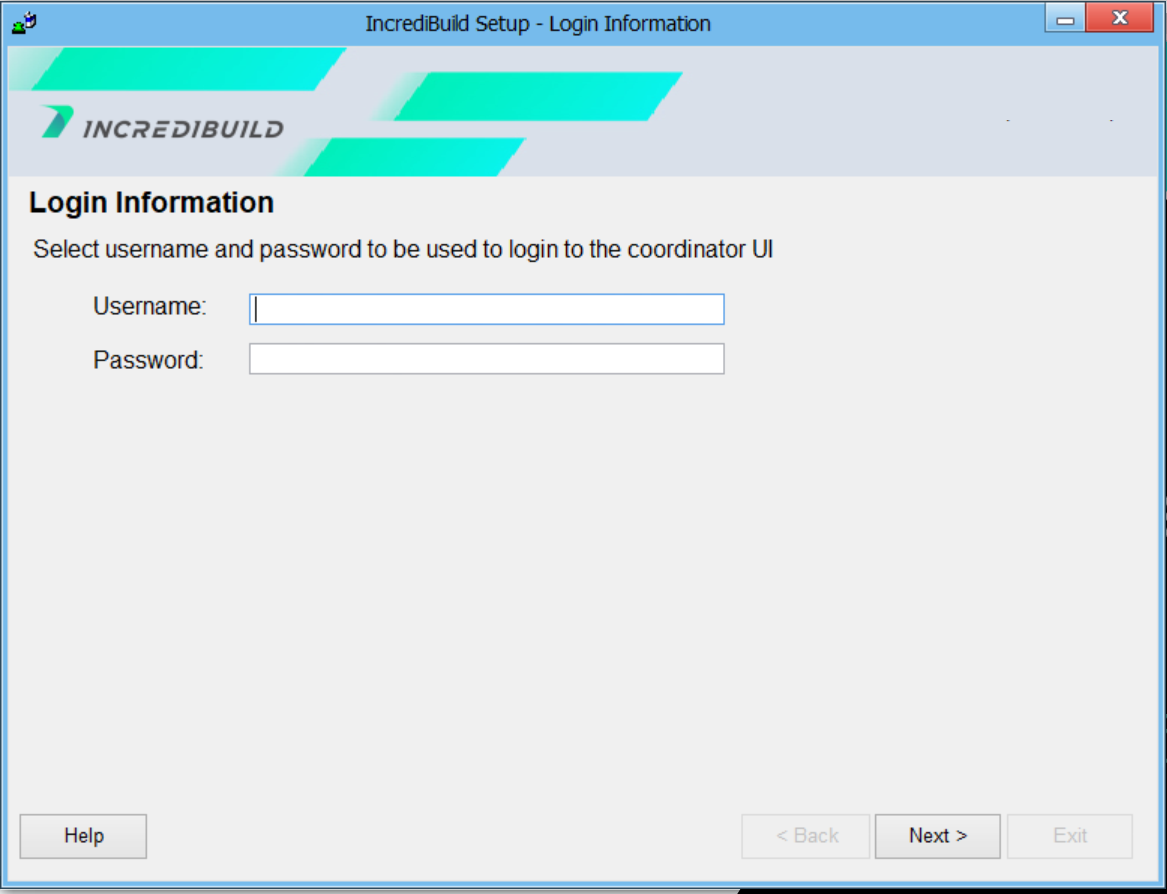
Enter a username and password that will be required for future access to the Coordinator user interface. The password must be at least 8 letters with at least one capital letter.
-
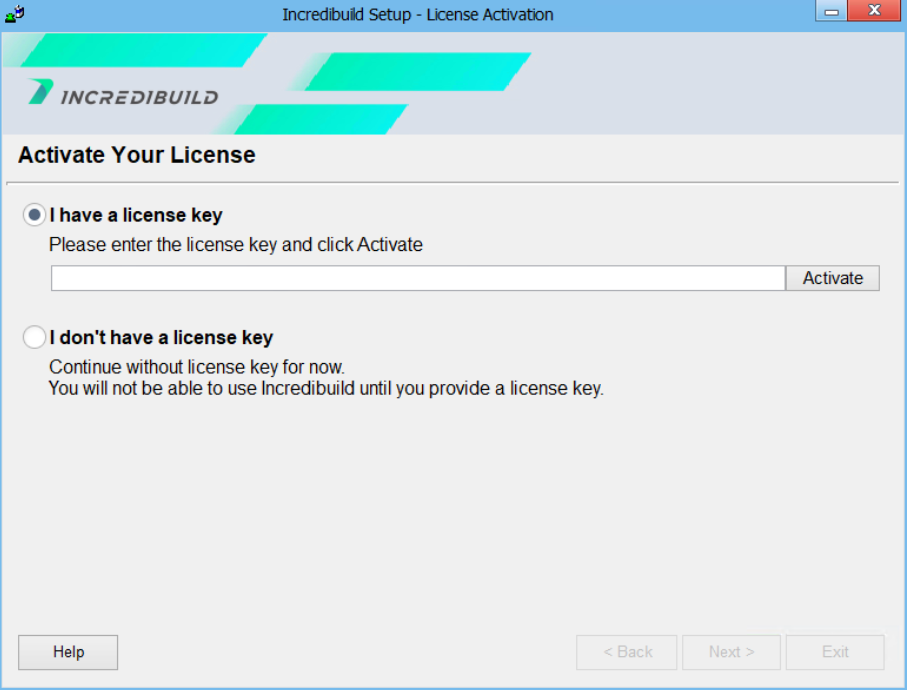
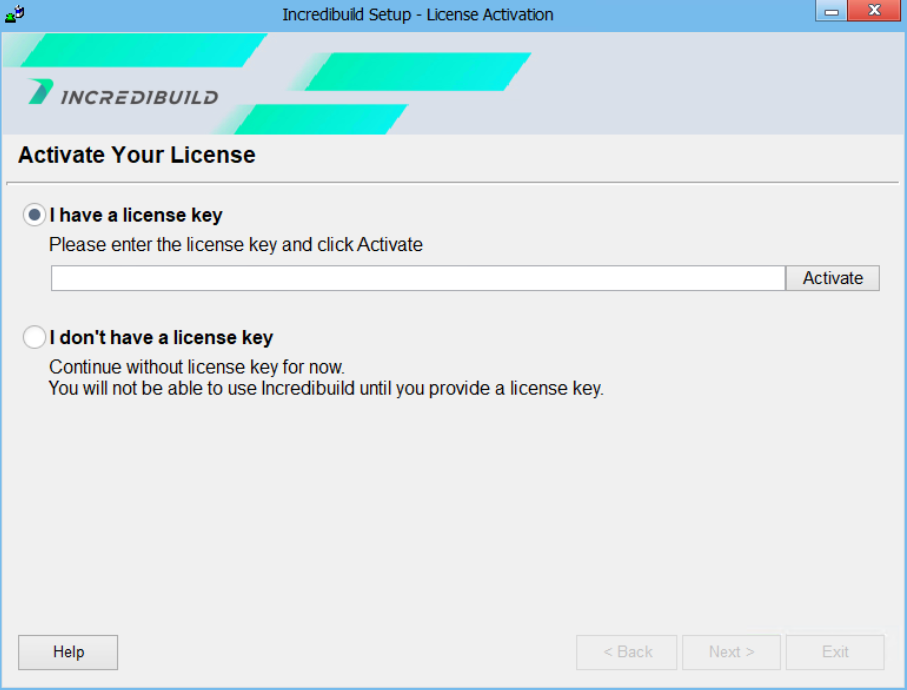
Enter your license key.
-
If you would like to use helper agents in the cloud, see Setting Up Incredibuild Cloud.