

-
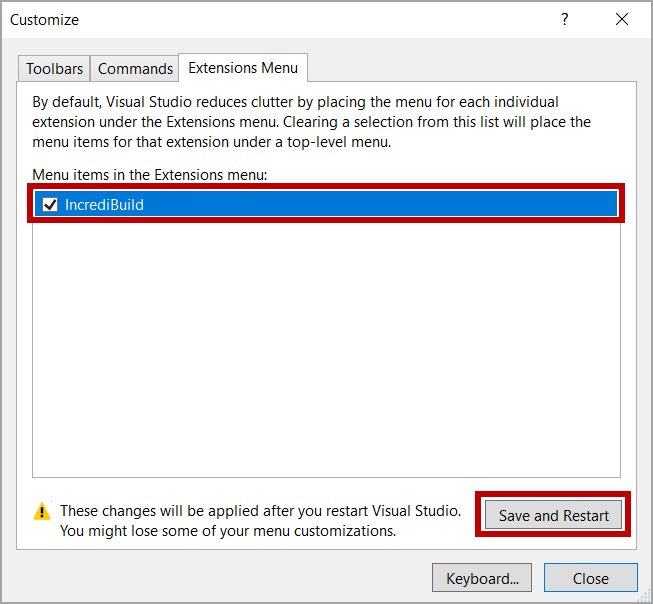
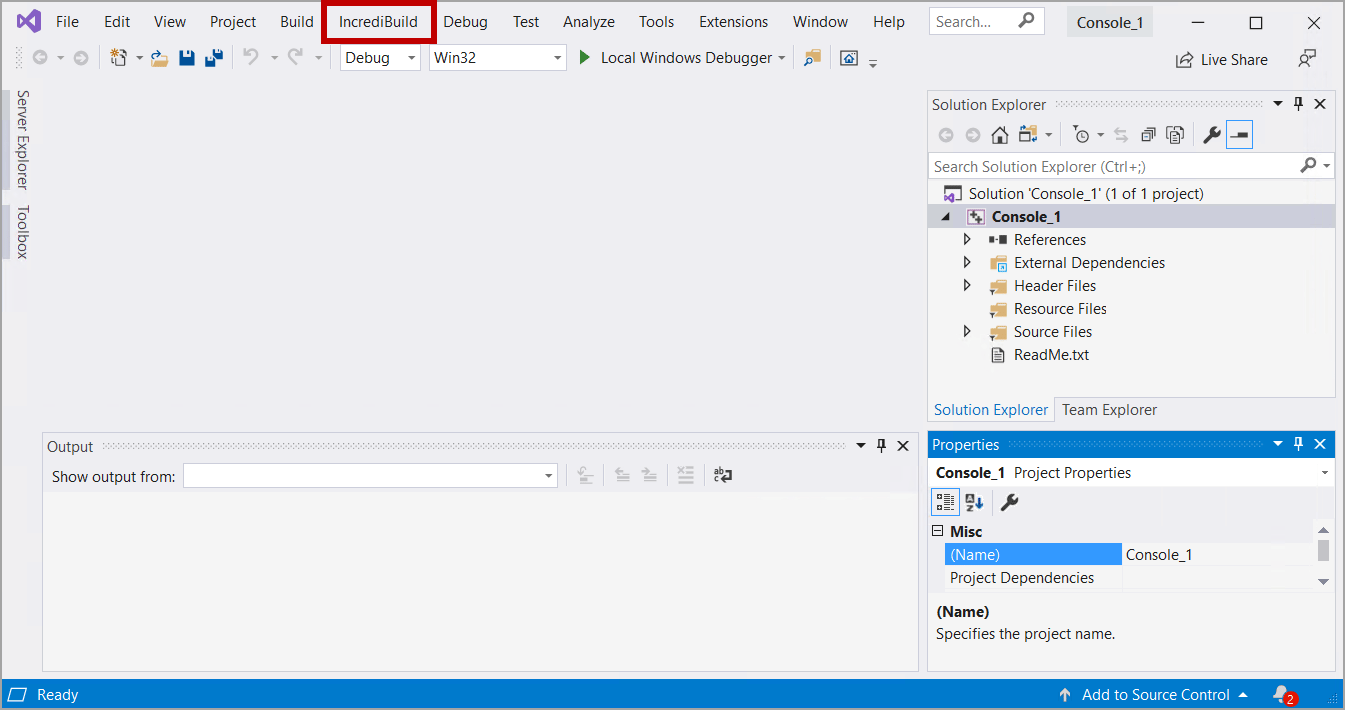
To enable the Incredibuild menu, in Visual Studio, go to Tools > Customize > Extensions Menu, select Incredibuild and then click Save and Restart.
-
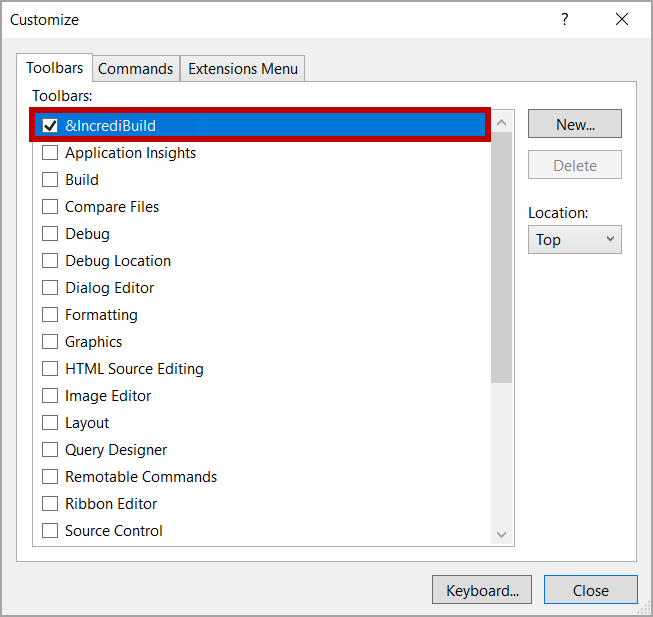
To enable the Incredibuild toolbar, go to Tools > Customize > Toolbars, select Incredibuild and then click Close.
-
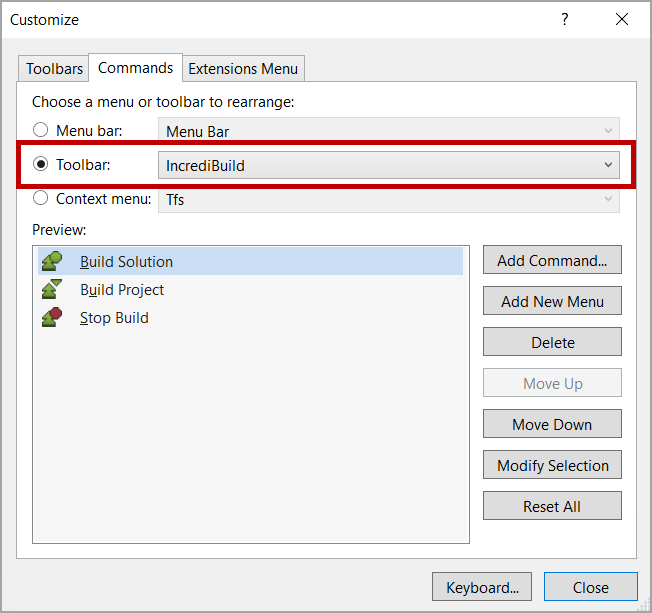
To customize the Incredibuild toolbar, go to Tools > Customize > Commands, and then from the Toolbar dropdown, select Incredibuild.
-
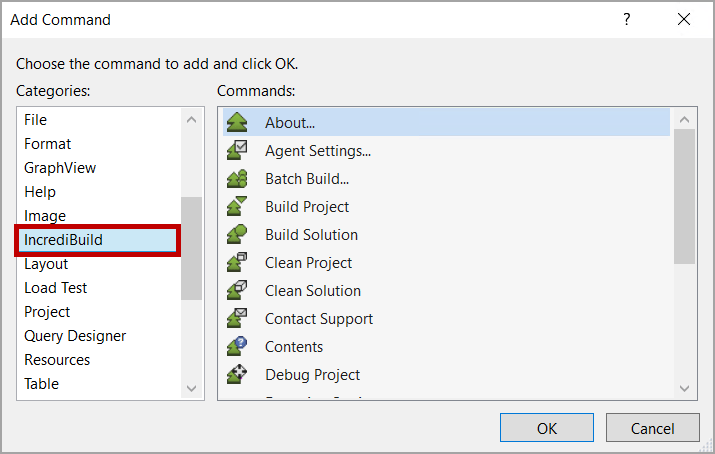
To add commands to the Incredibuild toolbar, click Add Command, select Incredibuild from the Categories list and then select the commands to add to the toolbar, and click OK.
- Click Close.
-
To add keyboard shortcuts to Incredibuild commands (use this to override standard Visual Studio keyboard shortcuts, for example, by setting F7 to start an Incredibuild build, or CTRL-F7 to compile the currently edited file):
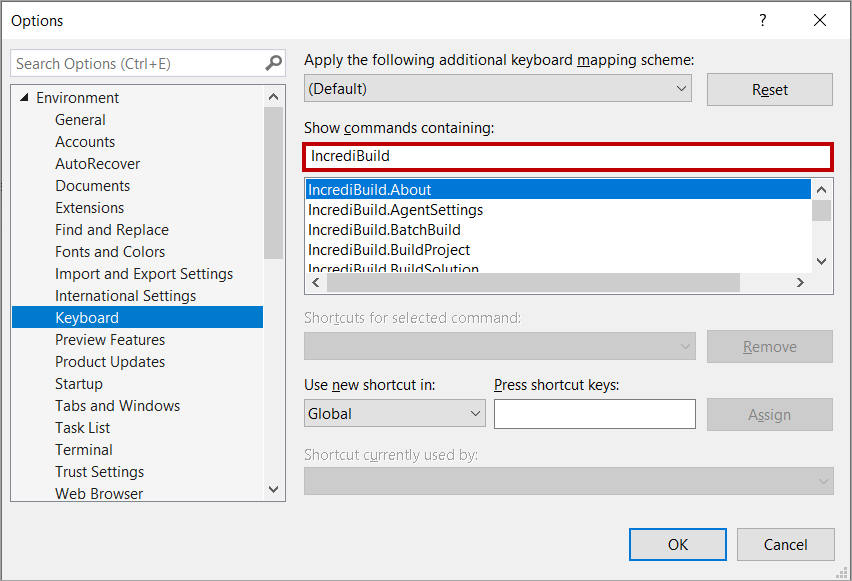
- Go to Tools > Options > Environment > Keyboard.
- In Show commands containing, enter Incredibuild.
- Select the required command, and in Press shortcut keys, enter the keyboard shortcut.
- Click Assign.
- Click OK.
Visual Studio Solution
Customizing Incredibuild Options in Visual Studio
Last updated on Nov 05, 2024
You can enable the Incredibuild menu, toolbar and shortcuts in Visual Studio.