

Enabling the Incredibuild Plugin
- Prerequisite: Incredibuild is fully installed.
-
Install the Incredibuild plugin
-
If you are using Qt version 4.12.1 or lower, download the appropriate plugin file (see links below) and load it into the following directory in Qt:
QtCreator\lib\qtcreator\plugins directory. -
If you are using Qt Creator 4.12.2:
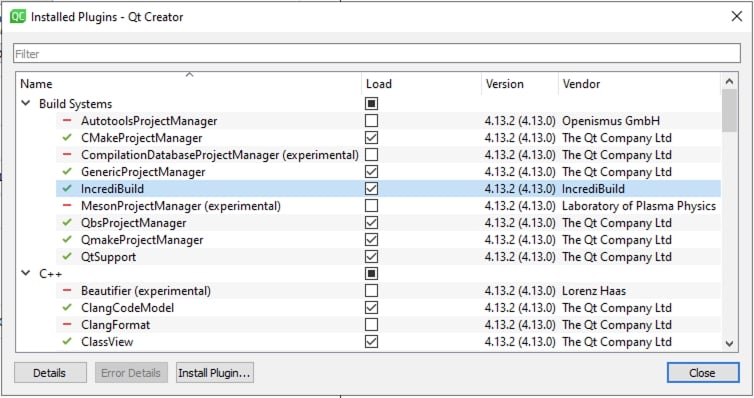
in Qt go to Qt Creator Menu > Help > Installed Plugins (or Qt Creator > About Plugins on macOS) enable Incredibuild.\
-
If you are using Qt version 4.12.1 or lower, download the appropriate plugin file (see links below) and load it into the following directory in Qt:
-
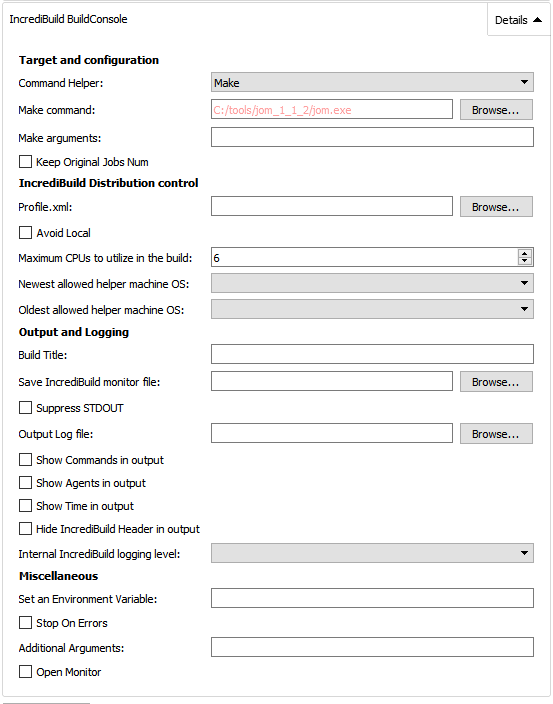
To manage how the plugin affects your builds, click Details and edit the settings. These settings differ for windows and linux. For details about each settings, see Incredibuild Plugin Settings below.\
How to Use
Once the Incredibuild plugin is installed, you will be able to add the “Incredibuild for Windows” or “Incredibuild for Linux” build steps to your Qt Creator from the Build Settings menu, which is accessed by clicking the Projects icon in Qt Creator. Upon adding an Incredibuild build step, Incredibuild will automatically detect the Build Step used in your build settings by iterating over the build steps you already defined. The initial build step settings will then be part of your Incredibuild build step, so your usual build tool will still be used, but with the added benefit of Incredibuild’s build acceleration. After adding an Incredibuild Build Step you will be asked if you would like to apply it to all configurations of your project. If you agree, the Incredibuild step will automatically be added to all relevant build configurations. After Incredibuild has iterated through your configurations and added itself to your initial Build Steps, it is advised to go through your project configurations, make sure that each step is configured properly, and to disable previous steps that are now irrelevant.Example - QMake
In this example, the user has defined a qmake command that creates the Make build tool defined in the following Make Build Step. -Upon Adding the Incredibuild Build Step, the Command Helper field automatically detects the Build tool being used in the previous Build step, which is Make in this case.. -If you look at the Make command field in “Incredibuild for Windows” you will see that it is set to a directory containing “jom.exe”, as defined in the Make Build Step above it.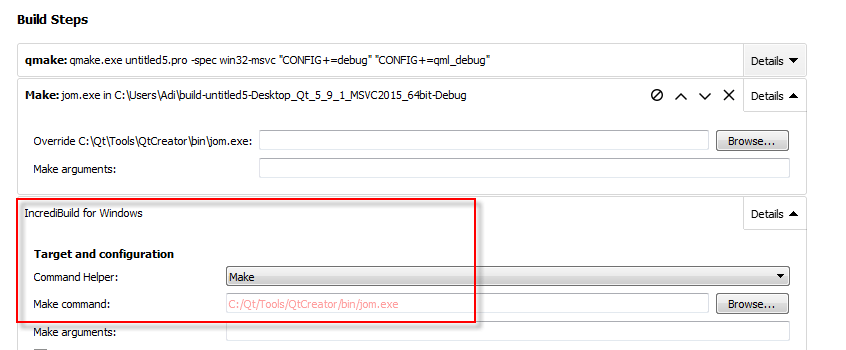
Example - CMake Likewise, in this example which uses CMake, upon adding the Incredibuild Build Step, the Build tool is automatically set to CMake.
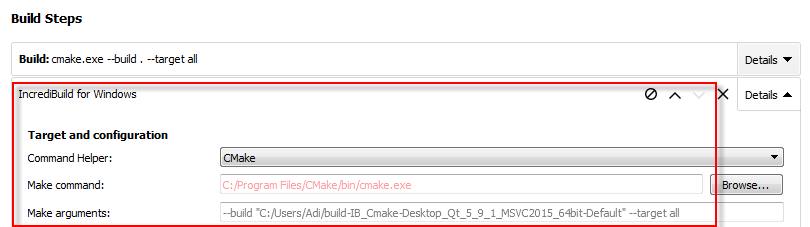
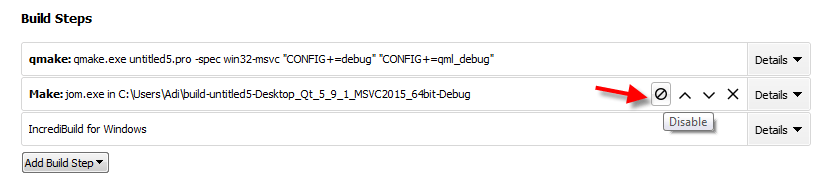
In order for your compilation to use the Incredibuild build step instead of your original build step the Incredibuild plugin will automatically disable your original build step. You can easily revert to executing your original build step by disabling the Incredibuild build step and re-enabling your original build step as shown in the image below.\
Running Builds in Qt using Incredibuild
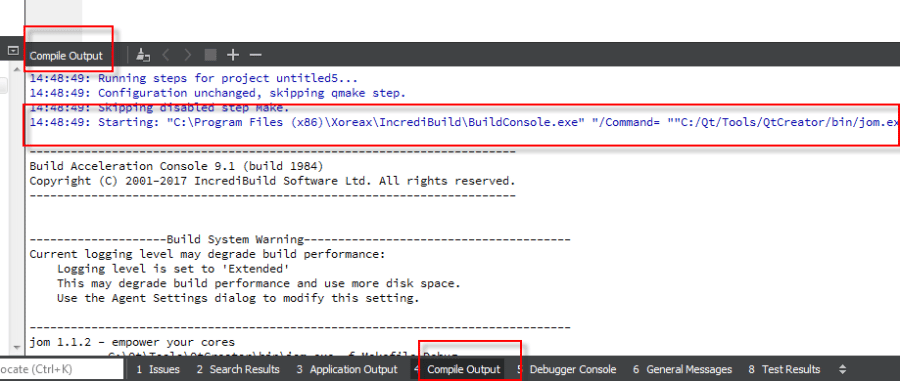
After configuring your Incredibuild build step, simply build your project in Qt Creator as you normally would and Qt Creator will compile using Incredibuild.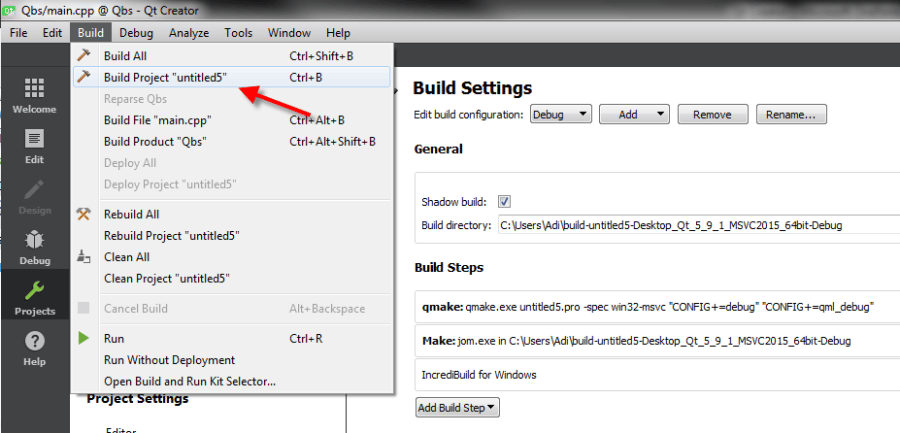
Incredibuild Plugin Settings
Windows Settings
Linux Settings
Incredibuild Plugin Files
Download the appropriate file, depending on your operating system and version of Qt. Copy the file to the following directory in Qt:QtCreator\lib\qtcreator\plugins directory.
Windows
- Qt Creator 4.12: 64-bit windows 32-bit windows
- Qt Creator 4.11: 64-bit windows 32-bit windows
- Qt Creator 4.10: 64-bit windows 32-bit windows
- Qt Creator 4.9: 64-bit windows 32-bit windows
- Qt Creator 4.8: 64-bit windows 32-bit windows
- Qt Creator 4.7: 64-bit windows 32-bit windows
- Qt Creator 4.6: 64-bit windows 32-bit windows
- Qt Creator 4.5: 64-bit windows 32-bit windows
- Qt Creator 4.4: 64-bit windows 32-bit windows
- Qt Creator 4.3: 64-bit windows 32-bit windows
- Qt Creator 4.2: 64-bit windows 32-bit windows