

- 1 – Minimal: Generates the fewest logs for optimal performance.
- 2 – Basic (Default): Recommended setting. Produces limited logs, sufficient for most scenarios.
- 3 – Intermediate: Provides additional details, useful for analyzing build cache hits and misses.
- 4 – Extended: Includes extensive details, helpful for most distribution-related cases.
- 5 – Detailed: Captures all log messages, ideal for troubleshooting environment or customer-specific setups.
-
Enhance the Log Level:
- On the Agent that initiated the build, go to the Agent Settings > Agent > General page.
-
Change the Logging level to Detailed.
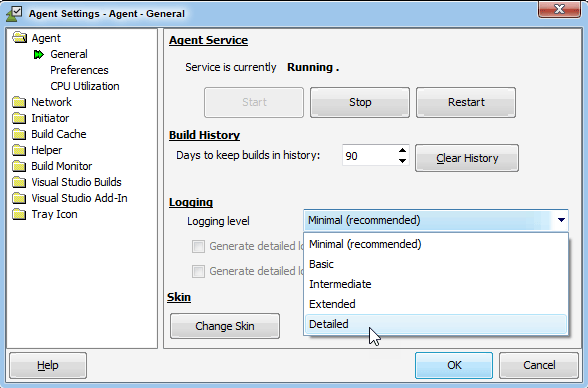
- Rerun your build on the same machine.
-
Save the Build History:
-
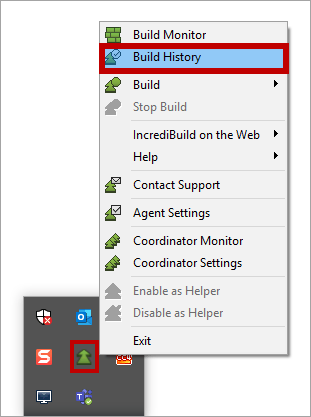
Right-click the IncrediBuild Agent icon on the taskbar, and select Build History.
-
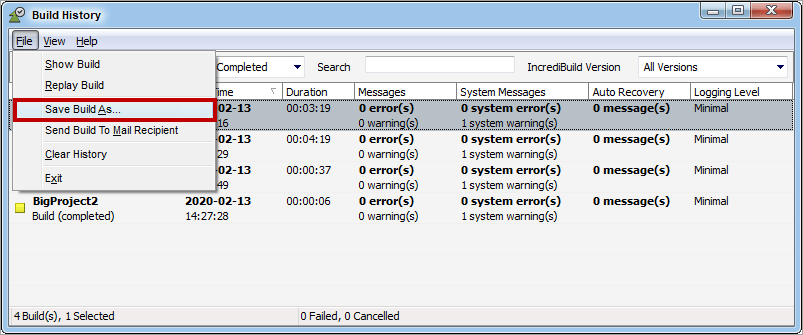
Select the desired Build, then go to File > Save Build As….
-
Right-click the IncrediBuild Agent icon on the taskbar, and select Build History.
-
If you are having an issue with a few specific tasks, save their details in logs. In the Build Monitor, right click any task and click Save Agent Exception Logs.
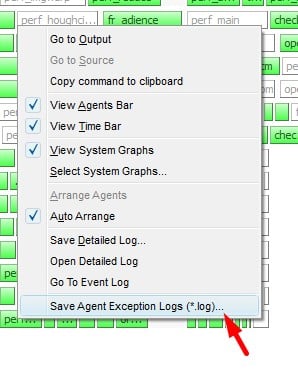
- Send all the items that you saved to Incredibuild.