

How to Change Settings that Require New VMs
This procedure differs depending on your version of IncredibuildIncredibuild 9 for Windows
Incredibuild 9 for Windows
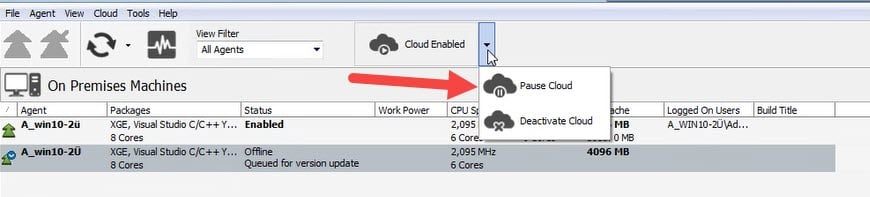
- In your Coordinator Monitor, go to the Cloud Enabled menu and click Pause Cloud.
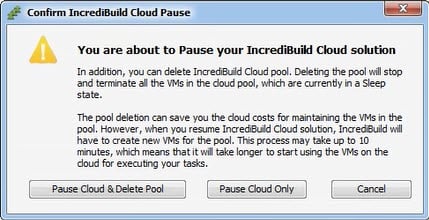
- Click Pause Cloud and Delete Pool.
- Go to Cloud > Edit Incredibuild Cloud Settings.

- Change the required settings and save your changes. Incredibuild will create new VMs in your cloud provider with the new settings. This may take a few minutes. When it is complete continue with the next step.
- In the Cloud Paused menu, click Resume Cloud.

Incredibuild 10 for Windows
Incredibuild 10 for Windows
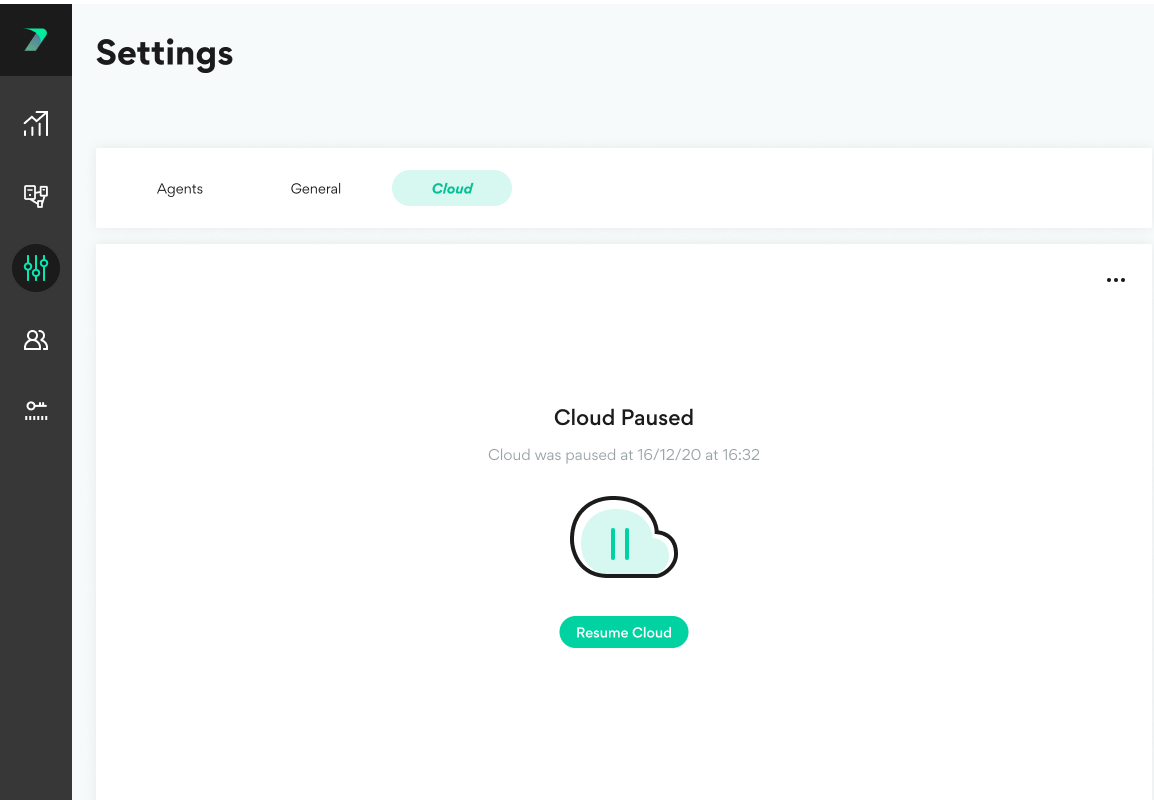
- In your Coordinator, go to Settings > Cloud.
- In the menu options, click Pause Cloud.

- Click the checkbox to delete your VMs, and click Pause.

- Open the Cloud Settings.

- Change the required settings and save your changes. Incredibuild will create new VMs in your cloud provider with the new settings. This may take a few minutes. When it is complete continue with the next step.
- Go back to the Coordinator and click Resume Cloud.
Incredibuild for Linux
Incredibuild for Linux
- In your Coordinator, expand the Cloud Enabled options and click Pause.

- Click Pause and Delete.

- After the status changes to Cloud Paused, click Edit Cloud Settings.

- Change the required settings and save your changes. Incredibuild will create new VMs in your cloud provider with the new settings. This may take a few minutes. When it is complete continue with the next step.
- In the Coordinator, go to the Cloud Paused options and click Resume.
