サイレント インストール
ここではコマンドラインを使って Incredibuild コンポーネントをインストールする手順をみていきます。Incredibuild をたくさんのマシンにインストールする場合やインストールしたことを気付かれたくない場合に適しています。
サイレント インストールは Incredibuild セットアップ ウィザードで作成した自動インストーラー ファイルを使って行います。
インストーラーの作成
-
Incredibuild のセットアップ ファイルを実行します。
-
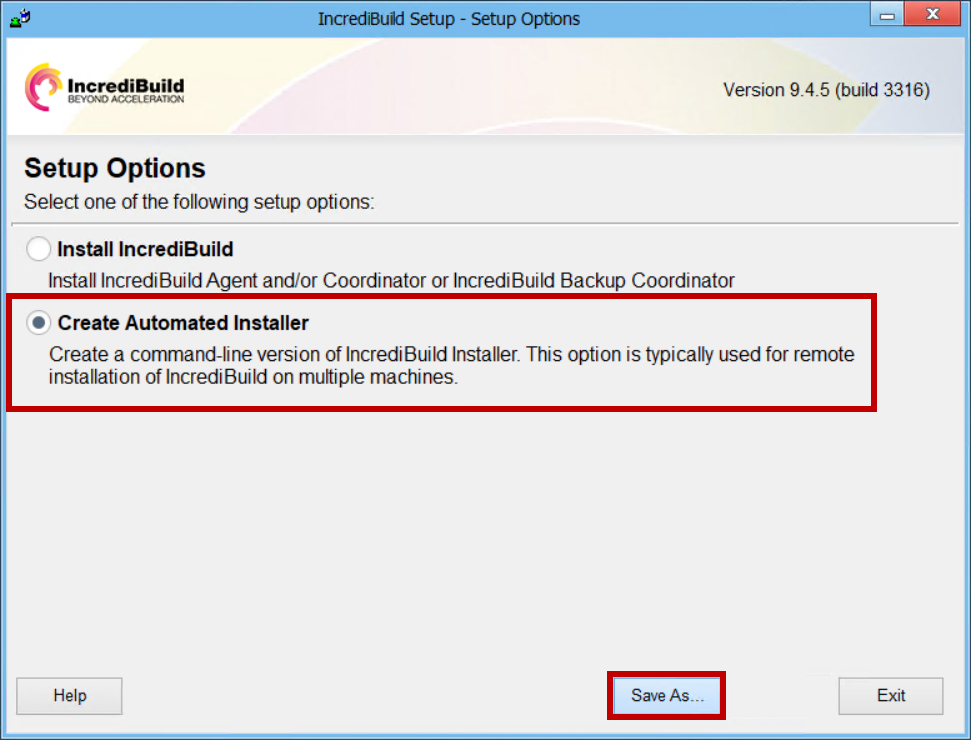
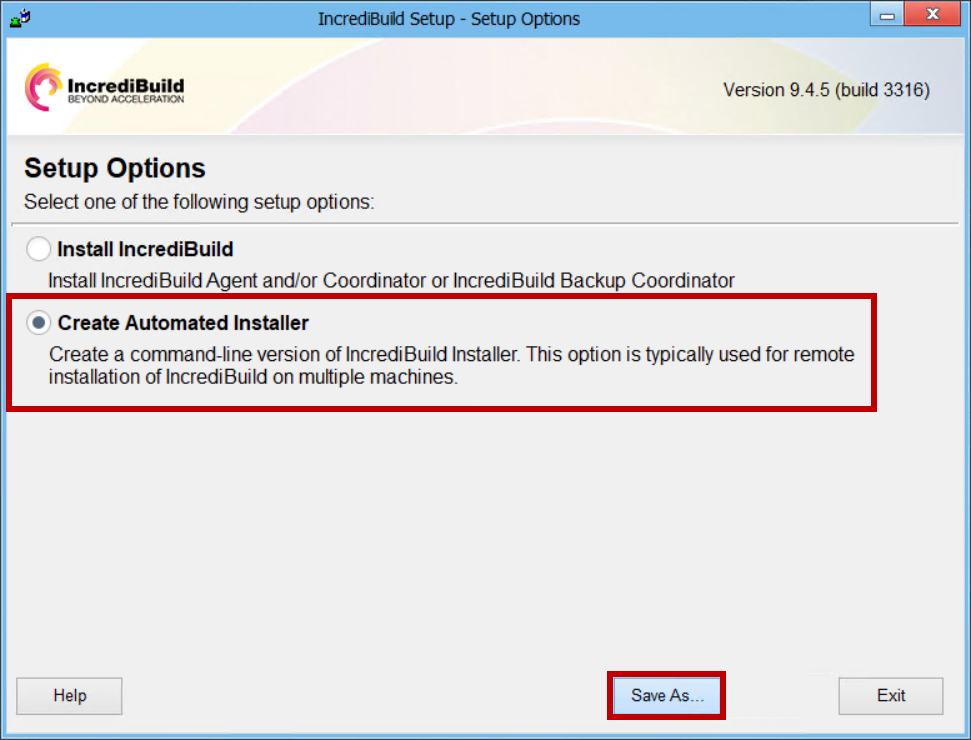
Setup Options ページで、自動インストーラーの作成 を選択し、名前を付けて保存 をクリックします。
自動インストーラーの実行
-
コマンドプロンプトを管理者として実行します。
-
上記で作成した自動インストーラー ファイルがあるディレクトリに移動します。
-
インストールしたいコンポーネントに応じて、次のコマンドとオプションを入力します。1 つのコマンドでインストールできるコンポーネントは 1 つだけです。
IBSetupConsole.exe /Install /Components={Component Name}
/Coordinator={Coordinator IP Address/Hostname}
[General Options] [Component Options]
コマンドの詳細:
-
Components (必須) これは、Agent、Coordinator、 Agent,oneuseのいずれかとすることができます。「oneuse」オプションの箇所は、シングルユースの VM イメージです。
-
Coordinator - 関連するコーディネーターのIPアドレスまたはホスト名。Agent と Backup Coordinator のインストールでは必須です。
Coordinator のポート番号がデフォルト (31104) 以外の場合は、Coordinator 名の後ろにコロン (:) とポート番号を追加して引用符で囲みます ("Coordinator_Name:Port_No")。例: "192.100.00.01:12345"。 -
一般オプション (オプション) - すべてのインストールコマンドに追加できる一般的なインストールオプション。(詳しくは後述)。
-
Component Options(オプション) - インストールされた各コンポーネントに固有のインストールオプション。
自動インストーラーを使った Agent のインストールの例
コマンドプロンプトを起動して次のコマンドを入力すると、Coordinator「Win10-1」と通信する Agent がローカルマシンにインストールされます。
IBSetupConsole.exe /Install /Components=Agent /Coordinator=Win10-1
General Options
次のオプションはインストールするコンポーネントを問わず使用できます。
| オプション | 説明 | 既定値 |
|---|---|---|
|
/AddToPath={ON|OFF} |
Incredibuild のインストール フォルダをシステムの検索パスに追加するかどうかを選択します。 | オン |
|
/InstallDir={Install dir path} |
Incredibuild のインストール フォルダを指定します。 | C:\Program Files (x86)\Incredibuild |
自動インストーラーを使ったインストール
Agent のインストール
自動インストーラーで Agent をインストールするには次のコマンドを入力します。
IBSetupConsole.exe /Install /Components=Agent
/Coordinator={Coordinator IP Address/Hostname}
[General Options] [Agent Options]
Agent のインストールで追加できるオプションは下表の通りです。
| オプション | 説明 | 既定値 |
|---|---|---|
|
/Agent:AutoSelectPorts={ON|OFF} |
Agent Service と Helper コア用の TCP/IP ポートを自動的に選択するかどうかを指定します。オンにすると手動で指定したポートが上書きされます。 | オフ |
| /Agent:FILECACHE={Number in MBs} | Agent のファイル キャッシュの上限 (MB) を指定します。 | 4096 |
|
/Agent:Group={Build Group name} |
[エンタープライズ版のみ] {Group name} の値にグループ名を入力して特定のビルド グループに Agent を割り当てます。詳細については、Agentをビルドグループに割り当てる をご覧ください。 | デフォルトのビルド グループ |
|
/Agent:HelperPort={Port no.} |
Intiator と Helper コア間の通信で使用するポートを手動で指定します。「/Agent:AutoSelectPorts」オプションがオフの場合のみ有効です。 | 31106 |
|
/Agent:InstallAddins={ON|OFF} |
Visual Studio IDE に Incredibuild アドインをインストールします。 | オン |
|
/Agent:OpenFirewall={ON|OFF} |
Windows ファイアウォールで Agent ポートを開放します。 | オン |
|
/Agent:ServicePort={Port no.} |
Coordinator との通信で使用する Incredibuild Agent Service ポートを手動で指定します。「/Agent:AutoSelectPorts」オプションがオフの場合のみ有効です。 | 31105 |
Agent オプションを使った Agent のインストールの例
次のコマンドを入力するとローカルマシンに Agent がインストールされます。この Agent はホスト名が「Win10-1」の Coordinator と通信し、ファイル キャッシュの上限は 4,500 MB で「Dev」ビルド グループに割り当てられます。
IBSetupConsole.exe /Install /Components=Agent /Coordinator=Win10-1
/Agent:FileCache=4500 /Agent:Group=Dev
Coordinator のインストール
自動インストーラーで Coordinator をインストールするには次のコマンドを入力します。
IBSetupConsole.exe /Install /Components=Coordinator
[General Options] [Coordinator Options]
Coordinator のインストールで追加できるオプションは下表の通りです。
| オプション | 説明 | 既定値 |
|---|---|---|
|
/Coord:OpenFirewall={ON|OFF} |
Windows ファイアウォールで Coordinator Service ポートを開放します。 | オン |
|
/Coord:ServicePort={Port no.} |
Agent との通信ポートを手動で指定します。 | 31104 |
Coordinator と Agent のインストール
自動インストーラーで Coordinator と Agent をインストールするには次のコマンドを入力します。
IBSetupConsole.exe /Install /Components=Coordinator
/Coordinator={Primary Coordinator IP Address/Hostname}
[General Options] [Agent Options][Coordinator Options]
IBSetupConsole.exe /Install /Components=Agent
/Coordinator={Primary Coordinator IP Address/Hostname}
[General Options] [Agent Options][Coordinator Options]
Backup Coordinator のインストール
Backup Coordinator をインストールすれば、メインの Coordinator が故障したり、利用できなくなったりした場合でも、その機能が引き継がれ、分散処理を実行し続けることができます。メインの Coordinator に接続されているマシンにインストールする必要があります。
自動インストーラーで Backup Coordinator をインストールするには次のコマンドを入力します。
IBSetupConsole.exe /Install /Components=Coordinator /Coord:Backup
/Coordinator={Primary Coordinator IP Address/Hostname}
[General Options] [Coordinator Options]
注意: このコマンドに追加できる Coordinator のオプションは、プライマリ Coordinator と同じです。
Agent (シングルユース VM) のインストール
[エンタープライズ版のみ] 自動インストーラーでシングルユース VM ライセンスの Agent をインストールするには次のコマンドを入力します。
IBSetupConsole.exe /Install /Components=Agent,oneuse
/Coordinator={Coordinator IP Address/Hostname}
[General Options] [Agent Options] [Coordinator Options]
アンインストール / 更新 / 修復
Incredibuild をサイレントにアンインストール、更新、既存のインストールを修復するには、それぞれに対応するコマンドラインを入力して自動インストーラーを実行します。
> アンインストール
IBSetupConsole /uninstall
> バージョン更新
IBSetupConsole /update
> インストールの修復
IBSetupConsole /repair