Offline Licenses
While Incredibuild licenses are generally designed to for environments that are connected to the internet, you can still install and use Incredibuild in an environment that is self-contained and not connected to the internet.
A few steps still require an internet connection, and these have been marked in the following procedures.
Moving from an Offline License to an Online License
If you move from an offline license to an online internet-connected license, first deactivate the offline license, and then activate the online license on the same machine.
Activating an Offline License
-
Contact your Customer Success Manager to get the Installation file and a license key. The license key will not be used directly, but will be used to create a "req" file in the steps below.
-
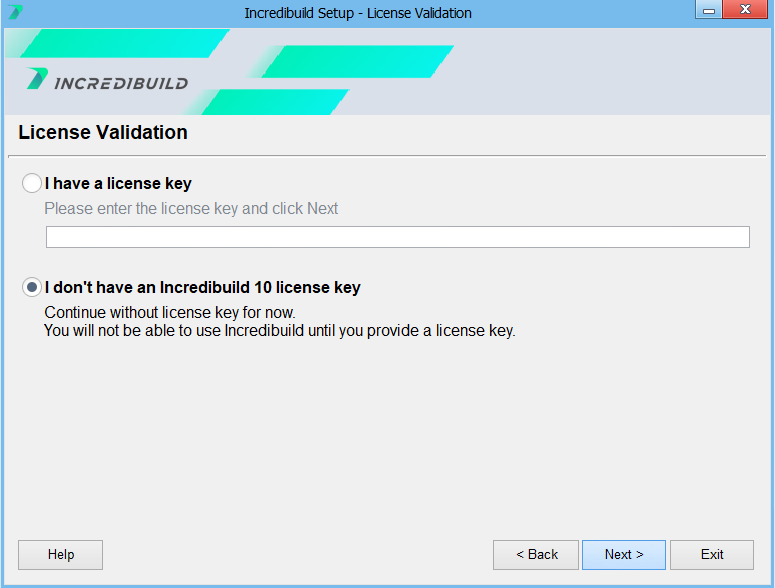
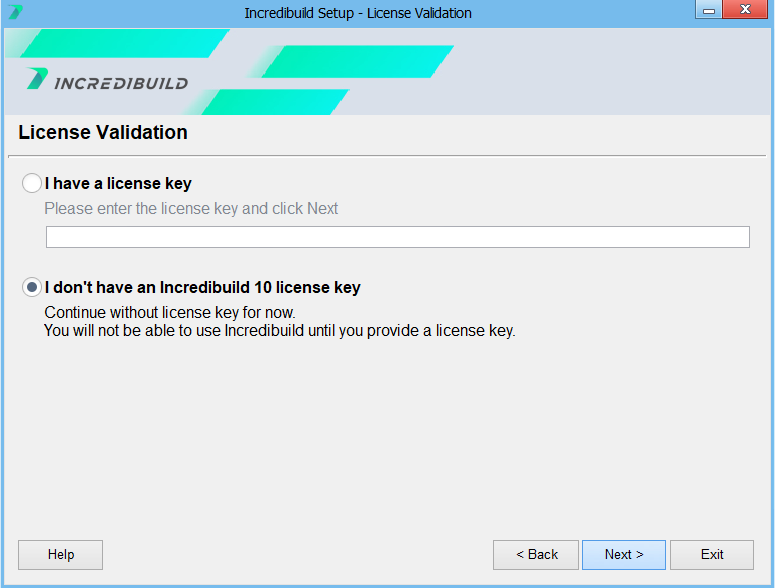
Run the file to install Incredibuild on the first machine. For details about the installation process, see Standard Installation. In the wizard, when a license key is requested, select I don't have a license key.
-
Open the command line as an administrator and run the following:
LicenseServiceConsole ActivateOffline <License Key>
This will create the ib_activation.req file on your machine.
-
Send this file to your Customer Success Manager. They will process it and send you back the ls_activation.lic file.
-
Open the command line as an administrator and run the following:
LicenseServiceConsole LoadOfflineLicense <absolute path to ls_activation.lic>
Your Coordinator is now activated with an offline license.
-
To install additional Agents, run the ibsetup file and connect it to the Coordinator machine.
Updating an Offline License
If you renew an offline license, you need to upload the new one to your Coordinator Machine.
-
Open the command line on the Coordinator Machine as an administrator and run the following using your license key:
LicenseServiceConsole ActivateOffline <your license key>
This will create the ib_activation.req file on your machine.
-
Send this file to your Customer Success Manager. They will process it and send you back a ls_activation.lic file.
-
Open the command line on the Coordinator Machine as an administrator and run the following:
LicenseServiceConsole LoadOfflineLicense <absolute path to ls_activation.lic>
Your Coordinator is now activated with the new offline license.
Deactivating an Offline License
-
From the Incredibuild Coordinator, run the following command as an administrator:
LicenseServiceConsole DeactivateOffline
The ib_deactivation.req file will be created in the Incredibuild root directory.
-
Send the file to your Customer Success Manager and they will deactivate your license.