

Incredibuild 9 for Windows
Incredibuild 9 for Windows
In the Coordinator Monitor, Go to the Cloud menu and click Edit Incredibuild Cloud Settings.
Incredibuild 10 for Windows
Incredibuild 10 for Windows
In the Coordinator, go to the Settings > Cloud tab and click Cloud Settings.
Incredibuild for Linux
Incredibuild for Linux
In the Coordinator, go to the Cloud Enabled menu and click Edit Cloud Settings.
Note: If you are using AWS Marketplace and want to change these settings after configuring your environment, please contact support@incredibuild.com.
Coordinator Settings
This page is only visible when installing Incredibuild Cloud directly from AWS marketplace. You define the username and password that will be needed to access the Coordinator that will be created for you on the cloud.
Network Settings
This window has a few different settings depending on your cloud provider. The example shown below is for AWS.
Resource Management Settings
This window has a few different settings depending on your cloud provider. The example shown below is for AWS.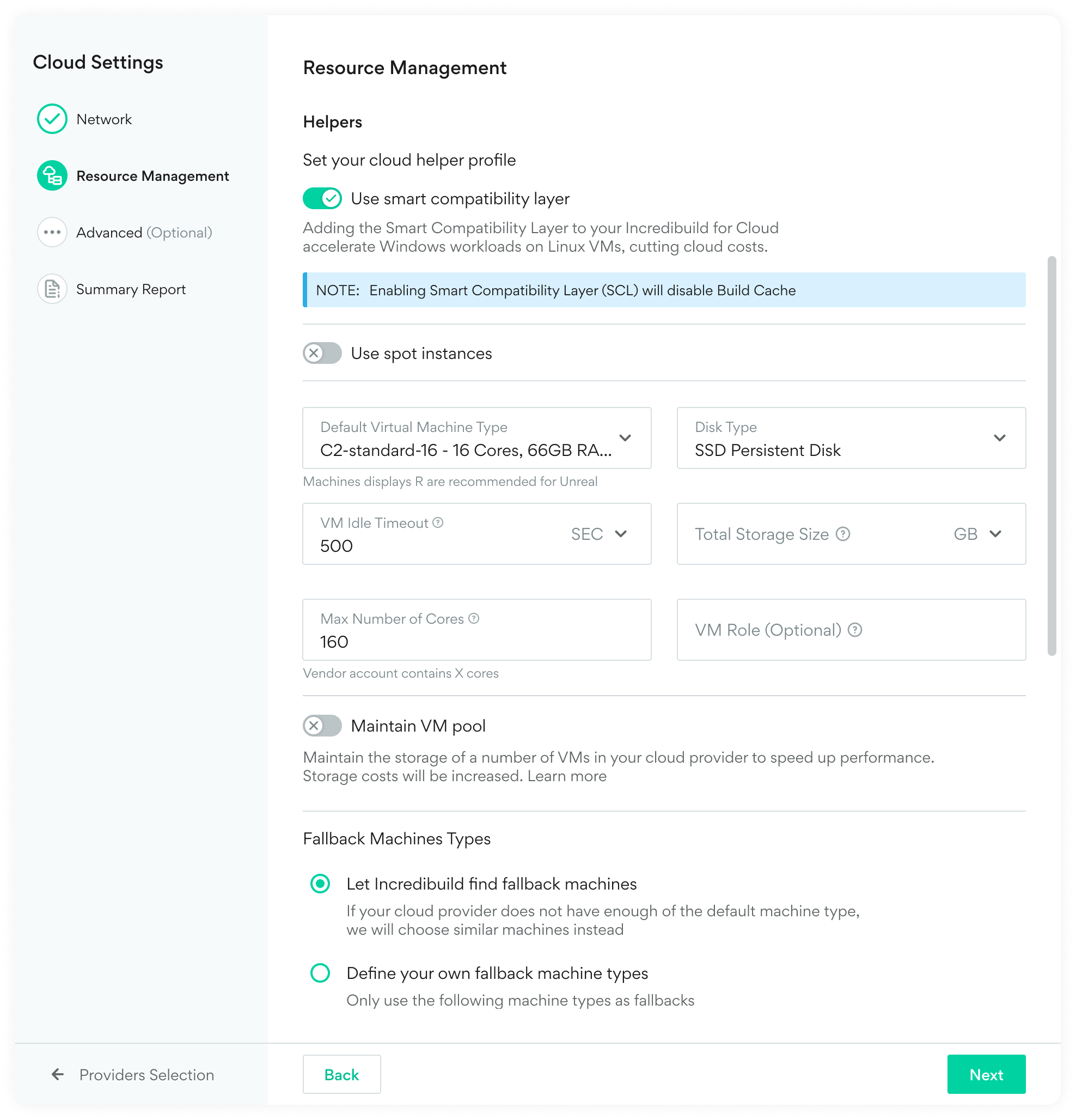
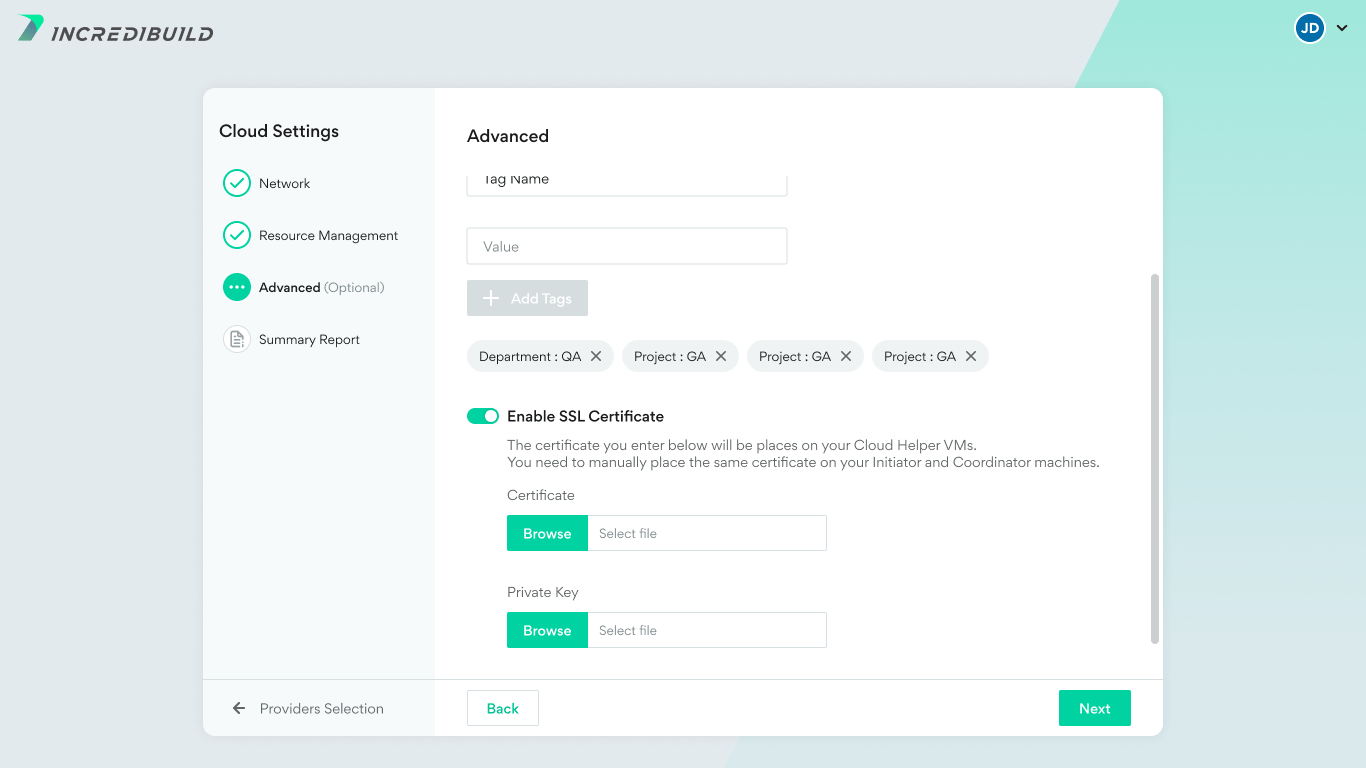
Advanced Settings

Using your Own Security Group
Note: In GCP, this setting is called a Firewall Rule, and no selection is required (just toggle on or off).
- If you are using Incredibuild for Windows, you need to open the Coordinator Port and the VM Ports you specified in the Advanced tab of the Settings wizard. Additionally, you need to open subsequent VM Ports depending on the number of cores in your default machine type. So, if you default machine type has 32 cores, and your VM Port is 31106, you need to open ports 31106-31138 in addition to the Coordinator port (31105 by default).
- If you are using Incredibuild for Linux, you only need to open the Coordinator and VM Ports you specified in the Advanced tab of the Settings wizard.
Using Custom AMIs
By default, Incredibuild Cloud launches instances using standard cloud vendor AMIs. If you need to use your own AMI, for example, because of security requirements, follow these instructions to setup the AMI and configure Incredibuild Cloud to use it.Limitations and Requirements of Custom AMI
- Custom AMIs are only supported with AWS and with Windows-based instances. SCL (Smart Compatibility Layer) instances use the standard AMIs only.
- An Incredibuild Cloud account that uses custom AMIs can only be connected to a single Coordinator.
- The ARN provided during the Incredibuild Cloud onboarding must belong to the account that created the AMI, or have access to the AMI otherwise.
- Instances created using this AMI must have unique names (hostname).
Creating a Custom AMI for Incredibuild Cloud
- Create a Windows instance based on the Windows_Server-2016-English-Full-Base-2025.04.09 AMI and add any additional software you require.
- Schedule the EC2 Launcher service to run after boot, by running the following in PowerShell as Administrator: & “C:\ProgramData\Amazon\EC2-Windows\Launch\Scripts\InitializeInstance.ps1” -Schedule
- Shutdown the instance and create an AMI.
- Once the AMI is ready, copy the AMI ID which you’ll need later.
Setting Incredibuild Cloud to Use the Private AMI
- Connect your Coordinator to Incredibuild Cloud and configure it according to your needs.
- In the Advanced Settings step, set the policy to use a custom AMI, and paste your AMI ID.