

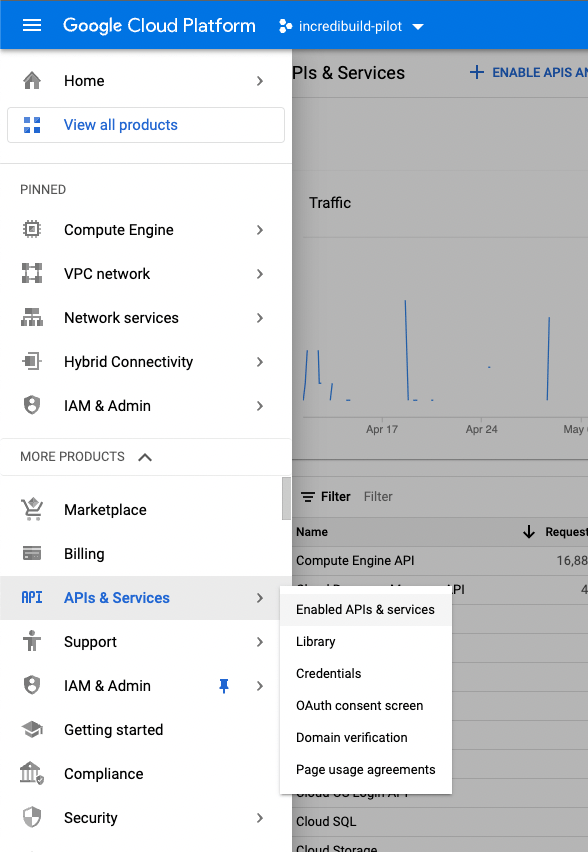
- Project ID
- Service Account ID
Note: GCP’s user interface may have changed since this was last updated on July 15th, 2024.
- In GCP, go to the target project.
- Go to IAM & Admin > Service Accounts > Create Service Account. Enter the requested details and save the service account ID, you will need it later. Click Done.
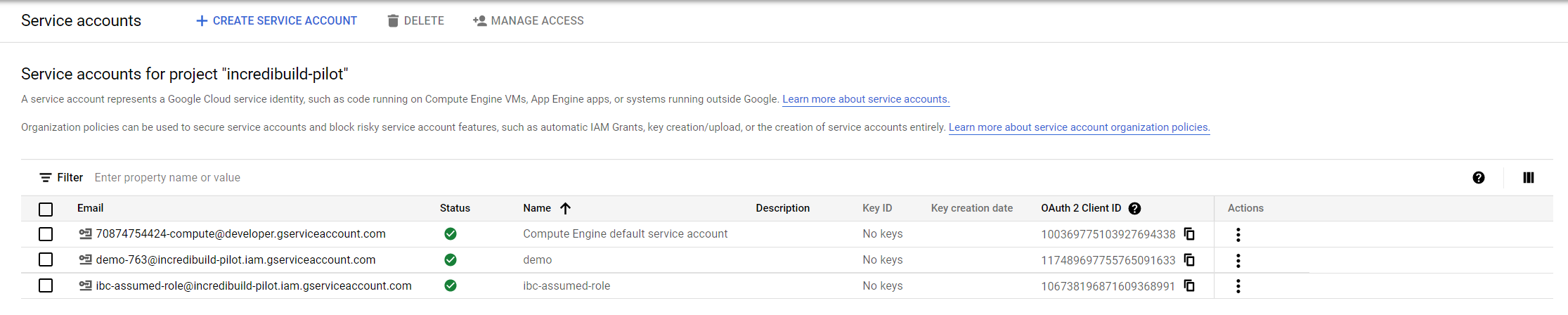
- In the list of Service Accounts, click the Service Account you just created and go to Permissions.
- Grant access to the “New Principal” incredicloud@ib-cloud.iam.gserviceaccount.com with the role “Service Account Token Creator”.
- Create a role with the permissions required by Incredibuild:
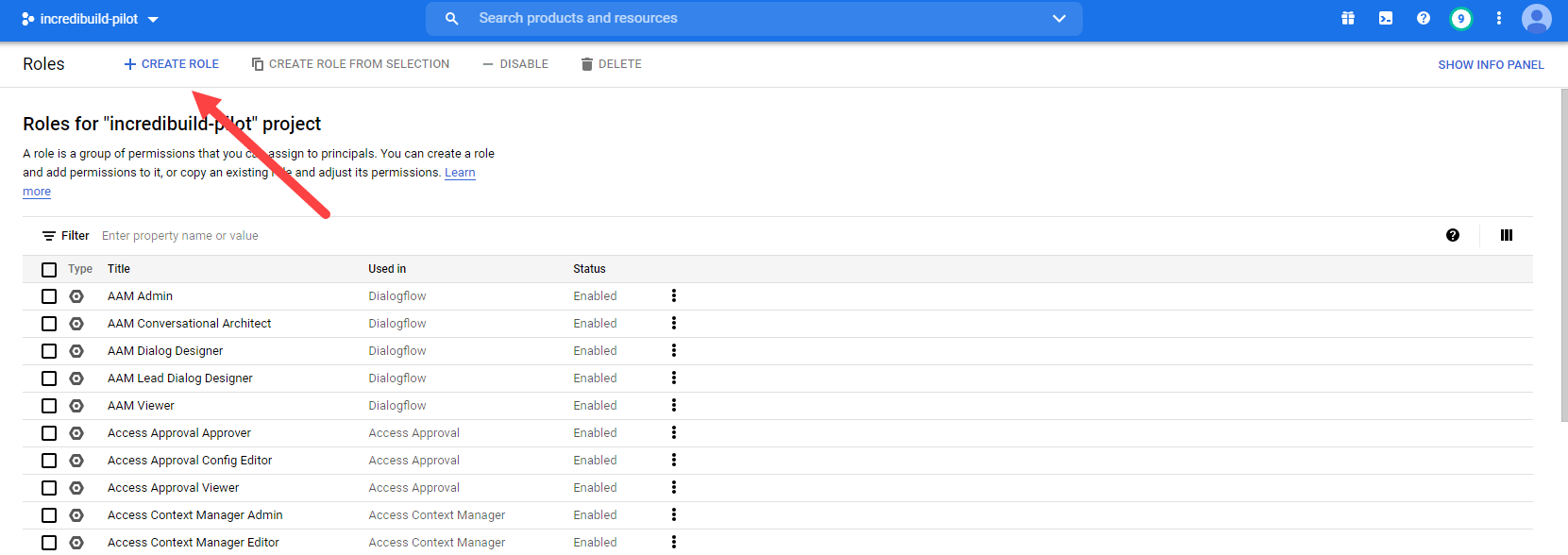
- Go to the Roles area and create a new role.
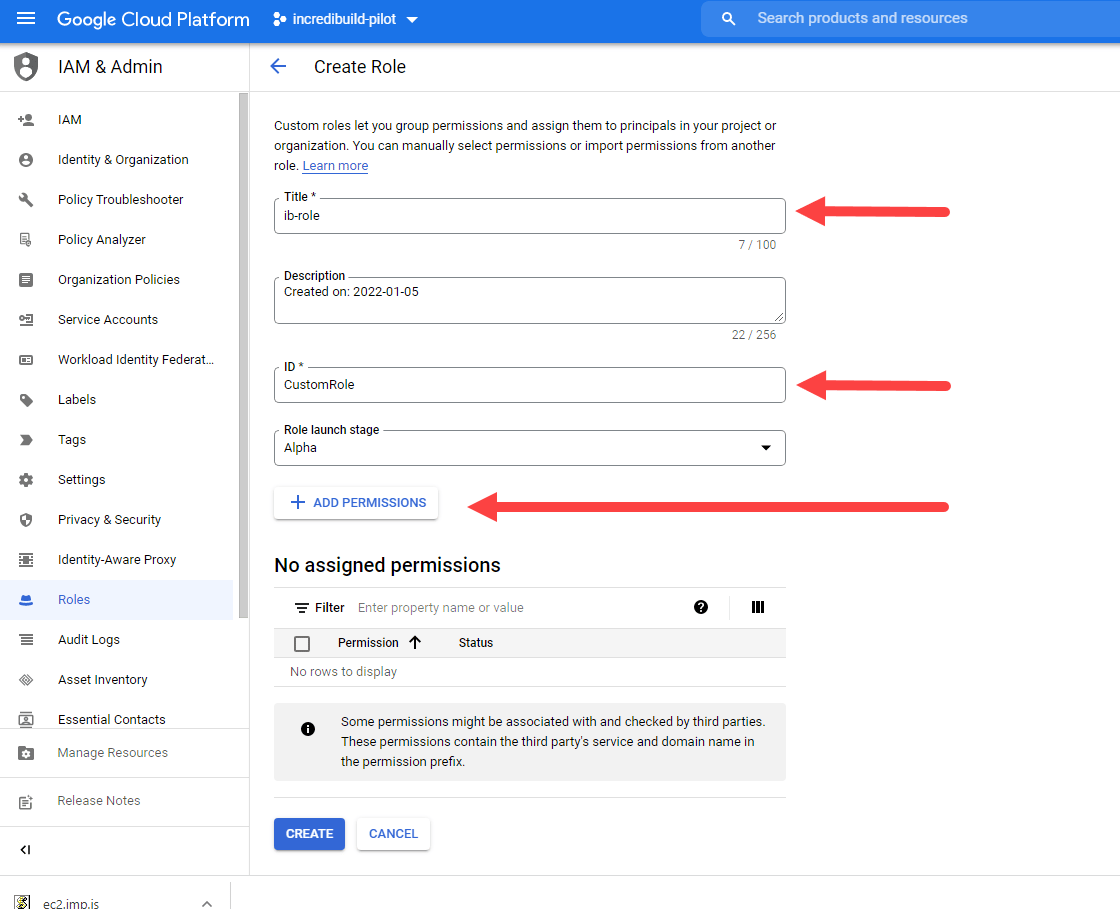
- Enter a Title and an ID (you will need these later)
-
Add the following permissions:
- compute.disks.create
- compute.disks.delete
- compute.disks.get
- compute.disks.list
- compute.firewalls.create
- compute.firewalls.delete
- compute.firewalls.get
- compute.firewalls.list
- compute.firewalls.update
- compute.globalOperations.get
- compute.globalOperations.list
- compute.instanceGroupManagers.create
- compute.instanceGroupManagers.delete
- compute.instanceGroupManagers.get
- compute.instanceGroupManagers.list
- compute.instanceGroupManagers.update
- compute.instanceGroupManagers.use
- compute.instanceGroups.delete
- compute.instanceTemplates.create
- compute.instanceTemplates.delete
- compute.instanceTemplates.get
- compute.instanceTemplates.list
- compute.instanceTemplates.useReadOnly
- compute.instances.attachDisk
- compute.instances.create
- compute.instances.delete
- compute.instances.get
- compute.instances.list
- compute.instances.reset
- compute.instances.resume
- compute.instances.setLabels
- compute.instances.setMetadata
- compute.instances.setServiceAccount
- compute.instances.setTags
- compute.instances.start
- compute.instances.stop
- compute.instances.suspend
- compute.instances.update
- compute.networks.create
- compute.networks.delete
- compute.networks.get
- compute.networks.list
- compute.networks.updatePolicy
- compute.projects.get
- compute.regionOperations.get
- compute.regionOperations.list
- compute.regions.get
- compute.regions.list
- compute.subnetworks.create
- compute.subnetworks.delete
- compute.subnetworks.get
- compute.subnetworks.list
- compute.subnetworks.use
- compute.subnetworks.useExternalIp
- compute.zoneOperations.get
- compute.zoneOperations.list
- resourcemanager.projects.get
- Click Create to create the role.
- Go to IAM > Grant Access to add a new Principal.
- In New principals, enter the new service account ID that you created earlier. Assign it the role you just created.

-
Enable the required APIs as follows:
- Go to APIs & Services > Enable APIs & Services.
- Search for the Cloud Resource Manager API and click Enable.
- Search for the Computer Engine API and click Enable.
Working with Shared VPCs
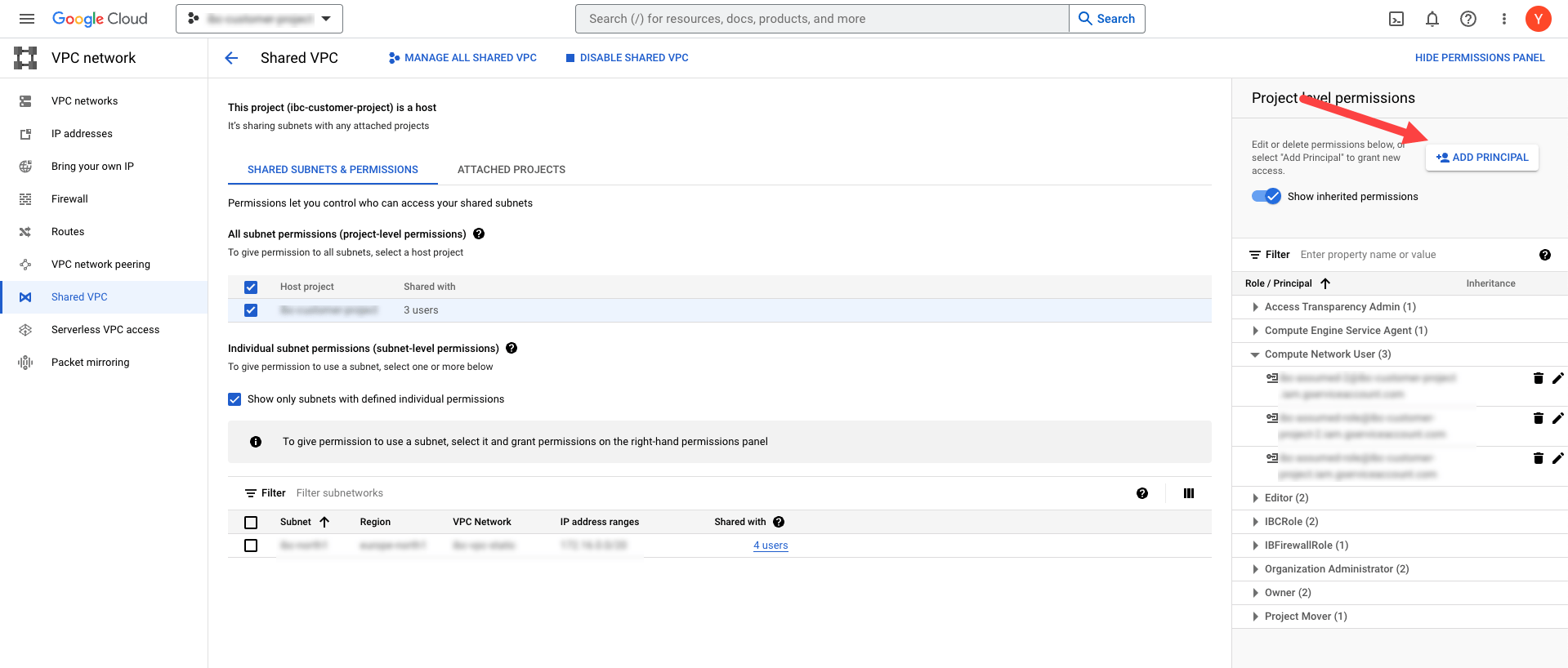
If you are using a shared VPC in your GCP account, you need to ensure that the project you created above is able to access your VPC.- In the project managing the shared VPC, go to VPC Networks > Shared VPC area and click Add Principal.
-
As the new principal, enter the service account from the project that is used for Incredibuild Cloud VMs that you created above, and give it the role Compute Network User.\

-
If you want Incredibuild to manage your firewall rules, create a custom role with the following permissions on the project managing your VPC. This is optional and will not cause Incredibuild to fail, but will require firewall rules to be configured manually if not done.
- compute.firewalls.create
- compute.firewalls.delete
- compute.firewalls.get
- compute.firewalls.list
- compute.firewalls.update
- compute.networks.updatePolicy