

- If you are using Linux, speak to your Customer Success Manager to enable Incredibuild Cloud.
- To purchase and install Incredibuild Cloud through the AWS Marketplace, see Incredibuild Cloud Marketplace instead of using this procedure. This involves installing a Coordinator on the cloud as well. Otherwise, continue with this procedure.
- Make sure that your network meets all of the Cloud Network Requirements.
- The initial activation varies slightly depending on what version of Incredibuild you are using:
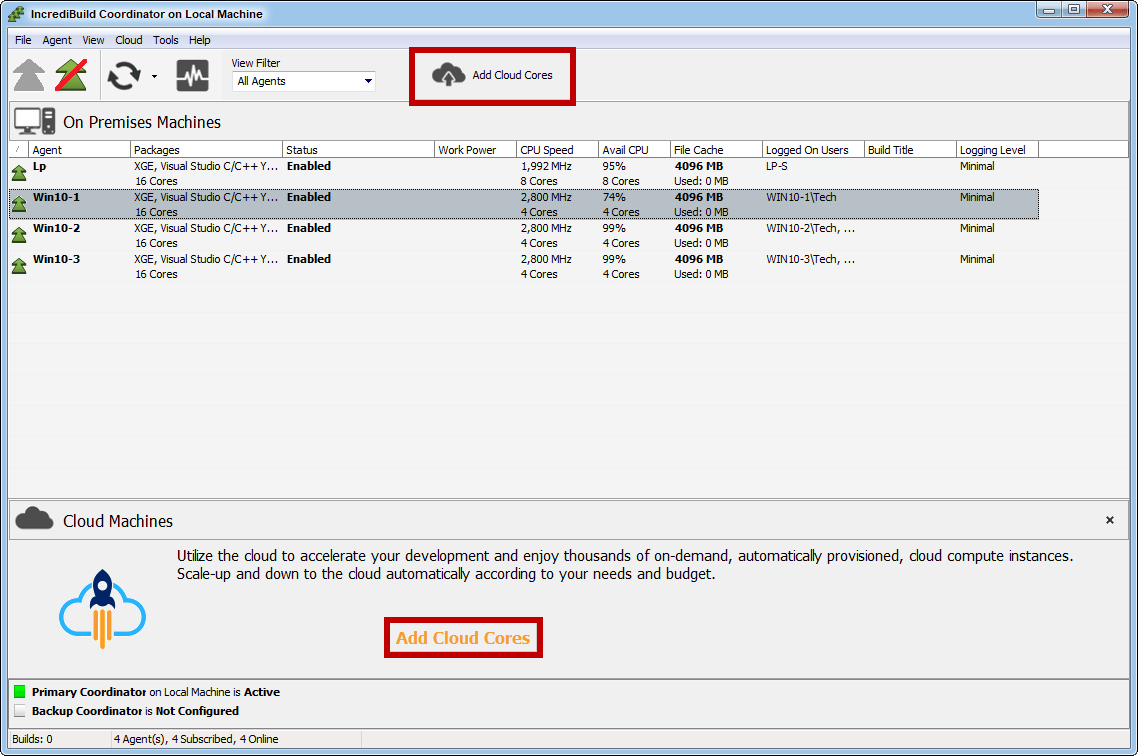


Incredibuild 9 for Windows
Incredibuild 9 for Windows
Go to the Coordinator Monitor and click Add Cloud Cores (either item highlighted in the image below).
Incredibuild 10 for Windows
Incredibuild 10 for Windows
In the Coordinator, go to Settings > Cloud and click Scale to Cloud or Unlock the Cloud. This must be done directly from the Coordinator, and not using a remote connection to the Coordinator.
Incredibuild for Linux
Incredibuild for Linux
In the Coordinator, click Add Cloud Cores.
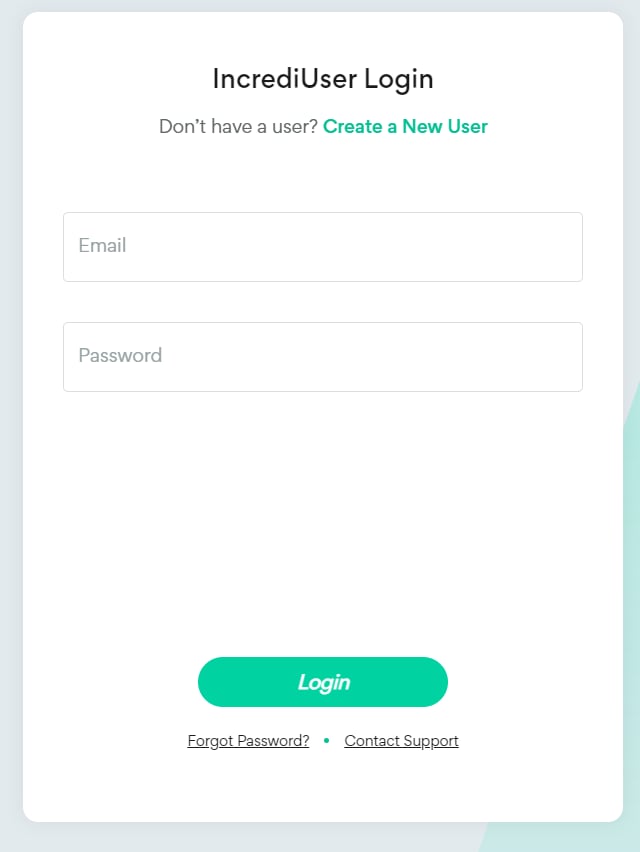
- Sign in using your IncrediUser or create a new one.
- Select your cloud provider and platform.
- Depending on your cloud provider, enter the account details requested. In some cases, these need to be created specifically for Incredibuild. For more details, see:
- Continue with Configuring Incredibuild Cloud Settings.
Troubleshooting
If you have completed the onboarding process, but your Coordinator still displays “Unlock the Cloud” as if the process has not been completed, click Unlock the Cloud and log in with your IncrediUser credentials.- If you are asked to provide information about your cloud provider again, this means you did not successfully complete the onboarding process and need to repeat it.
- If you can successfully log in and view the Cloud Settings, you are already onboarded and the Unlock the Cloud button should be replaced on your Coordinator with Cloud Settings.